
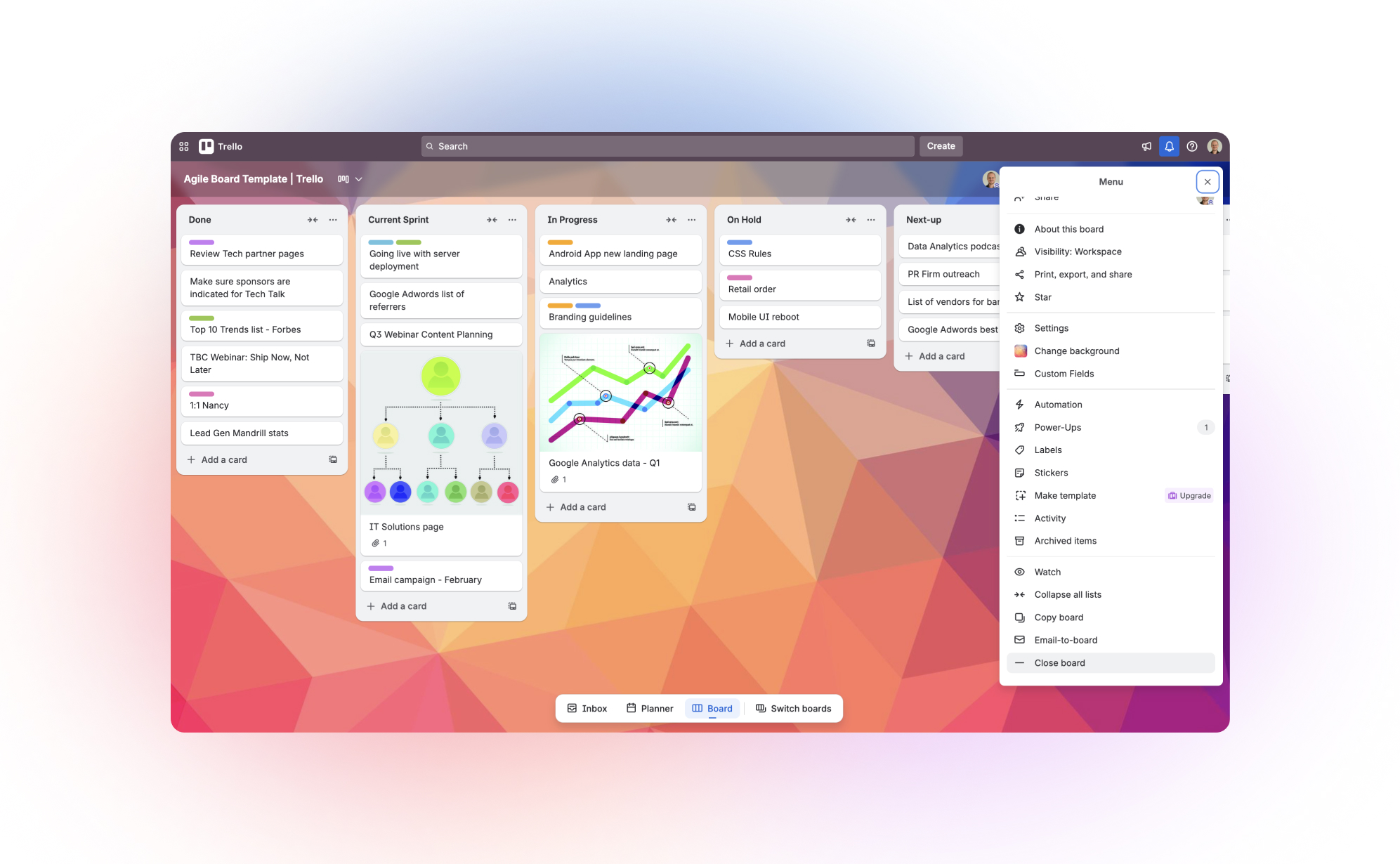
In short: Trello has no trash bin. Archived cards, archived lists and closed boards are kept indefinitely and can be restored from Archived items or the workspace home, but a permanently deleted card, list or board leaves Trello's servers immediately and Atlassian support cannot retrieve it. Always archive or close; delete only test data or items that must be erased for compliance.
Why this guide matters for Trello users
Trello's card-based interface makes it one of the most approachable project management tools on the market. It is also one of the most unforgiving when it comes to data recovery. Unlike most platforms, Trello has no trash bin. When a card, list, or board is permanently deleted, it leaves Trello's servers immediately and permanently, with no recovery window, no escalation path, and no way to ask Atlassian support to retrieve it.
This comprehensive guide shows you:
✓ How to safely archive and delete data in Trello
✓ What Trello's native recovery can and cannot do
✓ How to prevent permanent data loss
✓ A complete backup strategy for business continuity
Who this guide is for:
- IT Administrators managing Trello for their company
- Project Managers responsible for team workflows
- Operations Managers protecting business-critical data
- Compliance Officers ensuring data retention requirements
👉 Start your 7-day free trial at ProBackup: https://app.probackup.io/onboarding
Understanding Trello's data structure
The hierarchy of Trello data
Trello is structured simply, but deletion cascades downward through that hierarchy. Removing a container removes everything inside it, permanently, with no recovery path if you chose Delete rather than Archive.
Trello Data Hierarchy:
Workspace
└── Board
    └── List (column)
        └── Card
            ├── Description
            ├── Checklists & checklist items
            ├── Comments
            ├── Attachments
            ├── Labels
            ├── Members
            └── Due dates & custom fields
Important: Deleting a Board removes:
❌ All Lists inside it
❌ All Cards inside every List
❌ All checklists, checklist items, and descriptions on every Card
❌ All comments and activity history on every Card
❌ All file attachments
❌ All labels, members, and due date data
⚠️ The critical difference from other platforms: Every other tool covered in this series (monday.com, ClickUp, Asana, HubSpot, Airtable) holds deleted items in a trash bin for at least 30 days. Trello does not. A permanently deleted item is gone from Trello's servers the moment you confirm the deletion. There is no timer, no recovery window, and no support escalation that can retrieve it.
How to archive and delete data in Trello
Archive vs. Delete: the most important distinction in Trello
In Trello, this distinction matters more than on any other platform. The reason is simple: archive is reversible indefinitely; delete is immediately and permanently irreversible.
🟢 Archive: The correct choice in almost every situation
- Removes the card, list, or board from your active view
- Preserves all data, comments, attachments, and history indefinitely
- Can be restored at any time from the Archived items menu, no time limit
- Archived cards also improve board performance on large boards
- No countdown clock, no risk of permanent loss
🔴 Delete: Only for data that must be destroyed
- Trello requires you to archive an item before the Delete option appears. This two-step process is your last warning
- Once you click Delete and confirm, the data is gone from Trello's servers immediately and permanently
- Trello support confirms: deleted items cannot be recovered under any circumstances
- The only legitimate reasons to delete are items created by mistake, obvious test data, or GDPR/compliance-driven removal
| Action | ✅ Good for | ❌ Not recommended for |
|---|---|---|
| Archive a card | Completed tasks, cards you may reference later, anything you are not 100% certain you want gone forever | Cards that must be provably destroyed for compliance: use Delete only for those |
| Archive a list | Completed sprint columns, old workflow stages, entire phases of work you want to preserve | Lists where you haven't verified every card inside is safe to remove from active view |
| Close a board | Hiding a completed project board from your active workspace view while preserving all its data | Boards that any team member might still be actively referencing, closing is visible to all admins |
| Delete a card (permanent) | Test cards, duplicates, or data that must be destroyed for compliance reasons | Anything with comments, checklists, or attachment history, all of this is gone immediately with no recovery path |
| Delete a list (permanent) | GDPR-driven removal of specific list contents only, and only after verifying every card inside | Any list with cards you haven't individually reviewed: deleting a list permanently deletes all open and archived cards it contains |
| Delete a board (permanent) | Only when the board and every card inside it genuinely needs to be destroyed | Completed or inactive projects: close the board instead and leave it closed indefinitely |
How to archive a card
Method 1, From the card back:
- Click the card to open it
- In the Actions menu on the right sidebar, click Archive
- The card disappears from the board but is fully preserved
Method 2, From board view:
- Hover over the card
- Click the pencil/edit icon that appears
- Select Archive
Keyboard shortcut: Hover over any card and press C to archive it instantly.
To permanently delete after archiving: reopen the archived card → click the red Delete button that now appears in the Actions menu → confirm. This action is irreversible.
How to archive a list
- Click the three dots (...) next to the list title
- Select Archive this list
- All cards inside the list are archived with it, fully preserved
To permanently delete a list after archiving: open the board menu → More → Archived items → switch to Lists → find the list → click Delete → confirm. This permanently deletes the list and all of its cards, including any cards that were previously archived within it.
⚠️ Warning: Deleting an archived list does not just delete the list structure. It permanently deletes every card the list ever contained, including ones you archived months ago. Verify the full contents before confirming a list deletion.
How to close (archive) a board
- Click the three dots (...) menu in the top-right corner of the board
- Select ...More
- Click Close board
- Confirm: the board is hidden from your active workspace but fully preserved
To permanently delete a closed board: go to your workspace home → find the closed board → open it → click ...More → Permanently delete board → confirm. Workspace admins on paid plans can also delete closed boards they don't own if they have the board URL.
⚠️ Warning: Board deletion is permanent and cannot be recovered. If you want to get rid of a board without losing its content, close it and leave it closed.
How to restore archived data in Trello
If you followed the archive-first approach, restoration is straightforward and has no time limit.
Restoring archived cards
- Open the board where the card lived
- Click the three dots (...) menu in the top-right corner
- Select ...More → Archived items
- Use the search bar to find your card by name or keyword
- Click Send to board to restore it to its original list position
Restoring archived lists
- Open the board where the list lived
- Click the three dots (...) menu → ...More → Archived items
- Toggle to the Lists view
- Find the list and click Send to board
- The list and all its cards return to the board
Restoring a closed board
- Go to your Trello workspace home page
- Find the closed board (it appears with a closed indicator in your board list)
- Open it
- Click Reopen board
Archive and restore summary
| Data type | Archive available? | Recovery window (archived) | Recovery window (permanently deleted) | Notes |
|---|---|---|---|---|
| Cards | ✅ Yes, indefinitely | Indefinite, no time limit | None, immediately permanent | Must archive before the Delete option appears; restore via Archived items menu |
| Lists | ✅ Yes, indefinitely | Indefinite, no time limit | None: deletes list and ALL cards inside it permanently | Deleting an archived list also permanently deletes every card it ever contained |
| Boards | ✅ Yes (via Close board), indefinitely | Indefinite: reopen at any time | None: board and all contents gone immediately | Must close before the permanent delete option appears; workspace admins can delete closed boards on paid plans |
| Checklist items | ❌ No | None | Immediately permanent | No archive step, no undo: deleted immediately on click |
| Comments | ❌ No | None | Immediately permanent | No archive step, no undo, no recovery window |
| Workspaces | ❌ No archive | None | Immediately permanent | Deleting a workspace removes all boards inside it with no recovery path |
What can't be restored natively in Trello
Trello's archive is an excellent tool for keeping workspaces tidy without losing data. It is not a backup. Here is where native recovery ends.
1. Permanently deleted items have zero recovery path
This deserves to be stated plainly. Unlike every other platform in this series, Trello has no trash bin that holds deleted items for any period of time. The moment you confirm a permanent deletion, the data is gone from Trello's servers. There is no 30-day window, no 7-day window, no support ticket that can retrieve it, and no escalation path. Atlassian's own documentation confirms this.
2. Checklist items and comments are gone immediately
Deleting a checklist item or a comment bypasses the archive step entirely. There is no two-step process, no archive-then-delete flow, no toast notification with an undo button. A single click confirms the deletion and the data is gone immediately and permanently.
For teams that use card comments to record decisions, client approvals, or project context, or use checklists to track process steps, this is a significant and often-overlooked exposure.
3. No version history or rollback
Trello's activity log on each card shows a history of changes: when a card moved between lists, when a due date was set, when a member was added. What it cannot do is restore a previous state of the card's data.
If a Power-Up or integration updates card descriptions or custom fields in bulk, or if Butler automation fires on the wrong condition and modifies hundreds of cards, the activity log tells you it happened. It does not give you a way to reverse it.
Common causes of silent data corruption:
- A Butler automation rule fires on a broader set of cards than intended, moving them between lists or updating labels at scale
- A third-party Power-Up integration writes incorrect data to card descriptions or custom fields
- A team member bulk-archives or bulk-deletes cards using the board menu without reviewing each one
- Atlassian Intelligence or a connected AI tool takes action on cards based on an ambiguous instruction
4. What Trello support can and cannot do
✅ Can do:
- Advise on using the Archived items menu and board restoration
- Investigate if data loss was caused by a platform bug
- Sometimes restore data if a verified system error caused the loss (rare)
❌ Cannot do:
- Recover permanently deleted cards, lists, or boards
- Recover deleted comments or checklist items
- Roll back bulk changes made by Butler automations, AI agents editing boards over MCP, or Power-Up integrations
- Provide any recovery path for items deleted through the standard Delete flow
Common data loss scenarios & solutions
Scenario 1: "A board with months of client work was permanently deleted"
What happened: A workspace admin was cleaning up old boards and permanently deleted an active client board, thinking it was a completed test project. There is no confirmation showing what is inside before the final delete step.
Native solution:
✗ Board deletion in Trello is immediate and permanent
✗ There is no trash bin, no recovery window, and no timer
✗ Trello support cannot retrieve permanently deleted boards
✗ Must reconstruct from emails, screenshots, or memory
Scenario 2: "An archived board was deleted... and took all its cards with it"
What happened: A team member deleted an archived board to clean up the Archived items menu, not realising that deleting an archived board permanently deletes every card it ever contained - including cards that had been archived months earlier.
Native solution:
✗ Deleting an archived list permanently destroys all its cards - both open and previously archived
✗ There is no recovery path for any of those cards
✗ The activity log shows the list was deleted but cannot restore it
Scenario 3: "Comments recording a client approval were deleted"
What happened: A team member tidied up a card by deleting old comment threads. The comments included written client approval of a project scope. The client is now disputing what was agreed.
Native solution:✗ Deleted comments have no archive step and no recovery path in Trello✗ Gone immediately and permanently on click✗ The card's activity log shows comments were added and deleted but does not show the comment content✗ Trello support cannot retrieve deleted comment text
Scenario 4: "A Butler automation moved 300 cards to the wrong list"
What happened: A Butler rule was misconfigured and triggered on a broader set of cards than intended, moving 300 cards from their correct lists into a "Done" list. The cards still exist, but all workflow context (which stage each card was in) is lost.
Native solution:
✗ Cards were moved, not deleted = the archive offers no help
✗ Activity log shows each card's movement but moving 300 cards back manually is hours of work
✗ No bulk undo or rollback mechanism in Trello
Scenario 5: "A departing employee permanently deleted all their boards"
What happened: A team member with admin access deleted 6 boards before their last day. All work history, checklists, and client communication stored in those boards is gone.
Native solution:
✗ Permanently deleted boards cannot be recovered, not by admins, not by Atlassian support
✗ There is no audit log showing what data existed in the boards before deletion
✗ No time window to recover, deletion is immediate
Scenario 6: "Checklists were deleted from cards across a process board"
What happened: A team member deleted checklist items from 40 cards while "cleaning up" a process board, removing the step-by-step process documentation attached to each task.
Native solution:
✗ Checklist items deleted directly have no archive step and no recovery path
✗ Gone immediately on click with no undo mechanism
✗ No way to restore them through any native Trello feature
Quick reference: "I lost data: what should I do?"
| Situation | First step | If that fails |
|---|---|---|
| Accidentally archived a card or list | Board menu (three dots) → More → Archived items → find item → Send to board | Archive is indefinite: the item will always be there unless it was permanently deleted |
| Accidentally closed a board | Workspace home → find closed board → open it → Reopen board | Closed boards can be reopened indefinitely, no time limit |
| Permanently deleted a card, list, or board | No native recovery, permanently deleted items cannot be restored by any means in Trello | Restore from ProBackup only; if no backup exists, data is permanently lost |
| Deleted a comment or checklist item directly | No native recovery: these have no archive step and no undo mechanism | Restore from ProBackup only |
| Card data was changed by an automation or Power-Up | Check card activity log to understand the scope of changes | Native tools cannot bulk-revert card data: restore from ProBackup to roll back to the pre-change state |
| Need to find a card you archived a long time ago | Board menu → More → Archived items → search by name or keyword → Send to board | If the board was closed, reopen it first to access its archived items |
Summary: Why Trello's archive isn't enough for professional teams
Trello's archive is one of the most straightforward data preservation tools in the category, indefinite retention with simple restoration. But it was built to keep workspaces tidy, not to serve as a disaster recovery system. And crucially, it offers zero protection against permanent deletion, which in Trello is immediate, irreversible, and happens with a single confirmation click.
| Feature | ✅ Good for | ❌ Not sufficient for |
|---|---|---|
| Archive (cards and lists) | Hiding completed items from active view while preserving all data indefinitely, the right default for almost all cleanup | Protection against permanent deletion; recovering comment or checklist data deleted directly; version rollback |
| Close board | Preserving a complete board with all its cards while removing it from active workspace view | Protection against permanent board deletion; version history of board contents over time |
| Archived items menu | Restoring archived cards, lists, and reopening closed boards, no time limit | Recovering permanently deleted items; recovering comments or checklist items deleted directly |
| Activity log (per card and per board) | Seeing who moved a card, changed a due date, or added a comment, and when | Rolling back bulk changes from automations or integrations; showing deleted comment content |
| ProBackup | Automated daily backups, long-term retention (unlimited on Premium), point-in-time recovery, granular restore, compliance documentation | n/a |
Compliance & data retention
Data retention requirements by industry
| Industry | Typical retention requirement | Trello native covers this? |
|---|---|---|
| Finance & Accounting | 7 years | ❌ No: archived boards persist but there is no versioned audit trail or point-in-time history |
| Healthcare (HIPAA) | 6–10 years | ❌ No |
| Legal | 7 years | ❌ No |
| General business / contracts | 3–5 years | ⚠️ Partially: archived boards and cards persist indefinitely, but there is no point-in-time history or exportable audit trail |
| EU GDPR | As long as purpose requires + deletion on request within 30 days | ⚠️ Partial: card and board deletion is straightforward and permanent (useful for erasure requests), but proving backup purge requires a third-party solution |
GDPR compliance: the "right to be forgotten"
When an EU citizen requests deletion of their personal data, you must delete it from production systems and backups, and document it within 30 days.
How this works with Trello + ProBackup:
Step 1: Delete user data from Trello: remove the person from the workspace, permanently delete cards containing their personal data, and remove personal data from card descriptions and comments.
Step 2: Request deletion from ProBackup: open a support ticket specifying the user and date range. ProBackup purges that data from backup storage.
Step 3: Export a deletion certificate from ProBackup for your GDPR compliance documentation.
👉 Read our full GDPR guide: Handling GDPR Deletion Requests in Your Backup System
SOC 2 & ISO 27001: what auditors look for
| Auditor requirement | Trello native | Trello + ProBackup |
|---|---|---|
| Automated daily backups | ❌ No automated backup system: archive only, with no versioning | ✅ Daily automated backups |
| Documented backup procedures | ❌ Not provided | ✅ Documented and auditable |
| Tested restore process | ⚠️ Manual: teams must self-test Archived items restoration | ✅ Tested and verifiable |
| SOC 2 certified backup vendor | N/A | ✅ ProBackup is SOC 2 Type II certified |
| Configurable retention policy | ❌ Archive is indefinite but unversioned; no point-in-time history | ✅ Configurable per plan: unlimited on Premium, with point-in-time history |
| Audit trail of backup activity | ❌ Not available | ✅ Full audit log |
Protect your Trello data today
Trello's simplicity is one of its greatest strengths. But that same simplicity extends to its deletion model: there is no confirmation screen that shows you what you are about to destroy, no trash bin to fish things out of afterwards, and no support escalation that can retrieve what's gone. For Trello specifically, the question is not whether you need a backup. It is how recent your last snapshot needs to be.
ProBackup gives you:
✓ Automated daily backups of all your Trello data
The step-by-step walkthrough is in how to back up your Trello boards.
✓ Unlimited retention on the Premium plan (no expiration, ever)
✓ Point-in-time recovery (restore from any date)
✓ Granular restore (one card, one board, or everything)
✓ Google Drive sync on Pro and Premium plans (you own your data)
✓ SOC 2 Type II certified (enterprise-ready)
✓ 3-minute setup (no technical knowledge needed)
Evaluating backup tools? See how ProBackup compares to Rewind for Trello.
👉 Start your 7-day free trial at ProBackup: https://app.probackup.io/onboarding

Related posts

How to back up Webflow (and restore deleted data)


How to back up Notion (and restore deleted data)

How to back up Teamwork (and restore deleted data)