.jpg)
In short: In Asana, archive rather than delete: archived projects keep every task, comment and attachment indefinitely. Deleted tasks are recoverable for 30 days via Advanced Search's Deleted filter; deleting a project sends a recovery email to the person who deleted it. Comments, some attachments and custom-field values have no native recovery once gone, and the undo toast lasts about 15 seconds.
Why this guide matters for Asana users
Asana is mission-critical for teams managing project timelines, task ownership, client deliverables, approval chains, and cross-functional programmes. For many organisations, it quietly becomes the source of truth for how work actually gets done... which makes data loss less of a theoretical problem and more of a when, not if. If you are still weighing up tools, our breakdown of Asana vs Trello vs monday.com covers how each platform treats your data.
This comprehensive guide shows you:
✓ How to safely delete and restore data in Asana
✓ What Asana's native recovery can and cannot do
✓ How to prevent permanent data loss
✓ A complete backup strategy for business continuity
Who this guide is for:
- IT Administrators managing Asana for their company
- Project Managers responsible for team workflows
- Operations Managers protecting business-critical data
- Compliance Officers ensuring data retention requirements
👉 Start your 7-day free trial at ProBackup: https://app.probackup.io/onboarding
Understanding Asana's data structure
The hierarchy of Asana data
Asana is organised as a pyramid: Each level is the building block of the one above it. Deletion cascades downward: removing a container removes everything inside it.
Asana Data Hierarchy:
Organisation / Workspace
└── Team
└── Project
├── Section
│ ├── Task
│ │ ├── Subtask
│ │ ├── Comments
│ │ ├── Attachments
│ │ └── Custom field values
│ └── Task (multi-homed: can belong to multiple projects)
└── Custom fields (global or project-level)
Portfolio
Goals
Important: Deleting a Project removes:
❌ All Sections inside it
❌ All Tasks and Subtasks (unless they are multi-homed in another project)
❌ All comments and communication history on those tasks
❌ All file attachments
❌ All custom field values for tasks within that project
❌ All task dependencies and timeline data
⚠️ Multi-homing note: Asana allows a single task to live in multiple projects simultaneously. If a task is multi-homed, deleting one project removes the task from that project, but the task still exists in any other projects it belongs to. This can be a lifesaver, or a source of confusion, depending on how your workspace is structured.
⚠️ Before removing a team member: Reassign their tasks before deprovisioning their account. Tasks without an owner can fall out of filtered views and scheduled reports, creating silent gaps in your project data.
How to archive and delete data in Asana
Best practice: Archive vs. Delete
🟢 Archive: Recommended in almost all cases
- Removes the project from active views without deleting any data
- Preserves all tasks, comments, attachments, and history indefinitely
- Can be restored at any time
- No countdown clock, no risk of permanent loss
🔴 Delete: Use with extreme caution
- For tasks: moves to a recoverable deleted state for 30 days, then permanently erased
- For projects: triggers an immediate recovery email to the deleting user. If that email is missed, recovery becomes harder
- Comments, certain attachments, and custom field data have no native recovery path once permanently deleted
| Action | ✅ Good for | ❌ Not recommended for |
|---|---|---|
| Archive a project | Completed projects, old client work, inactive programmes, data preserved indefinitely with no risk | Compliance removal or permanent deletion; data that must be provably destroyed |
| Delete a task | Duplicate entries, tasks created by mistake | Tasks with important comments, attachments, or custom field data, comments are immediately and permanently gone even if the task is later restored |
| Delete a section | Restructuring a project where all tasks can safely be moved or deleted | Any section where you haven't carefully read the prompt, selecting "delete tasks" instead of "move tasks" removes all items at once with no further confirmation |
| Delete a custom field from a project | Fields that are genuinely no longer needed and whose data has no future value | Any field with tracking or categorisation data: deletion removes values from every task in the project immediately and irreversibly within Asana |
| Delete a project | Test projects, duplicates, GDPR-driven removal | Any project that might be referenced later: archive instead |
How to archive a project
- Navigate to the project in your sidebar
- Click the dropdown arrow next to the project name
- Select Archive project
- The project is removed from active views but fully preserved
To unarchive: use Advanced Search or browse your team's project list → find the archived project → click the dropdown arrow → Unarchive project
How to delete a task
- Open the task pane
- Click the three-dot menu (...) in the top-right corner
- Select Delete task
- Confirm the prompt
- Task enters a deleted state =recoverable for 30 days via Advanced Search

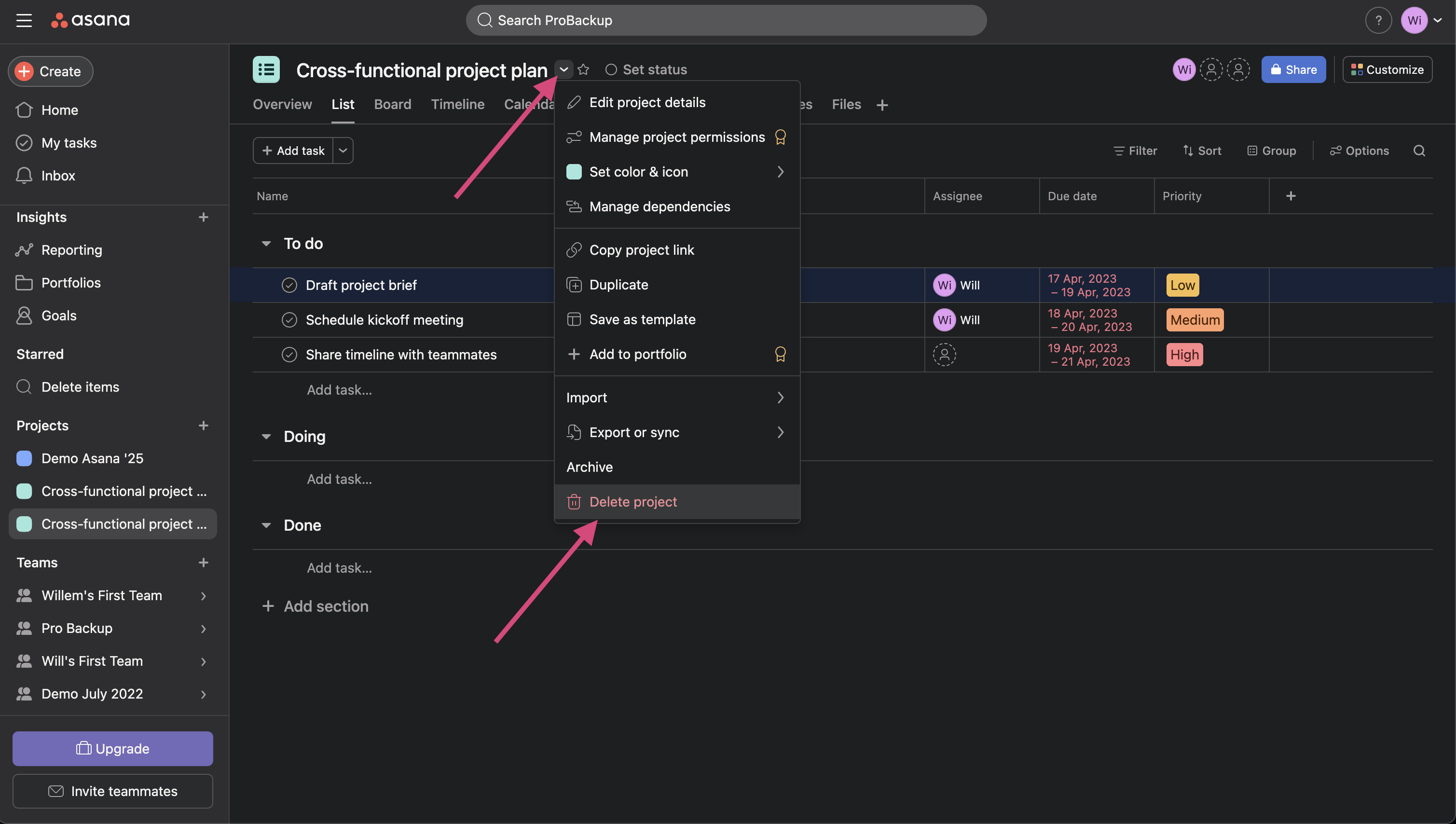
How to delete a project
- Navigate to the project
- Click the dropdown arrow next to the project name
- Select Delete project
- Confirm the deletion
- Asana sends an automated recovery email to the user who performed the deletion
⚠️ Critical: The project recovery email goes to the deleting user only. If that person is unavailable, has left the company, or misses the email, your next recovery option is Advanced Search. Make sure at least one admin knows to check for this email immediately whenever a project deletion occurs.
How to delete a section
- Click the three-dot menu (...) next to the section name
- Select Delete section
- A prompt appears asking what to do with the tasks inside: delete them or move them to another section
⚠️ Warning: This is the most common source of accidental bulk task loss in Asana. The prompt is easy to dismiss without reading carefully. Selecting "delete tasks" removes every item in the section at once with no additional confirmation step. Always choose "move tasks" unless you have explicitly verified every task in that section is safe to delete.
How to delete a custom field from a project
- Click the dropdown arrow next to the custom field name in the project header
- Select Delete field from project
- Confirm the action
⚠️ Warning: This removes the field and all its values from every task in the project. There is no selective undo within Asana. Export the project to CSV before deleting any custom field you are not completely certain about.

How to restore data in Asana
Immediate recovery (within seconds of deletion)
Toast notification: Immediately after any deletion, a notification appears at the bottom-left of the screen with an Undo option. This window lasts approximately 15 seconds.
Undelete button in task pane: If a task was deleted while its pane was still open, an Undelete button remains visible until you navigate away.
Both options disappear the moment you move to another view. They are useful only for mistakes caught in the same instant they happen.
Restoring deleted tasks (within 30 days)
- Click the Search bar at the top of the workspace
- Select Advanced Search
- In the filters, find the Deleted status filter and set it to Deleted
- Narrow results further by assignee, project, or modification date
- Locate the task and click Restore in the task pane

Restoring deleted projects
Method 1: Recovery email (fastest):
- Check the inbox of the person who deleted the project
- Asana sends an automated email with a unique recovery link
- Click the link to restore the project immediately
Method 2: Advanced Search:
- Open Advanced Search
- Filter by Projects with a Deleted status
- Locate the project and restore it from the search results
⚠️ If the deleting user is unavailable: Ensure at least one workspace admin knows how to access Advanced Search for deleted projects before this situation arises.
Restoring from a backup instead works differently: an overwrite restore writes the backed-up values straight back onto records that still exist, rather than creating duplicates.
Trash retention and restoration summary
| Data type | Archive available? | Recovery window | Recovery method | Notes |
|---|---|---|---|---|
| Projects | ✅ Yes, indefinitely | 30 days (deleted state) | Project recovery email OR Advanced Search → restore | Archive is always preferred; recovery email goes only to the deleting user |
| Tasks & Subtasks | ❌ No archive for individual tasks | 30 days | Advanced Search → Deleted filter → Restore | Toast notification / Undelete button available immediately after deletion |
| Sections | ❌ No | Limited | Undo toast (seconds only) | Tasks inside a deleted section may themselves be deleted or moved depending on the prompt selection |
| Comments | ❌ No | None | n/a | Deleted comments are immediately and permanently gone, no trash, no recovery path |
| Attachments | ❌ No | Limited | Partially recoverable if parent task is restored | Attachment recovery is not guaranteed even within the 30-day task window |
| Custom field values | ❌ No | None (when field is deleted) | n/a | Deleting a custom field removes its values from all tasks in the project immediately and irreversibly |
| Portfolios & Goals | ❌ No archive | Limited | Undo toast only | Currently excluded from Asana's data retention policy; limited native recovery |
What can't be restored natively in Asana
Asana's immediate undo options and 30-day recovery window are useful for catching recent, individual mistakes. They have critical gaps that cause permanent data loss in practice.
1. Comments are gone immediately
There is no recovery path for deleted task comments in Asana, no trash, no 30-day window. The moment a comment is deleted, it is permanently gone. For teams that use task comments to record decisions, client approvals, or project context, this is a significant exposure.
2. Custom field data is gone immediately when a field is deleted
Deleting a custom field removes its stored values from every task in the project simultaneously. This cannot be undone within Asana. If the field was tracking status, priority, categorisation, or any other structured data across hundreds of tasks, that information is gone.
3. No version history or rollback
Asana's activity log shows that a field value changed and who changed it. It does not let you roll back those changes at scale. If a third-party integration pushes incorrect data, an AI-driven workflow updates the wrong set of tasks, or a bulk import maps to the wrong fields, you can see what happened in the activity log, but reversing it manually across a large project is not practical.
Common causes of silent data corruption:
- A bulk CSV import maps columns incorrectly and overwrites due dates, assignees, or custom field values across hundreds of tasks
- An automation rule fires on a broader set of tasks than intended and changes status or field values
- Asana AI Studio builds and executes a workflow that updates tasks at scale based on an ambiguous instruction
- Asana AI Teammates (in beta) are assigned work and modify task fields or status without direct human review of each change
- A third-party integration syncs incorrectly and writes wrong values to task fields
None of these are deletions, so they do not appear in Asana's trash. The activity log records what changed, but reversing it in bulk is not a native capability.
4. The 30-day hard cutoff
Tasks and projects deleted more than 30 days ago are permanently gone. Asana does not offer an extended window, and there is no way to request recovery from their support team after the cutoff.
More than 30 days after deletion
Deleted tasks and projects sit in the "Deleted items" view for 30 days, then are permanently deleted (Asana Help, checked 16 September 2026). Asana Support cannot bring them back after that point. From day 31 the only way to recover a task, project, its comments and attachments is a backup taken before the deletion: restore it from the snapshot of a date on which the item still existed. ProBackup keeps daily snapshots for 6 months on Plus, 2 years on Pro and unlimited on Premium. How Asana's window compares with the other platforms is in Version history and trash retention per app and plan.
5. What Asana support can and cannot do
| Asana Support | |
|---|---|
| ✅ Can do | Advise on using Advanced Search and recovery emails; investigate if data loss was caused by a platform bug; sometimes restore data if a verified system error caused the deletion (rare) |
| ❌ Cannot do | Recover deleted comments or custom field data; restore tasks or projects deleted more than 30 days ago; roll back bulk field value changes made by automations, AI, or imports; recover attachments after the parent task window has expired |
Common data loss scenarios & solutions
Scenario 1: "Someone deleted the wrong project with months of client work"
What happened: A project manager was cleaning up old projects and deleted an active client project instead of a test one. The deletion was noticed 2 weeks later.
Native solution:
✓ Check the inbox of the person who deleted the project for the automated Asana recovery email
✓ If the email is found: click the recovery link, the project and all its tasks are restored immediately
✓ If the email is not found: go to Advanced Search → filter by Projects → Deleted → restore
✓ Must be done within 30 days
If it happened 31+ days ago:
✗ The project is permanently gone
✗ Asana support cannot recover it
✗ Must reconstruct from exports, emails, or memory
Scenario 2: "A section was deleted and took 80 tasks with it"
What happened: A team member deleted a section during a project restructure. The prompt appeared and they selected "delete tasks" instead of "move tasks" without reading carefully. 80 tasks are gone.
Native solution:
✓ If caught immediately: Undo toast notification (within ~15 seconds)
✓ If caught within 30 days: Advanced Search → Deleted filter → restore individual tasks
✗ Restoring 80 individual tasks manually is time-consuming and error-prone
✗ Any comments on those tasks are permanently gone even if the tasks are restored
Scenario 3: "All comments on our tasks were deleted"
What happened: A team member deleted comment threads across 50 tasks in a project, removing all decision history, client approval records, and context notes.
Native solution:
✗ Deleted comments have no recovery path in Asana
✗ There is no trash for comments (deletion is immediate and permanent)
✗ Asana support cannot recover deleted comments
Impact:
- Lost proof of client approvals and decisions
- No context for why tasks were structured a certain way
- Team must reconstruct context from email or memory
Scenario 4: "An AI Studio workflow updated tasks incorrectly across a whole project"
What happened: An Asana AI Studio workflow was built to update task statuses and assignees based on a trigger condition. The instruction was ambiguous and the workflow updated 300 tasks with incorrect status values before anyone noticed.
Native solution:
✗ Tasks were modified, not deleted: Advanced Search and recovery emails don't help
✗ Activity log confirms the changes occurred but cannot revert them at scale
✗ No version rollback mechanism exists in Asana
✗ Manual correction of 300 tasks: hours of work
Scenario 5: "A custom field was deleted and took categorisation data with it"
What happened: An admin deleted a custom "Client Priority" field while restructuring a project template. The field had been used to categorise tasks across 4 projects, and the data is now gone from every task.
Native solution:
✗ Custom field deletion removes values from all tasks immediately and irreversibly in Asana
✗ There is no trash or recovery path for deleted custom field data
✗ Asana support cannot recover it
Scenario 6: "A departing employee deleted all their projects before leaving"
What happened: A team lead with admin-level access deleted 7 projects before their last day. The project recovery emails were sent to their now-deactivated inbox.
Native solution:
✗ Recovery emails went to the deleted user's inbox =inaccessible
✗ Advanced Search can locate the deleted projects within 30 days: Act immediately
✓ Another admin using Advanced Search may be able to restore within the 30-day window
✗ After 30 days: permanently gone
✗ No way to prevent the email going exclusively to the deleting user
Quick reference: "I lost important data in Asana... what should I do?"
| Situation | First step | If that fails |
|---|---|---|
| Just deleted something, still on the same screen | Click Undo in the toast notification (bottom-left, ~15 seconds) or Undelete in the open task pane | Navigate to Advanced Search if the toast has expired |
| Deleted a project within 30 days | Check the inbox of the person who deleted it for the Asana recovery email → click the link | Advanced Search → filter by Projects, Deleted → restore; if more than 30 days ago, restore from ProBackup |
| Deleted tasks within 30 days | Advanced Search → Deleted filter → locate task → Restore | If more than 30 days ago, restore from ProBackup only |
| Deleted a comment | No native recovery: comments are permanently gone immediately | Restore from ProBackup only |
| Deleted a custom field | No native recovery: field values are permanently gone immediately | Restore from ProBackup only |
| Data was changed, not deleted (automation, AI, or import error) | Check activity log to understand the scope of changes | Native tools cannot bulk-revert: restore from ProBackup to roll back to the pre-change state |
| Deleted more than 30 days ago | Native recovery is not possible | Restore from ProBackup; if no backup exists, data is permanently lost |
Summary: Why native recovery isn't enough for professional teams
Asana's immediate undo options and 30-day trash are designed to catch recent, individual mistakes, not to serve as a disaster recovery plan for a business-critical work management system. If you are weighing up dedicated tools, see how ProBackup vs Skyvia for Asana stack up.
| Feature | ✅ Good for | ❌ Not sufficient for |
|---|---|---|
| Toast notification / Undelete button | Catching a deletion in the exact moment it happens, same screen, same session | Anything discovered after navigating away, even seconds later |
| Advanced Search (30-day window) | Recovering deleted tasks and projects caught within 30 days | Deleted comments, custom field data, or anything older than 30 days |
| Project recovery email | Quick project restoration when the deleting user is available and checks their inbox | Situations where the deleting user is unavailable, deactivated, or the email is missed |
| Activity log | Auditing who changed what and when on a task or project | Rolling back bulk changes. It shows history but cannot revert it |
| Archive (projects only) | Hiding completed or inactive projects while preserving all data indefinitely | Individual tasks, comments, or custom fields: there is no archive option at those levels |
| ProBackup | Automated daily backups, long-term retention (unlimited on Premium), point-in-time recovery, granular restore, compliance documentation | n/a |
Compliance & data retention
Data retention requirements by industry
| Industry | Typical retention requirement | Asana native covers this? |
|---|---|---|
| Finance & Accounting | 7 years | ❌ No: 30-day trash is far below requirement; archived projects persist but have no versioned audit trail |
| Healthcare (HIPAA) | 6–10 years | ❌ No |
| Legal | 7 years | ❌ No |
| General business / contracts | 3–5 years | ⚠️ Partially: archived projects persist, but there is no point-in-time version history or exportable audit trail |
| EU GDPR | As long as purpose requires + deletion on request within 30 days | ⚠️ Partial: production deletion is straightforward, but proving backup purge requires a third-party solution |
GDPR compliance: the "right to be forgotten"
When an EU citizen requests deletion of their personal data, you must delete it from production systems and backups, and document it within 30 days.
How this works with Asana + ProBackup:
Step 1: Delete user data from Asana: Remove the person from the workspace, delete or reassign tasks associated with them, and remove personal data from task descriptions and custom fields.
Step 2: Request deletion from ProBackup: open a support ticket specifying the user and date range. ProBackup purges that data from backup storage.
Step 3: Export a deletion certificate from ProBackup for your GDPR compliance documentation.
👉 Read our full GDPR guide: Handling GDPR Deletion Requests in Your Backup System
SOC 2 & ISO 27001: what auditors look for
| Auditor requirement | Asana native | Asana + ProBackup |
|---|---|---|
| Automated daily backups | ❌ No automated backup system: 30-day trash and archive only | ✅ Daily automated backups |
| Documented backup procedures | ❌ Not provided | ✅ Documented and auditable |
| Tested restore process | ⚠️ Manual: teams must self-test Advanced Search restores | ✅ Tested and verifiable |
| SOC 2 certified backup vendor | N/A | ✅ ProBackup is SOC 2 Type II certified |
| Configurable retention policy | ❌ Fixed 30-day trash; archives persist but have no version history | ✅ Configurable per plan: unlimited on Premium, with point-in-time history |
| Audit trail of backup activity | ❌ Not available | ✅ Full audit log |
Protect your Asana data today
Don't wait for a data loss disaster to implement backup. As Asana expands its AI capabilities, with AI Studio building and executing multi-step workflows, and AI Teammates taking action on tasks as genuine collaborators. The number of ways data can change at scale without a human reviewing each step keeps growing. A single misconfigured workflow can update hundreds of tasks before anyone notices. The activity log will show it happened. Getting back to where you were is a different problem entirely.
ProBackup gives you:
✓ Automated daily backups of all your Asana data
✓ Unlimited retention on the Premium plan (no 30-day expiration)
✓ Point-in-time recovery (restore from any date)
✓ Granular restore (one task, one project, or everything)
✓ Google Drive sync on Pro and Premium plans (you own your data)
✓ SOC 2 Type II certified (enterprise-ready)
✓ 3-minute setup (no technical knowledge needed)
Not sure where to start? You can set up an Asana backup in minutes.
Evaluating backup tools? See how ProBackup compares to FluentPro for Asana.
👉 Start your 7-day free trial at ProBackup: https://app.probackup.io/onboarding
.png)
Related posts
SaaS backup pricing explained: models, real numbers and how to calculate ROI

How to evaluate a SaaS backup vendor: criteria, questions and red flags


Metadata in SaaS backups: why comments, fields and attachments matter more than you think