

Read our blog
SaaS backup pricing explained: models, real numbers and how to calculate ROI

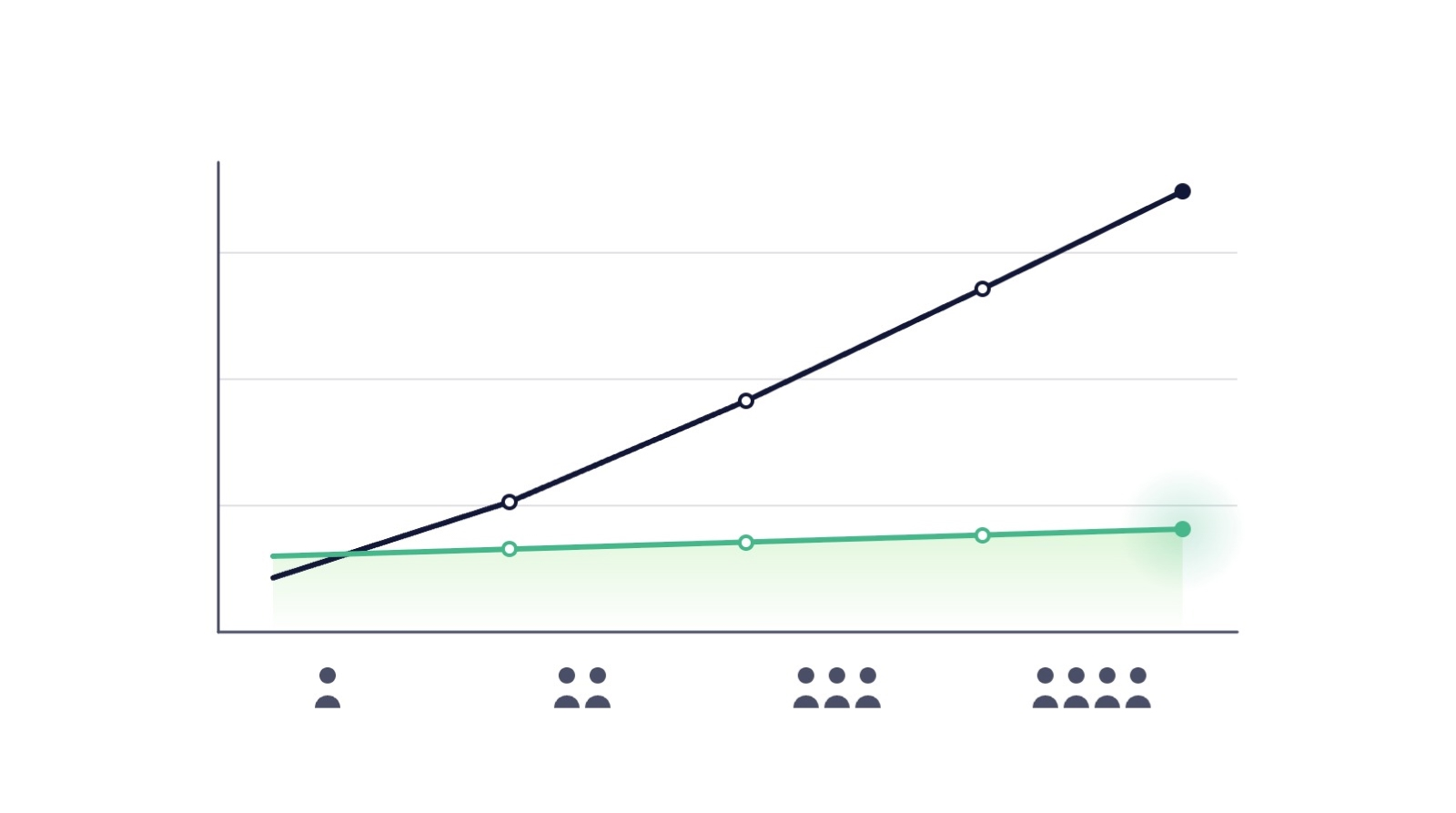
In short: SaaS backup vendors typically use one of four pricing models: per user, per unit of content (board or file), flat tiers and quote-only. Per-user pricing tracks headcount: Rewind charges $4 per user per month from 11 to 100 users (September 2026). ProBackup's flat tiers cost $25 (Plus), $38 (Pro) and $69 (Premium) monthly, billed annually, so 100 users pay $38 on Pro.
Backup pricing looks simple until you try to compare two vendors and discover they are not selling the same unit. One charges per user, one per board, one a flat monthly tier; one includes storage, another includes retention you did not ask for. This guide maps the pricing models on the market with real, dated numbers, shows what each model costs at typical team sizes, and replaces the usual hand-wavy ROI claims with arithmetic you can run on your own figures.
The four pricing models
1. Per user. The most common model: you pay for every seat in the connected platform, whether or not that user's data changes. Rewind's published cloud app pricing (rewind.com, checked September 2026) is the clearest example: a flat $40 per month for organisations under 10 users, $4.00 per user per month from 11 to 100 users, sliding to lower per-user rates at very large counts. Per-user pricing is easy for procurement to understand, and its defenders would note that seats are a fair proxy for account complexity. The catch is direction: your backup bill tracks your headcount, not your risk.
2. Per unit of content. Some products charge per board, file or object. Rewind prices Trello backups at $1.00 per board per month with a $5.00 monthly minimum, and QuickBooks Online backups at $16.00 per file per month (rewind.com, checked September 2026). This can be very cheap for small, concentrated workspaces and expensive for sprawling ones, and it makes cost forecasting depend on how your team happens to organise its work. For how these models play out across the market, see our round-up of seven SaaS backup tools compared.
3. Flat tiers. A fixed monthly price per plan, independent of seats. ProBackup's plans are $25 per month for Plus, $38 for Pro and $69 for Premium, billed annually ($31, $47 and $86 billed monthly), with 10 GB of backup storage on Plus and Pro and 25 GB on Premium, version history of 6 months, 2 years and unlimited respectively, and a 50% discount for non-profits. The trade-off is symmetrical: a five-person team pays the same as a fifty-person team on the same plan, which favours growing teams and data-heavy small teams, and matters less to very small accounts.
4. Quote-based. Some vendors publish no pricing at all. That is not automatically a red flag for enterprise deals, but it makes budgeting and comparison impossible without a sales cycle, and it deserves the direct question from our evaluation framework: how does my price change if my team doubles?
What the models cost at real team sizes
Using the published figures above (both checked September 2026), a team backing up one cloud platform pays:
| Team size | Per-user model (Rewind cloud app tiers) | Flat-tier model (ProBackup Pro, billed annually) |
|---|---|---|
| 8 users | $40/month (flat minimum) | $38/month |
| 25 users | $100/month | $38/month |
| 60 users | $240/month | $38/month |
| 100 users | $400/month | $38/month |
The comparison is illustrative, not exhaustive: plans differ in retention, storage and features, and per-user vendors offer volume discounts at much larger counts. But the shape of the curve is the point. Under per-user pricing, cost scales linearly with hiring; under flat tiers, it steps only when you change plans. Run the same table for every vendor on your shortlist before comparing anything else. Our own flat-tier numbers are set out in full on the ProBackup pricing page.
ROI without invented statistics
Most backup ROI content leans on dramatic industry statistics of untraceable origin. You do not need them. The value of backup is an expected-loss calculation you can run with your own numbers:
Cost of an incident = hours to reconstruct × loaded hourly cost + revenue or delivery at risk + compliance exposure.
Work through one realistic scenario. Suppose losing a client project board would take your team 40 hours to reconstruct from email threads and memory, at a loaded cost of €50 per hour: that is €2,000 in labour alone, before any client-facing damage. (An illustration with round numbers, not a statistic; substitute your own.) Against that, ProBackup's Pro plan costs $456 per year billed annually. One prevented incident of that size covers years of subscription, and the calculation gets stronger the more platforms and the more people depend on the data. The same arithmetic applies to the cost of building it yourself, where the maintenance never ends.
Three factors usually dominate the arithmetic:
- Discovery lag. Native recovery windows of 7 to 30 days mean late-discovered losses are total losses. Backup ROI concentrates in exactly the incidents native tools cannot cover.
- Reconstruction is the real cost. Data seldom vanishes with a receipt attached. It vanishes as weeks of quiet re-work spread across a team.
- Time-to-restore. A self-service restore measured in minutes versus a reconstruction measured in days is the difference between an anecdote and an incident report.
Red flags on pricing pages
- Prices that require a sales call to learn, combined with per-user scaling you cannot see.
- Storage or retention limits buried outside the pricing table.
- Essential capabilities (self-service restore, alerts, region choice) gated into tiers the pricing page does not clearly mark.
- Comparison content, from any vendor, quoting competitor prices without a source and date.
For a sourced, dated side-by-side instead, see ProBackup compared with alternatives.
Conclusion
Backup pricing rewards the buyer who models rather than skims: pick your realistic team size for next year, put every shortlisted vendor's real number beside it, and weigh that against an incident cost you calculated from your own payroll and pipeline rather than someone else's statistic. On that arithmetic, backup is one of the cheapest insurance policies in your stack, and the pricing model you choose decides whether it stays that way as you grow.
👉 Start your 7-day free trial at ProBackup: https://app.probackup.io/onboarding
This guide is written for IT managers, operations leads and founders budgeting data protection for SaaS platforms. All third-party pricing was checked against live vendor pages in September 2026 and may change.
How to evaluate a SaaS backup vendor: criteria, questions and red flags

In short: Evaluate a SaaS backup vendor in four steps: write your requirements (platforms, RPO, RTO, retention, compliance) first; score five criteria (coverage and API fidelity, restore capability, security and compliance, operations, commercial terms); get written answers to twelve questions; then run a real test restore during the trial. Undocumented limitations and restore-by-ticket-only are red flags.
Round-up posts, ours included, are a fine starting shortlist. But a shortlist is not a decision, and backup is a category where the differences that matter are invisible on a features page: what actually comes back when you restore, what the API can and cannot capture, and what happens the day something goes wrong. This is a framework for running that evaluation properly, in a form you can reuse whenever your stack changes.
Step 1: write your requirements before opening a single vendor page
Vendor websites are persuasive by design. Anchor yourself first with a one-page requirements note:
- Platforms: which apps hold data you could not afford to lose, today and on your 12-month roadmap.
- RPO (recovery point objective): how much recent work you can afford to lose. Daily snapshots mean up to 24 hours; decide whether that is acceptable per platform.
- RTO (recovery time objective): how quickly you need data back, and whether recovery must be self-service or can wait on a vendor's support queue.
- Retention: how far back you need to reach, driven by your compliance obligations and how late losses tend to be discovered, not by what vendors happen to offer.
- Compliance: GDPR data residency needs, audit expectations (a SOC 2 Type II report is an audit framework attestation, not a regulation), and how erasure requests must flow into backups.
Step 2: score the five criteria that separate vendors
1. Coverage and fidelity. Not "does it back up Asana" but "which Asana data types, and what does the API exclude?" Every vendor is bounded by each platform's public API; the difference is whether they document the boundary. Ask for the per-platform coverage list in writing.
2. Restore capability. This is the product. Granularity (one record, one project, everything), restore modes (safe duplicates versus field-level overwrite of existing records), what returns with a restored item (comments, attachments, custom fields, relationships), and whether restore is self-service or a support ticket.
3. Security and compliance. Independent attestations (ask for the actual SOC 2 report under NDA, not the badge), encryption at rest and in transit, where data physically lives and whether you choose the region, and a documented process for GDPR erasure requests reaching the backups.
4. Operations. Backup frequency and whether it needs scheduling, failure handling (does it retry, does it report what was skipped, or does it fail silently), alerting on mass deletions, and admin visibility.
5. Commercial. The pricing model and how it scales with your growth, what is gated behind which tier, contract terms, and what happens to your data if you cancel. We cover this dimension in depth in our companion piece on backup pricing and ROI.
Step 3: twelve questions to ask every vendor
- For each of our platforms, exactly which data types do you back up, and which does the platform's API prevent you from capturing?
- If I restore a single deleted record, what comes back with it: comments, attachments, custom field values, links to related records?
- Can I restore as a duplicate, overwrite an existing record field by field, or both?
- How often do backups run, and what is my worst-case RPO?
- When a backup partially fails, how do I find out, and how specific is the report?
- Can my own admins run a restore end to end without contacting your support?
- Where is my data stored, can I choose the region, and can I change it later?
- Can I see your latest SOC 2 Type II report (or equivalent) under NDA?
- How do you handle a GDPR erasure request that has to reach backup copies?
- What is your retention on the tier I am considering, and what does longer retention cost?
- How does my price change if my team doubles, or if I add a second platform?
- If we cancel, how do we get our data out, and in what format?
A good vendor answers all twelve specifically and in writing. Vagueness on any of them is data.
Step 4: never decide without a test restore
Run the trial like an incident, not a tour: connect a real (or realistic) workspace, wait for a full backup cycle, then delete a task with comments and attachments, a record with relationships, and a small project, and restore all three. Check what came back, where it landed, and how long it took. Twenty minutes of this tells you more than every features page combined.
Red flags
- No documented limitations. Every API-based backup has gaps; a vendor listing none has hidden them, not escaped them.
- Restore by support ticket only. Your RTO becomes their queue.
- Unverifiable security language. "Military-grade encryption" and badge walls without an actual report are marketing, not assurance.
- No public pricing and no straight answer to question 11. Costs that cannot be predicted cannot be budgeted.
- Trial obstacles. If you cannot test a restore before buying, ask yourself why.
- One-platform depth, many-platform claims. Probe the coverage list for your second and third platforms, not just the flagship.
Conclusion
Choosing a backup vendor is one of the few IT purchases where you find out if you chose wrong at the worst possible moment. The framework above front-loads that discovery: requirements first, five criteria, twelve written answers, one real test restore. Run ProBackup through it too; the trial takes minutes to set up and a test restore is exactly what we would ask you to judge us on. For side-by-side detail against specific alternatives, see our comparison pages.
👉 Start your 7-day free trial at ProBackup: https://app.probackup.io/onboarding
This guide is written for IT managers and operations leads evaluating backup solutions for SaaS platforms.
Metadata in SaaS backups: why comments, fields and attachments matter more than you think

In short: Metadata is the layer around a record: comments, custom fields, attachments, links between records and history. It is exactly what CSV exports drop and native restores lose: as of September 2026 a deleted Trello card loses its comments and attachments permanently, and a restored Airtable record loses its links. Judge any backup by whether that layer comes back.
Ask what is in your CRM and you will hear about contacts and deals. But open any real record and look at what makes it useful: the comment thread explaining why the deal stalled, the custom field driving your reporting, the attachment with the signed quote, the link connecting the contact to the company. That surrounding layer is metadata, and it is precisely what disappears in most backup and export approaches. This piece explains what metadata means in SaaS platforms, where it silently gets lost, and how to judge whether a backup actually protects it.
What counts as metadata in a SaaS platform
In work platforms, five categories carry most of the value:
- Comments and updates: the decision trail. Often the only record of why something happened.
- Custom fields: your business logic encoded into the platform: deal stages, priorities, territories, statuses.
- Attachments: contracts, briefs, screenshots, deliverables, frequently existing nowhere else.
- Relationships: the links between records: contact to deal, task to project, item to linked board, record to record.
- History and assignments: who owns what, what changed, and when.
Lose the records but keep this layer, and you can reconstruct your business. Lose this layer but keep the records, and you have a phone book.
Where metadata quietly dies
CSV exports flatten everything. An export gives you field values in rows. Comments, attachments and revision history are simply absent, and relationships survive only as text labels with no functional links behind them.
Native deletion takes metadata first. As of September 2026: delete a Trello card and its comments and attachments are purged immediately and permanently, with no recovery window. Delete a ClickUp task and its time entries are permanently gone even though the task itself sits in the Trash for 30 days, and individually deleted attachments cannot be restored at all. Metadata consistently has weaker native protection than the records it belongs to.
Native restores drop the links. Restore a deleted Airtable record from base trash and the record returns with its field values, but connections to linked records are severed and must be rebuilt by hand. Restore a HubSpot contact and you may find its workflow memberships and parts of its activity timeline did not come along. The record is back; the context is not.
Snapshots are all-or-nothing. Airtable snapshots restore an entire base as a new copy. Getting one record's metadata back means restoring everything and manually copying across, losing every change made elsewhere since.
What metadata-aware backup looks like
A backup solution that takes metadata seriously shows it in the restore behaviour, not the marketing. Concretely, it should be able to restore comments back into the related task or record, reattach files to the item they belonged to, recreate custom fields together with their values across existing records, and bring a project or board back with its tasks, comments, files and field values as one coherent structure rather than a pile of rows.
This is where honesty about limits matters too. Every backup tool works through the platform's public API, and APIs do not expose everything: monday.com's API will not return files uploaded directly to an item, several Airtable computed field types (formulas, rollups, lookups) cannot be written back, and Asana's read-only computed fields are skipped on restore. A trustworthy vendor tells you exactly which metadata falls outside the API's reach for each platform, before you need to find out during an incident.
How to evaluate any backup for metadata coverage
- Ask for the restore matrix. Which data types can be restored, at what granularity, and what returns with them? This is where backup vendors differ most on metadata.
- Test a comment. Restore a deleted task on a trial and check whether its comment thread and attachments came back to the right place.
- Check relationship handling. Restore a record with links and see whether the connections survive.
- Read the limitations page. A vendor with no documented API limitations has not documented them, not escaped them.
- Compare against your real dependency. List what your team would actually need after an incident: it is almost never just the field values. Our wider vendor evaluation checklist covers the questions around this one.
Conclusion
Teams evaluate backup tools by asking whether their data is covered, and vendors answer yes, because the records usually are. The losses that hurt come from the layer around the records: the comment that held the decision, the attachment that held the contract, the link that held the pipeline together. Judge any backup, including ours, by what comes back attached to a restored record. The only way to know for certain is to test a restore end to end before you need it. That is where continuity actually lives.
👉 Start your 7-day free trial at ProBackup: https://app.probackup.io/onboarding
This guide is written for operations leads and IT decision-makers evaluating data protection for SaaS work platforms. Platform behaviour was checked against vendor documentation in September 2026 and may change.
How to restrict deletions in Asana, ClickUp, monday.com, Trello, HubSpot and Airtable
In short: Unbundle delete rights from edit rights wherever the platform allows. Asana: comment-only projects and guest accounts. ClickUp: custom roles without delete permission (Business Plus and Enterprise). monday.com: board permissions that block structural edits. Trello: tight board membership and a 'close, never delete' rule. HubSpot: per-object delete permissions. Airtable: editor rather than creator roles. Give AI agents dedicated, narrowly scoped tokens.
Backup answers the question "how do we get it back?" Permissions answer a better one: "why could that be deleted at all?" Most SaaS data loss starts with an account that had more power than its owner needed. This guide covers the concrete settings that limit deletion rights in six major platforms, plus the new frontier: AI agents acting with user-level permissions at machine speed.
The principle: least privilege for destructive actions
Editing and deleting are different classes of action, but most platforms bundle them by default. The goal of this guide is to unbundle them where the platform allows it: give everyone the access they need to work, and reserve destructive actions (delete, bulk edit, empty trash) for as few named accounts as possible. The native trash is no safety net either, as we explain in why recycle bins are not a backup.
Asana
Asana does not offer a standalone "cannot delete" permission for full members: anyone who can edit a task can delete it. Your levers are structural:
- Set projects to comment-only for everyone who needs visibility but not editing. Comment-only members cannot delete tasks.
- Use guest accounts for external collaborators; guests only see what is explicitly shared.
- Restrict who can create and manage teams in the admin console, and limit the number of workspace admins.
- On Enterprise tiers, review admin console controls for member management and data export.
ClickUp
ClickUp offers the most granular deletion control of the project management trio, but the good parts are plan-gated:
- Custom roles (Business Plus and Enterprise) let you create roles with editing rights but without delete permissions.
- Guests can access the Trash but cannot permanently delete items or empty it; members can only see and restore their own deletions, while owners and admins control the rest.
- Remember the hard limits: time entries die permanently with their task, and individually deleted attachments cannot be restored, so restricting who can delete tasks protects time data too.
Whatever your plan allows, an independent daily copy fills the gaps: back up ClickUp with ProBackup.
monday.com
- Use board permissions to restrict editing: options range from full edit to "view only", with intermediate levels that let members edit content but not structure. Restricting structural edits protects columns, which delete data across every item instantly with no selective undo.
- Only users who had edit permissions on a board while it was active can restore it from the Trash, so keep at least two admins on every critical board.
- On Enterprise, review account-level permissions for who can delete workspaces.
Trello
Trello's sharpest edge is that deleted cards are gone instantly and permanently, so permissions matter more here than anywhere:
- Set board membership deliberately: normal members of a board can archive and delete cards, so keep write access tight and use observers (Premium) for view-only stakeholders.
- Only board admins can delete a board, and closing (archiving) a board is reversible while deleting is not. Make "close, never delete" a written team rule.
- Restrict who can create public boards and invite members at the Workspace level.
HubSpot
HubSpot has the most mature permission model of the six:
- Permission sets control delete rights per object type (contacts, companies, deals, tickets), separately from edit rights. Most users need edit; very few need delete.
- Restrict bulk delete and import permissions to a small named group; workflows and imports are the two most common causes of mass damage.
- Limit super admins, and audit the "Restore CRM changes" and recycle-bin activity periodically.
Airtable
Airtable ties deletion rights to collaborator roles, which makes role hygiene the whole game:
- Editors can delete records but not fields or tables; creators can delete structure; owners can restore deleted bases. Grant creator access sparingly: most day-to-day users only need editor.
- Use locked views to protect critical filters and configurations from editing.
- Remember the 7-day base trash window for records: role restrictions are your real protection, because the recovery window is the shortest of any platform here.
The new risk: AI agents with delete permissions
AI agents and assistants connected to your work tools act with the permissions of the account or token that authorised them, and they act at machine speed. For the containment and rollback side of this, see our guide to agentic AI and SaaS backup. Before connecting any agent:
- Create a dedicated account or token for the agent rather than reusing a human admin's credentials.
- Grant the narrowest scopes available; most agent use cases need read and create, not delete.
- Prefer platforms and integrations that support scoped tokens (Airtable personal access tokens, HubSpot private app scopes) over full-account OAuth where possible.
- Log and review agent actions the way you would review a new employee's.
What good looks like
- A written access policy: who holds delete rights on each platform, and why.
- Delete rights unbundled from edit rights wherever the platform allows it, and role downgrades where it does not.
- Two named admins per critical asset, no more admin accounts than necessary, and immediate offboarding revocation.
- Archive-first culture: deletion reserved for genuine compliance or clean-up needs.
- An independent daily backup behind all of it, because permissions reduce the probability of loss but never reach zero. Pair it with alerts when records are deleted.
Conclusion
Permissions are the cheapest layer of your data protection stack and the most neglected. An hour spent unbundling delete rights across these six platforms removes the most common trigger for the disaster scenarios that backups exist to fix. Do both: restrict what you can, back up what you cannot. If you want the second layer in place this week:
👉 Start your 7-day free trial at ProBackup: https://app.probackup.io/onboarding
This guide is written for IT admins and operations leads who manage team access across SaaS work platforms. Permission features and plan gating were checked in September 2026 and may change; verify against each vendor's current pricing page before relying on a specific tier.
Who actually protects your SaaS data? The shared responsibility model explained
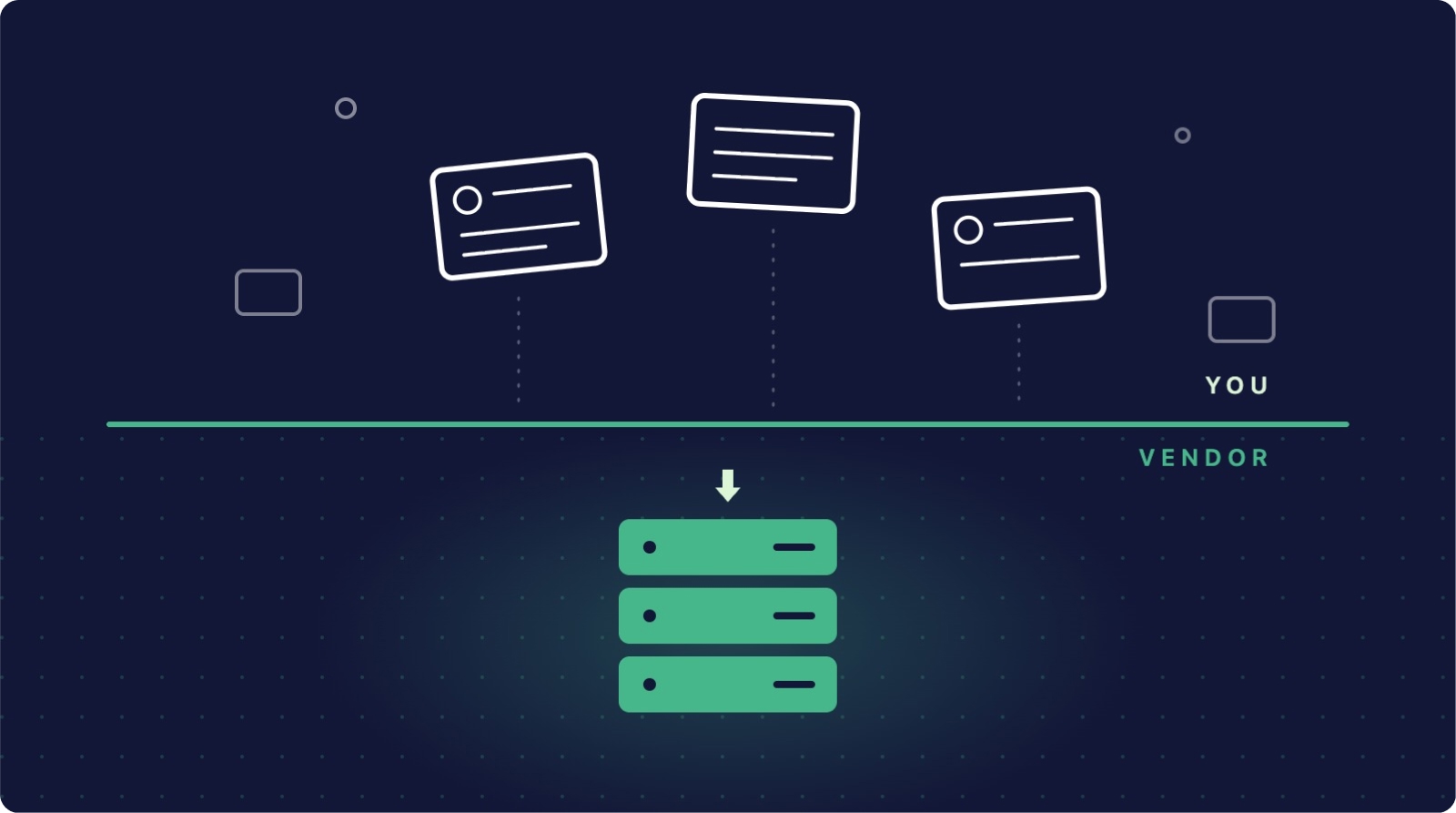
In short: Your SaaS vendor protects the platform; recovering data changed or deleted through your own accounts is your job. Native windows as of September 2026: Asana 30 days, ClickUp 30 days (time entries and single attachments unrecoverable), monday.com 30 days, Trello none for deleted cards, HubSpot 90 days plus a 14-day change rollback, Airtable 7 days for records.
Ask most teams who backs up their Asana projects or HubSpot contacts, and the answer is some version of "the platform does". It is one of the most expensive assumptions in modern IT. Cloud providers protect their infrastructure with world-class engineering, but the data you put inside it sits on your side of a line most teams have never looked at. This guide walks through where that line sits, what the major platforms actually commit to, and the myths that keep teams exposed.
What the shared responsibility model actually means
The shared responsibility model divides duties between the provider and the customer. The provider is responsible for the security of the platform: uptime, physical data centres, network protection, and recovering from their own infrastructure failures. The customer is responsible for the security of the data in the platform: what gets created, changed and deleted through legitimate user accounts.
That last phrase is the crux. When an employee deletes a board, an automation overwrites a thousand fields, or a compromised account purges your CRM, the platform is working exactly as designed. It executed an authorised instruction. Nothing in the provider's commitments obliges them to undo it.
What the platforms actually give you
Every major platform provides a safety net for small, recent mistakes. None of them provides a backup. Here is where the six most common productivity and CRM platforms stand, checked against their current documentation as of September 2026:
- Asana keeps deleted items in a recoverable state for 30 days, after which they are permanently removed. Recovery of a deleted project hinges partly on an email sent to the person who deleted it.
- ClickUp retains deleted items in its Trash for 30 days. Individually deleted attachments cannot be restored, and time entries are permanently deleted the moment a task is deleted, even inside the window.
- monday.com stores deleted items, boards, columns and docs in its Trash for 30 days. Restoring a board requires having had edit permissions on it while it was active.
- Trello treats archiving and deleting very differently: archived cards are safe indefinitely, but a deleted card is gone immediately and permanently, together with its comments and attachments. There is no recovery window at all.
- HubSpot offers a 90-day recycle bin for deleted CRM records and a 14-day "Restore CRM changes" window for reverting bulk property changes.
- Airtable runs two trash levels: deleted records, fields and tables sit in base trash for just 7 days, while deleted bases sit in workspace trash for 30 days (longer only on Enterprise Scale plans with a custom policy).
Notice what none of these windows cover: anything discovered late, anything overwritten rather than deleted, comments and attachments on several platforms, and anything a departing employee emptied from the trash on their way out.
Five myths that keep teams exposed
Myth 1: "The platform backs everything up." Platforms back up their infrastructure so they can recover from their failures. Those backups are not available to you when you delete something.
Myth 2: "The trash is our backup." A trash bin with a 7 to 30 day window, emptied permanently by anyone with the right permissions, fails every definition of a backup. It holds one copy, inside the same system, deletable by the same accounts that caused the loss.
Myth 3: "We export to CSV regularly." A CSV is a flat snapshot with the relationships stripped out. The contact comes back, but not its link to the deal; the task comes back, but not its subtasks, comments or attachments.
Myth 4: "Data loss means hackers, and we have good security." The most common causes of SaaS data loss are internal: accidental deletion, misconfigured automations, faulty integrations and offboarding mistakes. Strong perimeter security does nothing about an authorised account doing the wrong thing.
Myth 5: "Support will restore it if we ask." Support can only work within the same retention windows you can see. Once data passes the window, platforms state plainly that it cannot be recovered by them or anyone else.
Where liability actually lands
Under GDPR Article 32, organisations must implement measures that ensure "the ability to restore the availability and access to personal data in a timely manner" after an incident. That obligation sits with you as the controller of your business data, not with your SaaS vendor acting as a processor of it. If customer records vanish from your CRM through your own account activity, the recoverability question lands on your desk, in front of your customers and, potentially, your regulator.
The risks in plain terms
- Silent expiry. Losses discovered after the retention window are unrecoverable, and deletions by others are easy to miss for 30 days.
- Overwrites, not deletions. A misfiring automation that changes fields never touches the trash. There is nothing to restore from.
- Trash is deletable. The same permissions that allow deletion usually allow emptying the trash.
- Partial recovery. Even successful native restores can drop comments, attachments, time entries and relational links.
- Offboarding gaps. Departing users can take deletions past the point of recovery before anyone checks.
What good looks like
- An independent daily backup, stored outside the platform, covering every connected app that holds business-critical data.
- Restore tested before it is needed: can you recover one record, one project, and one whole workspace?
- Retention that matches your obligations rather than the vendor's convenience window.
- Deletion alerts, so a mass deletion is noticed in hours rather than weeks.
- Permission hygiene that limits who can delete and who can empty trash in the first place.
Conclusion
The shared responsibility model is not a loophole your vendors are hiding; it is written into how every major SaaS platform describes its own recovery limits. The platforms hold up their side: the infrastructure runs, and small recent mistakes can be undone. Everything beyond that line belongs to you. Teams that accept the line and put an independent backup behind it turn a potential crisis into a ten-minute restore.
For the full picture of building that layer, see the ultimate SaaS data backup and recovery guide, or take the practical route:
👉 Start your 7-day free trial at ProBackup: https://app.probackup.io/onboarding
This guide is written for IT managers, operations leads and founders responsible for business data in SaaS platforms. Platform retention details were checked against each vendor's documentation in September 2026 and may change.
.jpg)
Best HubSpot Apps for Data Quality: Deduplication, Portal Migration & Backup (2026)
In short: Three HubSpot apps close gaps HubSpot leaves open: Koalify for rule-based deduplication of contacts, companies, deals, tickets and custom objects inside HubSpot; Datawarehouse.io's Portal Migration Suite for migrating, replicating and syncing data and schemas between portals; and ProBackup for automated daily backups with point-in-time restore that reaches beyond HubSpot's 90-day recycle bin.
HubSpot is a powerful CRM platform, but like any SaaS tool, it has gaps. Out of the box, HubSpot doesn't protect you from accidental data loss, can't keep multiple portals in sync, and has no way to automatically clean up the duplicate contacts that accumulate over time. That's where the HubSpot app ecosystem comes in.
In this post, we highlight three best-in-class tools that go beyond what HubSpot offers natively - covering data protection, deduplication, and portal migration.
Koalify: HubSpot Deduplication Simplified
What it does: Koalify detects and merges duplicate contacts, companies, deals, tickets, and custom objects in HubSpot - using custom rules you define, fully embedded inside HubSpot itself.
Why HubSpot alone isn't enough: HubSpot includes a basic duplicate management tool, but it only matches on a limited set of fields and requires manual review of each pair. It doesn't scale, doesn't support custom match logic, and doesn't integrate with HubSpot Workflows for automated deduplication.
What Koalify adds:
- Custom duplicate detection rules: Match on any combination of standard or custom properties
- Bulk merge via HubSpot Workflows: Resolve thousands of duplicates automatically without leaving HubSpot
- Duplicate reports, views, and lists built with native HubSpot properties, so your team can monitor data quality over time
- CRM card suggestions on contact, company, deal, and ticket pages for fast manual merging
- Support for custom objects: Critical for teams with non-standard HubSpot setups
Koalify is a HubSpot Certified App with over 4,000 installs and a 5-star rating on the HubSpot App Marketplace. It's fully embedded in HubSpot, meaning there's no separate tool to learn.
Ideal for: RevOps teams, HubSpot admins, and consultants managing large or fast-growing databases where duplicates are a recurring problem.
Portal Migration Suite by Datawarehouse.io: Move, Sync & Replicate HubSpot Data
What it does: The Portal Migration Suite is a self-service suite of apps that lets you migrate, replicate, or continuously sync data and schemas between HubSpot portals: No manual exports, no field mapping, no developers required.
Why HubSpot alone isn't enough: HubSpot doesn't offer a completely native way to migrate data between portals. Whether you're consolidating two portals after an acquisition, spinning a brand out into its own account, creating a sandbox for testing, or keeping multiple regional portals in sync: You're on your own. Manual exports and imports are error-prone and can't replicate schemas like workflows, pipelines, or properties.
What the Portal Migration Suite adds:
- A self-service migrator that automatically moves your data from a source portal to a destination portal, with no field mapping required: The app handles property creation in the destination automatically
- Schema replication to copy your HubSpot setup (e.g. properties, workflows, pipelines) between portals without moving any records
- Portal Sync for continuous or scheduled syncing between multiple portals, with granular control over what gets synced and how often
- Developer Tools via the Portal Toolkit. Built for Enterprise companies and HubSpot Partners. With it you can mass deploy templated portals, push change sets across multiple portals simultaneously, replicate CMS content and Campaigns, and more.
- SOC 2 compliant, GDPR compliant, and HubSpot Certified
Ideal for: Enterprise HubSpot customers, HubSpot partners managing multi-portal environments, and any team undergoing a merger, acquisition, or portal restructure.
👉 Learn more about the Portal Migration Suite
ProBackup: Automated Backups for HubSpot
What it does: ProBackup provides secure, automated backups of your HubSpot data, so you can recover from accidental deletions, bad imports, or unintended bulk updates from AI agents, without relying on HubSpot to do it for you.
Why HubSpot alone isn't enough: HubSpot protects your data against infrastructure failures on their end, but it doesn't protect you from what happens inside your portal. User errors, misconfigured workflows, and automated changes can wipe or corrupt records in seconds, and HubSpot's native recycle bin typically only retains data for 90 days.
What ProBackup adds:
- Automated, scheduled backups of your contacts, companies, deals, tickets, and more
- Granular point-in-time restore: Recover lost records or lost item activities and rollback certain properties back to their previous state.
- An independent change history that gives you a clear before-and-after view when something goes wrong
- Long-term data retention well beyond HubSpot's native limits, with retention per plan set out on our pricing page
- SOC 2 and GDPR-compliant storage
Ideal for: Any HubSpot team that cares about data integrity, from growing SMBs to enterprises running complex automations.
Weighing it against other options? We break the differences down in ProBackup vs Skyvia for HubSpot.
Putting It All Together
These three tools solve three distinct, but related challenges that HubSpot users face as their data operations mature, and it helps to understand how HubSpot deletion and restore work before choosing between them:
| Challenge | Tool |
|---|---|
| Keeping your database clean and deduplicated | Koalify |
| Moving or syncing data between portals | Datawarehouse.io Portal Migration Suite |
| Protecting data from loss or corruption | ProBackup |
Used together, they give you a complete foundation for reliable, trustworthy HubSpot data: clean, backed up, and portable.
How to Use AI with Trello: Connect Claude to Your Boards with MCP

In short: To connect Claude to Trello without code: in the Claude desktop app open Settings > Connectors, click Add Custom Connector, name it, paste https://mcpfortrello.com/mcp and save. Claude can then list overdue cards, find cards from vague descriptions, prioritise your work, summarise a board or build a new one. Because the AI can write to boards, keep a daily Trello backup.
If you've been watching the AI space lately, you've probably noticed that "chat with your tools" is having a moment. The problem is that most of what's out there is too technical, too expensive, or doesn't actually connect to the tools you use every day.
This week, something changed for Trello users.
Michael Pryor (former CEO of Trello) released a Trello MCP (Model Context Protocol) server. In plain English: it's a connector that lets AI assistants actually talk to your Trello boards. Not just describe Trello. Not just give you generic productivity advice. Actually read your boards, find your cards, and take action.
The setup takes about two minutes.

What Is an MCP and why should you care?
You don't need to know what MCP stands for. Here's what it does.
Think of it as a bridge. On one side: your Trello boards, with all their lists, cards, due dates, and comments. On the other side: an AI assistant. The MCP connects them so the AI can see and interact with your actual data.
Until now, making this work required messing around in the terminal. With the connector Michael built, you do it directly inside the Claude desktop app by pasting a URL. No code. No API wrangling. Just clicking "allow," like adding a Power-Up.
How to set it up
- Download the Claude desktop app (or open it if you already have it)
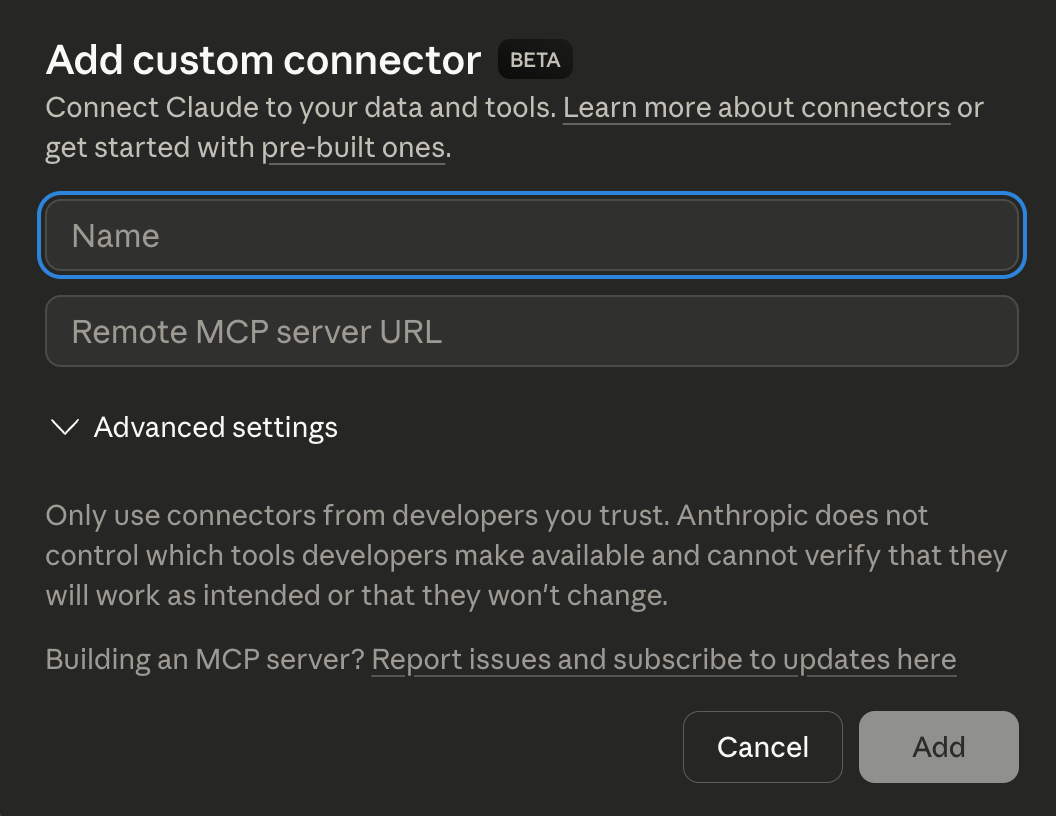
- Go to Settings → Connectors
- Scroll to the bottom and click Add Custom Connector
- Give it a name (like "Trello") and paste in this URL:
https://mcpfortrello.com/mcp - Save it. Done.
Once connected, open any chat and ask questions about your boards in plain English. The first time you ask something Trello-related, Claude will find the connector, ask you to confirm access (just like a Power-Up prompt), and get to work.
What can you actually do with it?
Here's what I've personally used it for:
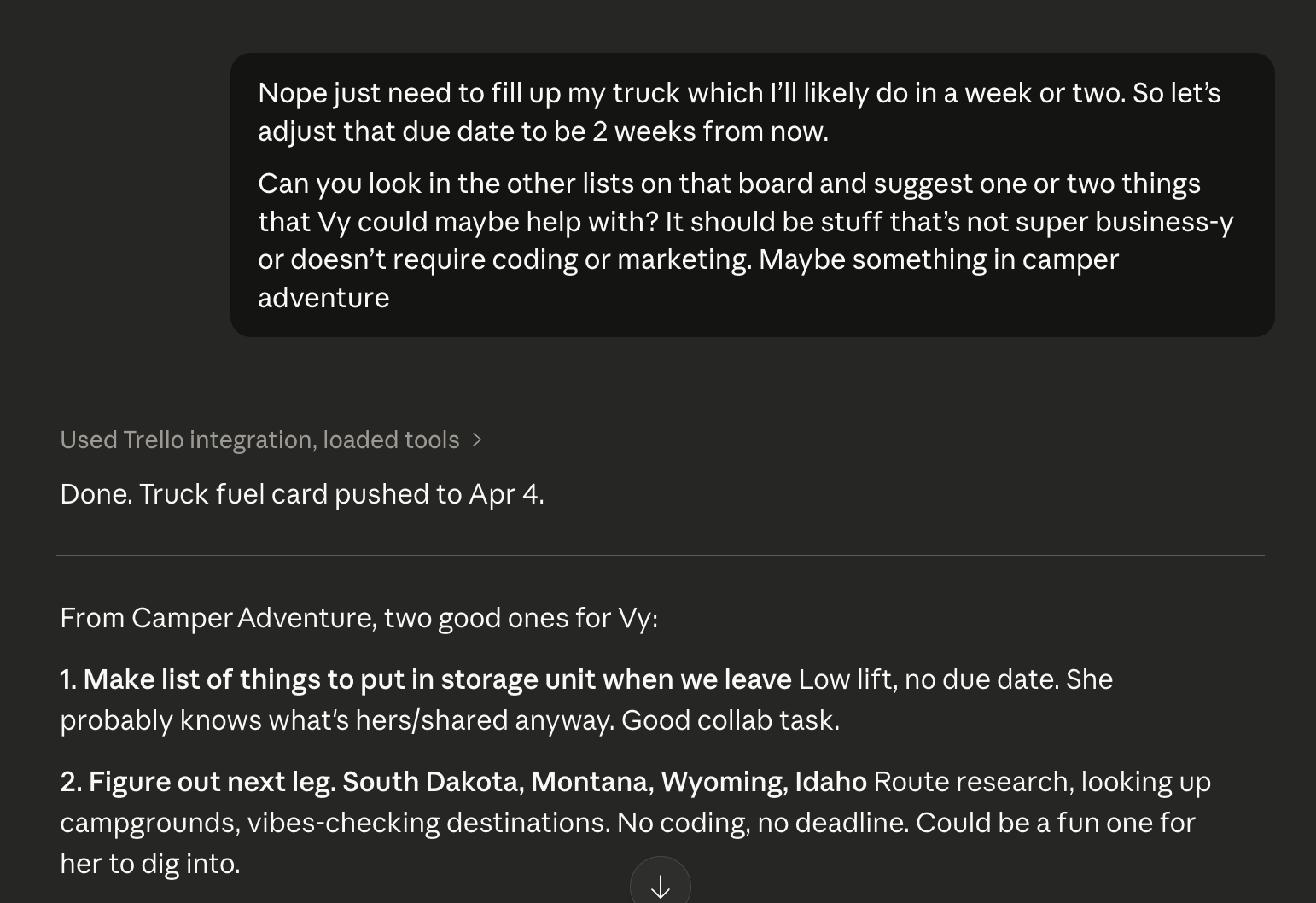
"What cards do I have that are overdue?" Claude reads your boards and surfaces everything past due. No scrolling through seventeen lists. Just an answer.
"Where's that card about [thing I forgot]?" Describe it vaguely. Claude will search for similar terms and track it down.
"What should I be working on next?" It looks across your boards, weighs due dates and context, and gives you a prioritized answer. Not magic, but surprisingly useful.
Review or reflect without the blank-page panic. This is my favorite. Ask Claude to summarize a board you used to track a project or your year. Then ask it to help you spot patterns and figure out what to focus on next. Your Trello board already has all the data — you just need something to help you make sense of it.
Build a board from a conversation. Talk through your goals, then ask Claude to create a matching board. It'll set up lists, add cards, and have something ready. I've used this for trip planning and for organizing my Dungeons & Dragons campaign. It's a fast way to go from "thinking through what I want to do" to "actually having a place to put it."
And when an experiment goes sideways, it helps to know you can restore a Trello card an agent changed.
You don't have to be technical
I want to be direct about this: you do not need to know what MCP stands for. You do not need to understand how the connector works under the hood.
You paste a URL into a settings screen, then have a conversation. If you can write a Slack message, you can do this.
Setting up the safety net is just as simple — this ProBackup vs Rewind for Trello comparison shows what each one covers.
About the author
I'm Britt, and I've been obsessed with Trello for over a decade. I help people build smarter workflows through my weekly newsletter, my YouTube channel, and my book on Trello. If you're trying to get more out of Trello (or just trying to feel less buried by it) let's keep in touch.
.jpg)
Why Your Business Needs a Free CRM (and How HubSpot Makes it Effortless)
In short: ProBackup replaced spreadsheets and in-house tools with HubSpot's Free CRM because it gives one central contact view with connected inboxes, a drag-and-drop deal pipeline, built-in tasks, reminders and email templates, and native Gmail and Google Calendar integration. Setup, including a CSV contact import, deal stages and teammates, took under 10 minutes, and the team still runs on the free plan.
Running a SaaS business means managing a lot of moving parts: leads, partnerships, support tickets, onboarding emails. In our early days at ProBackup, we tried to stay on top of it all with spreadsheets and in-house built tools. It didn’t take long before things started slipping through the cracks.
We needed something simple and reliable to keep track of our customer relationships, without committing to a massive tool or long onboarding process. That’s when we found HubSpot’s Free CRM.
The Mess Before the CRM
If you’ve ever:
- Lost track of who followed up with which lead
- Had two team members contact the same prospect
- Missed a sales opportunity because someone forgot to reply
…you’re not alone. We’ve been there too.
The problem wasn’t our effort. It was our tools. Keeping everything in sync without a proper CRM was just not scalable.
Why We Chose HubSpot’s Free CRM
We didn’t want to spend weeks setting up a tool. HubSpot was quick to try, free to start, and did what we needed right out of the box. Here’s what stood out for us:
1. One Place for Everything
We imported our contacts, connected our inboxes, and instantly had a central view of who we were talking to, what we last discussed, and what needed to happen next.
2. Clear Visual Pipeline
The drag-and-drop board helped us finally see where our deals were. It was like Kanban for sales, which felt familiar and intuitive.
3. Built-In Productivity
We use the tasks, reminders, and email templates daily. It’s made it way easier to follow up without things falling through the cracks.
4. It Just Plays Nice
It connects with Gmail, Google Calendar, and the other tools we already use, so there’s no context switching or copy-pasting.
Getting Started Took Less Than 10 Minutes
- Created an account
- Imported a CSV of contacts
- Set up deal stages
- Added teammates
- Started logging emails and calls automatically
We’re still using the free plan, and it’s doing what we need.
Final Thought
CRMs can feel like overkill if you’re a small team, but trust us, waiting too long to get organized will cost you more. HubSpot’s Free CRM was the low-friction tool we needed to get our sales and support in order. If you’re juggling leads in your head or chasing conversations across inboxes, give it a try. No pressure, no pitch... just sharing what’s worked for us. And once your CRM becomes home to all your customer data, an automated HubSpot backup keeps it safe.
Click here to sign up for HubSpot’s Free CRM
.jpg)
How to delete and restore data in Asana: the complete guide (2026)
.png)
In short: In Asana, archive rather than delete: archived projects keep every task, comment and attachment indefinitely. Deleted tasks are recoverable for 30 days via Advanced Search's Deleted filter; deleting a project sends a recovery email to the person who deleted it. Comments, some attachments and custom-field values have no native recovery once gone, and the undo toast lasts about 15 seconds.
Why this guide matters for Asana users
Asana is mission-critical for teams managing project timelines, task ownership, client deliverables, approval chains, and cross-functional programmes. For many organisations, it quietly becomes the source of truth for how work actually gets done... which makes data loss less of a theoretical problem and more of a when, not if. If you are still weighing up tools, our breakdown of Asana vs Trello vs monday.com covers how each platform treats your data.
This comprehensive guide shows you:
✓ How to safely delete and restore data in Asana
✓ What Asana's native recovery can and cannot do
✓ How to prevent permanent data loss
✓ A complete backup strategy for business continuity
Who this guide is for:
- IT Administrators managing Asana for their company
- Project Managers responsible for team workflows
- Operations Managers protecting business-critical data
- Compliance Officers ensuring data retention requirements
👉 Start your 7-day free trial at ProBackup: https://app.probackup.io/onboarding
Understanding Asana's data structure
The hierarchy of Asana data
Asana is organised as a pyramid: Each level is the building block of the one above it. Deletion cascades downward: removing a container removes everything inside it.
Asana Data Hierarchy:
Organisation / Workspace
└── Team
└── Project
├── Section
│ ├── Task
│ │ ├── Subtask
│ │ ├── Comments
│ │ ├── Attachments
│ │ └── Custom field values
│ └── Task (multi-homed: can belong to multiple projects)
└── Custom fields (global or project-level)
Portfolio
Goals
Important: Deleting a Project removes:
❌ All Sections inside it
❌ All Tasks and Subtasks (unless they are multi-homed in another project)
❌ All comments and communication history on those tasks
❌ All file attachments
❌ All custom field values for tasks within that project
❌ All task dependencies and timeline data
⚠️ Multi-homing note: Asana allows a single task to live in multiple projects simultaneously. If a task is multi-homed, deleting one project removes the task from that project, but the task still exists in any other projects it belongs to. This can be a lifesaver, or a source of confusion, depending on how your workspace is structured.
⚠️ Before removing a team member: Reassign their tasks before deprovisioning their account. Tasks without an owner can fall out of filtered views and scheduled reports, creating silent gaps in your project data.
How to archive and delete data in Asana
Best practice: Archive vs. Delete
🟢 Archive: Recommended in almost all cases
- Removes the project from active views without deleting any data
- Preserves all tasks, comments, attachments, and history indefinitely
- Can be restored at any time
- No countdown clock, no risk of permanent loss
🔴 Delete: Use with extreme caution
- For tasks: moves to a recoverable deleted state for 30 days, then permanently erased
- For projects: triggers an immediate recovery email to the deleting user. If that email is missed, recovery becomes harder
- Comments, certain attachments, and custom field data have no native recovery path once permanently deleted
| Action | ✅ Good for | ❌ Not recommended for |
|---|---|---|
| Archive a project | Completed projects, old client work, inactive programmes, data preserved indefinitely with no risk | Compliance removal or permanent deletion; data that must be provably destroyed |
| Delete a task | Duplicate entries, tasks created by mistake | Tasks with important comments, attachments, or custom field data, comments are immediately and permanently gone even if the task is later restored |
| Delete a section | Restructuring a project where all tasks can safely be moved or deleted | Any section where you haven't carefully read the prompt, selecting "delete tasks" instead of "move tasks" removes all items at once with no further confirmation |
| Delete a custom field from a project | Fields that are genuinely no longer needed and whose data has no future value | Any field with tracking or categorisation data: deletion removes values from every task in the project immediately and irreversibly within Asana |
| Delete a project | Test projects, duplicates, GDPR-driven removal | Any project that might be referenced later: archive instead |
How to archive a project
- Navigate to the project in your sidebar
- Click the dropdown arrow next to the project name
- Select Archive project
- The project is removed from active views but fully preserved
To unarchive: use Advanced Search or browse your team's project list → find the archived project → click the dropdown arrow → Unarchive project
How to delete a task
- Open the task pane
- Click the three-dot menu (...) in the top-right corner
- Select Delete task
- Confirm the prompt
- Task enters a deleted state =recoverable for 30 days via Advanced Search

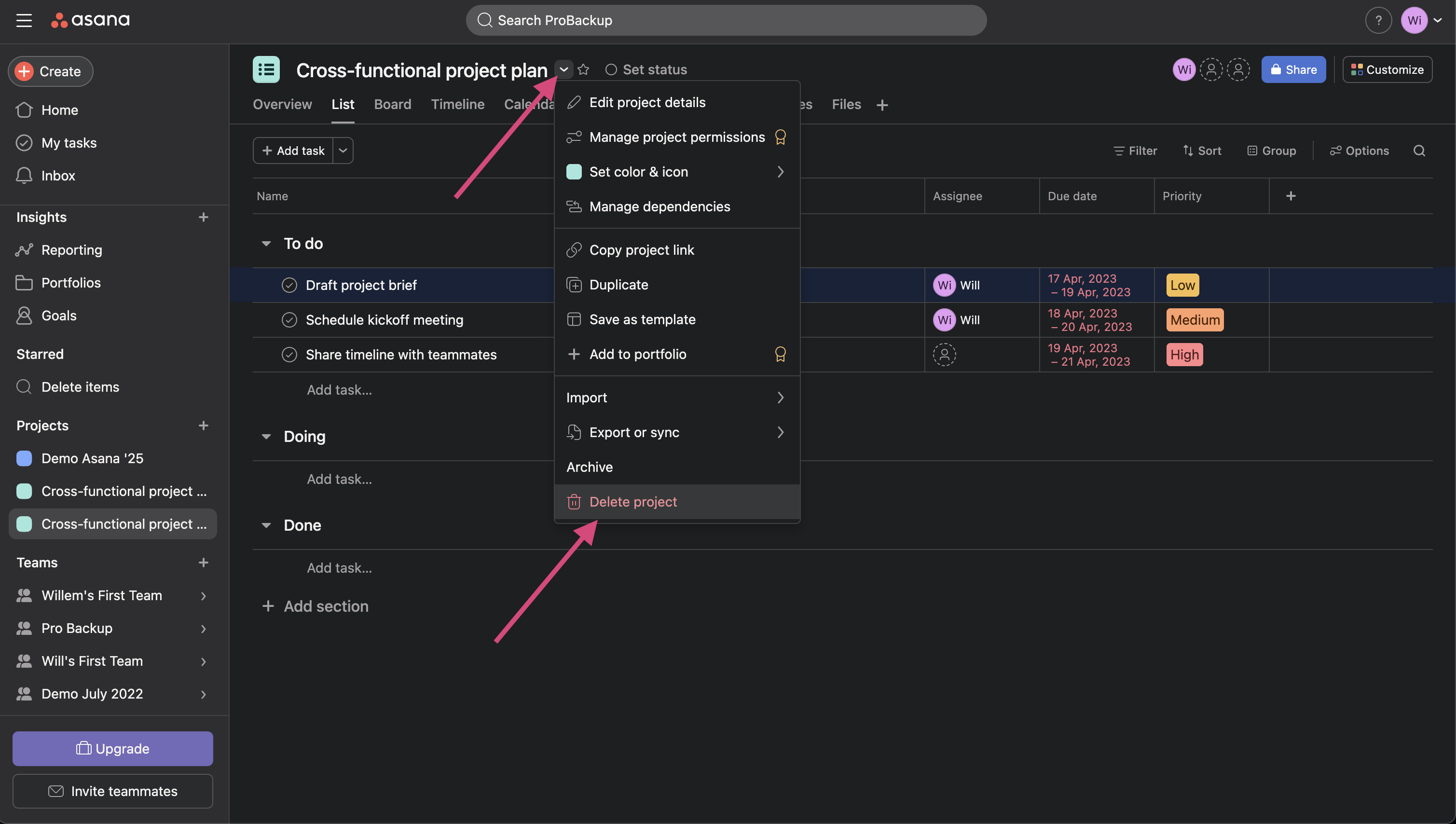
How to delete a project
- Navigate to the project
- Click the dropdown arrow next to the project name
- Select Delete project
- Confirm the deletion
- Asana sends an automated recovery email to the user who performed the deletion
⚠️ Critical: The project recovery email goes to the deleting user only. If that person is unavailable, has left the company, or misses the email, your next recovery option is Advanced Search. Make sure at least one admin knows to check for this email immediately whenever a project deletion occurs.
How to delete a section
- Click the three-dot menu (...) next to the section name
- Select Delete section
- A prompt appears asking what to do with the tasks inside: delete them or move them to another section
⚠️ Warning: This is the most common source of accidental bulk task loss in Asana. The prompt is easy to dismiss without reading carefully. Selecting "delete tasks" removes every item in the section at once with no additional confirmation step. Always choose "move tasks" unless you have explicitly verified every task in that section is safe to delete.
How to delete a custom field from a project
- Click the dropdown arrow next to the custom field name in the project header
- Select Delete field from project
- Confirm the action
⚠️ Warning: This removes the field and all its values from every task in the project. There is no selective undo within Asana. Export the project to CSV before deleting any custom field you are not completely certain about.

How to restore data in Asana
Immediate recovery (within seconds of deletion)
Toast notification: Immediately after any deletion, a notification appears at the bottom-left of the screen with an Undo option. This window lasts approximately 15 seconds.
Undelete button in task pane: If a task was deleted while its pane was still open, an Undelete button remains visible until you navigate away.
Both options disappear the moment you move to another view. They are useful only for mistakes caught in the same instant they happen.
Restoring deleted tasks (within 30 days)
- Click the Search bar at the top of the workspace
- Select Advanced Search
- In the filters, find the Deleted status filter and set it to Deleted
- Narrow results further by assignee, project, or modification date
- Locate the task and click Restore in the task pane

Restoring deleted projects
Method 1: Recovery email (fastest):
- Check the inbox of the person who deleted the project
- Asana sends an automated email with a unique recovery link
- Click the link to restore the project immediately
Method 2: Advanced Search:
- Open Advanced Search
- Filter by Projects with a Deleted status
- Locate the project and restore it from the search results
⚠️ If the deleting user is unavailable: Ensure at least one workspace admin knows how to access Advanced Search for deleted projects before this situation arises.
Restoring from a backup instead works differently: an overwrite restore writes the backed-up values straight back onto records that still exist, rather than creating duplicates.
Trash retention and restoration summary
| Data type | Archive available? | Recovery window | Recovery method | Notes |
|---|---|---|---|---|
| Projects | ✅ Yes, indefinitely | 30 days (deleted state) | Project recovery email OR Advanced Search → restore | Archive is always preferred; recovery email goes only to the deleting user |
| Tasks & Subtasks | ❌ No archive for individual tasks | 30 days | Advanced Search → Deleted filter → Restore | Toast notification / Undelete button available immediately after deletion |
| Sections | ❌ No | Limited | Undo toast (seconds only) | Tasks inside a deleted section may themselves be deleted or moved depending on the prompt selection |
| Comments | ❌ No | None | n/a | Deleted comments are immediately and permanently gone, no trash, no recovery path |
| Attachments | ❌ No | Limited | Partially recoverable if parent task is restored | Attachment recovery is not guaranteed even within the 30-day task window |
| Custom field values | ❌ No | None (when field is deleted) | n/a | Deleting a custom field removes its values from all tasks in the project immediately and irreversibly |
| Portfolios & Goals | ❌ No archive | Limited | Undo toast only | Currently excluded from Asana's data retention policy; limited native recovery |
What can't be restored natively in Asana
Asana's immediate undo options and 30-day recovery window are useful for catching recent, individual mistakes. They have critical gaps that cause permanent data loss in practice.
1. Comments are gone immediately
There is no recovery path for deleted task comments in Asana, no trash, no 30-day window. The moment a comment is deleted, it is permanently gone. For teams that use task comments to record decisions, client approvals, or project context, this is a significant exposure.
2. Custom field data is gone immediately when a field is deleted
Deleting a custom field removes its stored values from every task in the project simultaneously. This cannot be undone within Asana. If the field was tracking status, priority, categorisation, or any other structured data across hundreds of tasks, that information is gone.
3. No version history or rollback
Asana's activity log shows that a field value changed and who changed it. It does not let you roll back those changes at scale. If a third-party integration pushes incorrect data, an AI-driven workflow updates the wrong set of tasks, or a bulk import maps to the wrong fields, you can see what happened in the activity log, but reversing it manually across a large project is not practical.
Common causes of silent data corruption:
- A bulk CSV import maps columns incorrectly and overwrites due dates, assignees, or custom field values across hundreds of tasks
- An automation rule fires on a broader set of tasks than intended and changes status or field values
- Asana AI Studio builds and executes a workflow that updates tasks at scale based on an ambiguous instruction
- Asana AI Teammates (in beta) are assigned work and modify task fields or status without direct human review of each change
- A third-party integration syncs incorrectly and writes wrong values to task fields
None of these are deletions, so they do not appear in Asana's trash. The activity log records what changed, but reversing it in bulk is not a native capability.
4. The 30-day hard cutoff
Tasks and projects deleted more than 30 days ago are permanently gone. Asana does not offer an extended window, and there is no way to request recovery from their support team after the cutoff.
More than 30 days after deletion
Deleted tasks and projects sit in the "Deleted items" view for 30 days, then are permanently deleted (Asana Help, checked 16 September 2026). Asana Support cannot bring them back after that point. From day 31 the only way to recover a task, project, its comments and attachments is a backup taken before the deletion: restore it from the snapshot of a date on which the item still existed. ProBackup keeps daily snapshots for 6 months on Plus, 2 years on Pro and unlimited on Premium. How Asana's window compares with the other platforms is in Version history and trash retention per app and plan.
5. What Asana support can and cannot do
| Asana Support | |
|---|---|
| ✅ Can do | Advise on using Advanced Search and recovery emails; investigate if data loss was caused by a platform bug; sometimes restore data if a verified system error caused the deletion (rare) |
| ❌ Cannot do | Recover deleted comments or custom field data; restore tasks or projects deleted more than 30 days ago; roll back bulk field value changes made by automations, AI, or imports; recover attachments after the parent task window has expired |
Common data loss scenarios & solutions
Scenario 1: "Someone deleted the wrong project with months of client work"
What happened: A project manager was cleaning up old projects and deleted an active client project instead of a test one. The deletion was noticed 2 weeks later.
Native solution:
✓ Check the inbox of the person who deleted the project for the automated Asana recovery email
✓ If the email is found: click the recovery link, the project and all its tasks are restored immediately
✓ If the email is not found: go to Advanced Search → filter by Projects → Deleted → restore
✓ Must be done within 30 days
If it happened 31+ days ago:
✗ The project is permanently gone
✗ Asana support cannot recover it
✗ Must reconstruct from exports, emails, or memory
Scenario 2: "A section was deleted and took 80 tasks with it"
What happened: A team member deleted a section during a project restructure. The prompt appeared and they selected "delete tasks" instead of "move tasks" without reading carefully. 80 tasks are gone.
Native solution:
✓ If caught immediately: Undo toast notification (within ~15 seconds)
✓ If caught within 30 days: Advanced Search → Deleted filter → restore individual tasks
✗ Restoring 80 individual tasks manually is time-consuming and error-prone
✗ Any comments on those tasks are permanently gone even if the tasks are restored
Scenario 3: "All comments on our tasks were deleted"
What happened: A team member deleted comment threads across 50 tasks in a project, removing all decision history, client approval records, and context notes.
Native solution:
✗ Deleted comments have no recovery path in Asana
✗ There is no trash for comments (deletion is immediate and permanent)
✗ Asana support cannot recover deleted comments
Impact:
- Lost proof of client approvals and decisions
- No context for why tasks were structured a certain way
- Team must reconstruct context from email or memory
Scenario 4: "An AI Studio workflow updated tasks incorrectly across a whole project"
What happened: An Asana AI Studio workflow was built to update task statuses and assignees based on a trigger condition. The instruction was ambiguous and the workflow updated 300 tasks with incorrect status values before anyone noticed.
Native solution:
✗ Tasks were modified, not deleted: Advanced Search and recovery emails don't help
✗ Activity log confirms the changes occurred but cannot revert them at scale
✗ No version rollback mechanism exists in Asana
✗ Manual correction of 300 tasks: hours of work
Scenario 5: "A custom field was deleted and took categorisation data with it"
What happened: An admin deleted a custom "Client Priority" field while restructuring a project template. The field had been used to categorise tasks across 4 projects, and the data is now gone from every task.
Native solution:
✗ Custom field deletion removes values from all tasks immediately and irreversibly in Asana
✗ There is no trash or recovery path for deleted custom field data
✗ Asana support cannot recover it
Scenario 6: "A departing employee deleted all their projects before leaving"
What happened: A team lead with admin-level access deleted 7 projects before their last day. The project recovery emails were sent to their now-deactivated inbox.
Native solution:
✗ Recovery emails went to the deleted user's inbox =inaccessible
✗ Advanced Search can locate the deleted projects within 30 days: Act immediately
✓ Another admin using Advanced Search may be able to restore within the 30-day window
✗ After 30 days: permanently gone
✗ No way to prevent the email going exclusively to the deleting user
Quick reference: "I lost important data in Asana... what should I do?"
| Situation | First step | If that fails |
|---|---|---|
| Just deleted something, still on the same screen | Click Undo in the toast notification (bottom-left, ~15 seconds) or Undelete in the open task pane | Navigate to Advanced Search if the toast has expired |
| Deleted a project within 30 days | Check the inbox of the person who deleted it for the Asana recovery email → click the link | Advanced Search → filter by Projects, Deleted → restore; if more than 30 days ago, restore from ProBackup |
| Deleted tasks within 30 days | Advanced Search → Deleted filter → locate task → Restore | If more than 30 days ago, restore from ProBackup only |
| Deleted a comment | No native recovery: comments are permanently gone immediately | Restore from ProBackup only |
| Deleted a custom field | No native recovery: field values are permanently gone immediately | Restore from ProBackup only |
| Data was changed, not deleted (automation, AI, or import error) | Check activity log to understand the scope of changes | Native tools cannot bulk-revert: restore from ProBackup to roll back to the pre-change state |
| Deleted more than 30 days ago | Native recovery is not possible | Restore from ProBackup; if no backup exists, data is permanently lost |
Summary: Why native recovery isn't enough for professional teams
Asana's immediate undo options and 30-day trash are designed to catch recent, individual mistakes, not to serve as a disaster recovery plan for a business-critical work management system. If you are weighing up dedicated tools, see how ProBackup vs Skyvia for Asana stack up.
| Feature | ✅ Good for | ❌ Not sufficient for |
|---|---|---|
| Toast notification / Undelete button | Catching a deletion in the exact moment it happens, same screen, same session | Anything discovered after navigating away, even seconds later |
| Advanced Search (30-day window) | Recovering deleted tasks and projects caught within 30 days | Deleted comments, custom field data, or anything older than 30 days |
| Project recovery email | Quick project restoration when the deleting user is available and checks their inbox | Situations where the deleting user is unavailable, deactivated, or the email is missed |
| Activity log | Auditing who changed what and when on a task or project | Rolling back bulk changes. It shows history but cannot revert it |
| Archive (projects only) | Hiding completed or inactive projects while preserving all data indefinitely | Individual tasks, comments, or custom fields: there is no archive option at those levels |
| ProBackup | Automated daily backups, long-term retention (unlimited on Premium), point-in-time recovery, granular restore, compliance documentation | n/a |
Compliance & data retention
Data retention requirements by industry
| Industry | Typical retention requirement | Asana native covers this? |
|---|---|---|
| Finance & Accounting | 7 years | ❌ No: 30-day trash is far below requirement; archived projects persist but have no versioned audit trail |
| Healthcare (HIPAA) | 6–10 years | ❌ No |
| Legal | 7 years | ❌ No |
| General business / contracts | 3–5 years | ⚠️ Partially: archived projects persist, but there is no point-in-time version history or exportable audit trail |
| EU GDPR | As long as purpose requires + deletion on request within 30 days | ⚠️ Partial: production deletion is straightforward, but proving backup purge requires a third-party solution |
GDPR compliance: the "right to be forgotten"
When an EU citizen requests deletion of their personal data, you must delete it from production systems and backups, and document it within 30 days.
How this works with Asana + ProBackup:
Step 1: Delete user data from Asana: Remove the person from the workspace, delete or reassign tasks associated with them, and remove personal data from task descriptions and custom fields.
Step 2: Request deletion from ProBackup: open a support ticket specifying the user and date range. ProBackup purges that data from backup storage.
Step 3: Export a deletion certificate from ProBackup for your GDPR compliance documentation.
👉 Read our full GDPR guide: Handling GDPR Deletion Requests in Your Backup System
SOC 2 & ISO 27001: what auditors look for
| Auditor requirement | Asana native | Asana + ProBackup |
|---|---|---|
| Automated daily backups | ❌ No automated backup system: 30-day trash and archive only | ✅ Daily automated backups |
| Documented backup procedures | ❌ Not provided | ✅ Documented and auditable |
| Tested restore process | ⚠️ Manual: teams must self-test Advanced Search restores | ✅ Tested and verifiable |
| SOC 2 certified backup vendor | N/A | ✅ ProBackup is SOC 2 Type II certified |
| Configurable retention policy | ❌ Fixed 30-day trash; archives persist but have no version history | ✅ Configurable per plan: unlimited on Premium, with point-in-time history |
| Audit trail of backup activity | ❌ Not available | ✅ Full audit log |
Protect your Asana data today
Don't wait for a data loss disaster to implement backup. As Asana expands its AI capabilities, with AI Studio building and executing multi-step workflows, and AI Teammates taking action on tasks as genuine collaborators. The number of ways data can change at scale without a human reviewing each step keeps growing. A single misconfigured workflow can update hundreds of tasks before anyone notices. The activity log will show it happened. Getting back to where you were is a different problem entirely.
ProBackup gives you:
✓ Automated daily backups of all your Asana data
✓ Unlimited retention on the Premium plan (no 30-day expiration)
✓ Point-in-time recovery (restore from any date)
✓ Granular restore (one task, one project, or everything)
✓ Google Drive sync on Pro and Premium plans (you own your data)
✓ SOC 2 Type II certified (enterprise-ready)
✓ 3-minute setup (no technical knowledge needed)
Not sure where to start? You can set up an Asana backup in minutes.
Evaluating backup tools? See how ProBackup compares to FluentPro for Asana.
👉 Start your 7-day free trial at ProBackup: https://app.probackup.io/onboarding
HubSpot backup and data recovery: the complete guide (2026)
In short: HubSpot offers two native recovery tools: the recycle bin restores deleted records for 90 days (up to 10,000 at a time, all plans) and 'Restore CRM changes' reverts edits from imports and workflows for 14 days. Permanent deletes bypass the bin. For anything older, or for lost associations and activity history, you need an export or a third-party backup.
HubSpot has grown from a marketing tool into a full system of record for many teams. Contact histories, deal pipelines, support tickets and marketing automation all live there, and so does the risk that something important disappears or gets overwritten without anyone noticing until it's too late.
As of August 2026, you have three ways to protect HubSpot data. The first is HubSpot's own restore tools, which cover deleted records for 90 days and recent changes for 14 days. The second is exporting or backing up your data manually, either table by table or with HubSpot's built-in Backup & Restore. The third is an automated third-party backup that runs in the background. This guide walks through all three, what each one can and can't recover, and how to combine them.
Full disclosure: this guide is written by ProBackup, one of the third-party tools covered in option three. We've tried to be objective about HubSpot's native tools, which are better than most SaaS platforms offer, and about the alternatives.
Prefer to watch? This video walks through all three options in about seven minutes.
👉 Start your 7-day free trial at ProBackup: https://app.probackup.io/onboarding
How HubSpot structures your data
HubSpot organises everything around objects (contacts, companies, deals, tickets, custom objects), records within those objects, properties on each record and associations between records. Activities such as calls, notes, emails and meetings hang off the records they relate to, and so do sales assets (products, quotes), marketing assets (templates, forms) and automation (workflows, sequences). Before deleting anything, it helps to know what goes with it.
Deleting a CRM record removes:
❌ Every property value stored on that record
❌ All associated activities (calls, notes, emails, meetings, tasks)
❌ All associations to other records (company links, deal links)
❌ The record's interaction timeline and any sequence enrolment history
⚠️ Before removing a user: reassign their contact and deal ownership first. Records left without an owner can drop out of filtered views and lead rotation rules, causing silent data problems that are hard to diagnose later.
How to delete data in HubSpot
HubSpot offers two types of deletion, and choosing the wrong one has very different consequences.
🟢 Restorable delete: the default, and the right choice in almost all cases
- Moves the record to the recycle bin with a 90-day recovery window
- Property values and activity history are preserved during that window
- Can be reversed by any user with the right permissions
🔴 Permanent delete: only for GDPR and similar privacy requests
- Bypasses the recycle bin entirely; there is no recovery window
- Intended for data subject deletion requests where you must prove the data is gone
- Cannot be undone, not even by HubSpot support
| Action | ✅ Good for | ❌ Not recommended for |
|---|---|---|
| Restorable delete | Duplicates, records created by mistake, deals that fell through, anything you might conceivably need back within 90 days | Records you are legally required to erase (use permanent delete) |
| Permanent delete | GDPR and other data subject deletion requests | Anything you might want back. There is no recovery path |
| Automated deletion workflow | Systematically removing inactive or unsubscribed contacts at scale (Professional and Enterprise) | Any bulk automation you haven't first tested on a small, manually verified segment |
| Bulk delete from an index page | Cleaning up large batches of duplicate or junk records | Segments with meaningful activity history. There is no preview of what associated activities will go with each record |
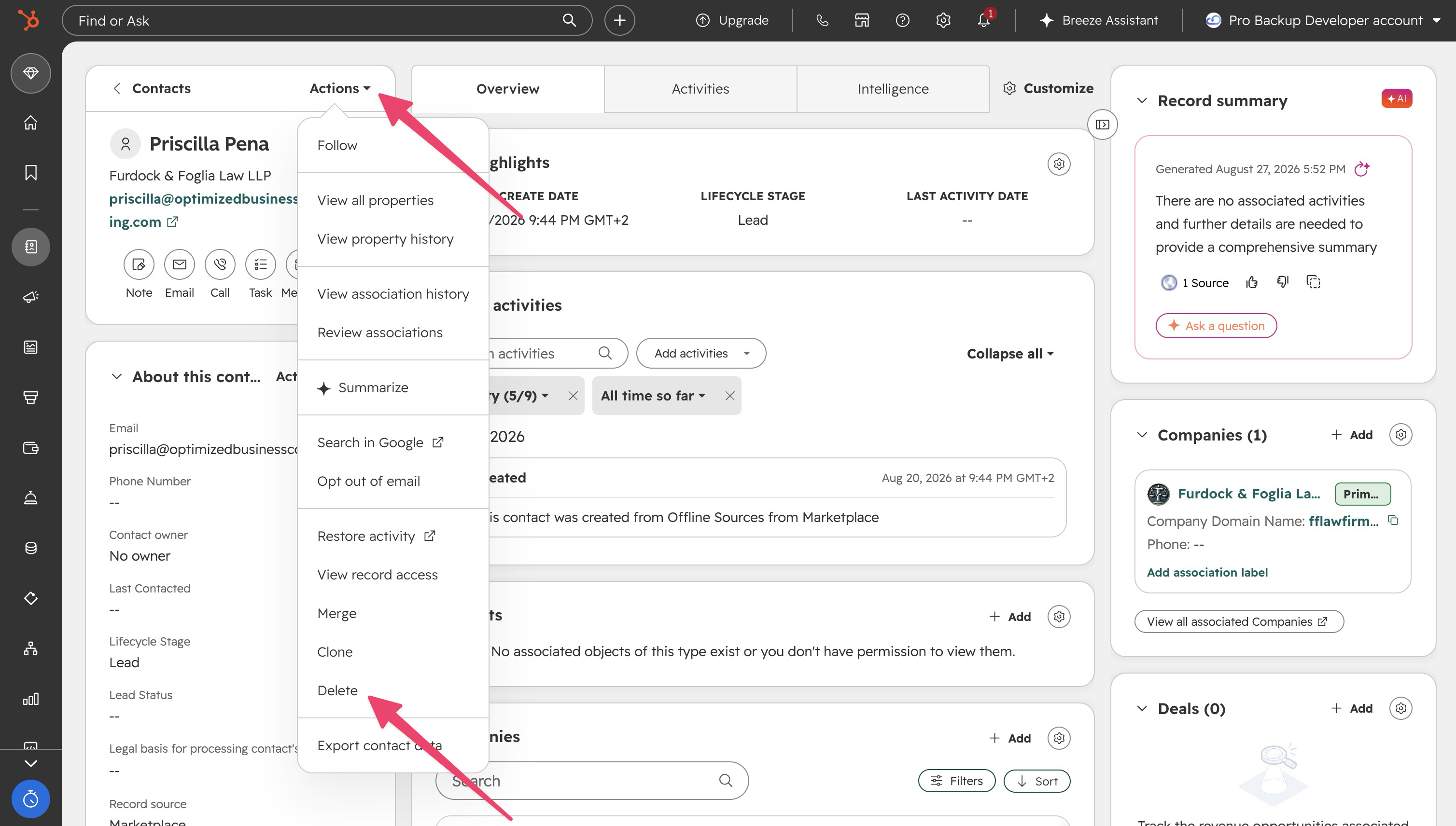
How to delete an individual record
- Open the record from the relevant index page (Contacts, Companies, Deals, Tickets and so on)
- Click the Actions dropdown in the left panel and select Delete
- Choose restorable or permanent deletion and confirm
How to delete multiple records (bulk delete)
- On the object index page, select the checkboxes next to the records
- Click Delete in the header row
- Type the number of records to confirm
⚠️ Warning: bulk deletion is fast and shows no preview of the associated activities that go with each record. Before bulk deleting any segment with real engagement history, open a sample of records manually to understand what will be lost.
How to set up automated deletion (Professional and Enterprise)
- Go to Automation → Workflows
- Set the enrolment trigger (lifecycle stage, inactivity date, subscription status)
- Add the Delete contact action
- Test on a small, manually verified segment before enabling it for your full database
Option 1: HubSpot's native restore tools
HubSpot gives you two separate tools. One recovers deleted records; the other rolls back changes to records that still exist. They have different windows, different permission requirements and different plan availability, so it pays to know both before you need them.
Restore deleted records (the recycle bin, 90 days)
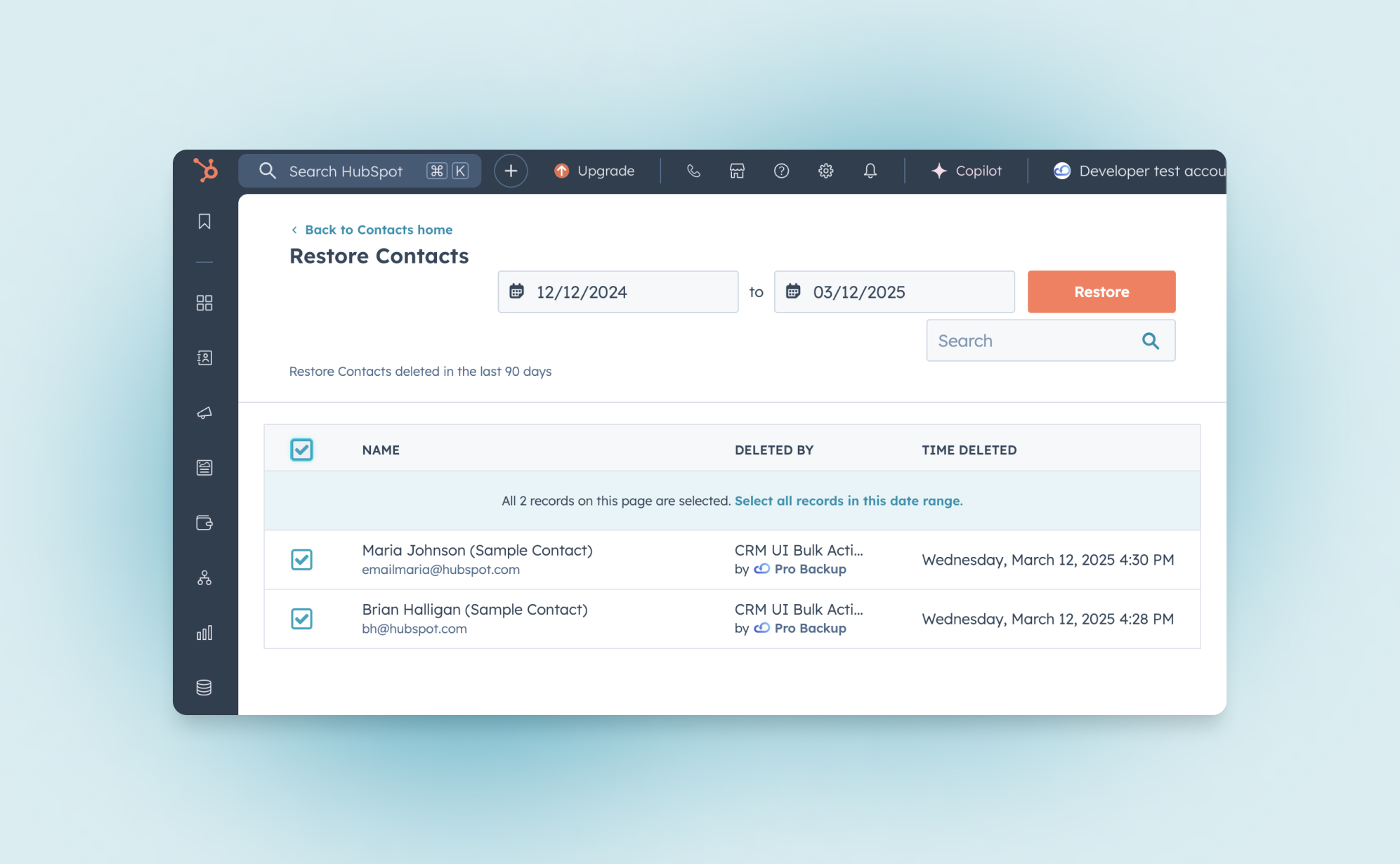
Every HubSpot-defined object (contacts, companies, deals, tickets, products, custom objects and more) has its own recycle bin. Deleted records stay there for 90 days. This is available on all plans, including free.
HubSpot's Knowledge Base states that you can restore HubSpot-defined object records "up to 90 days after they were deleted", and that "permanent or GDPR-related deletions aren't held in the recycle bin" (Restore deleted records, checked 16 September 2026). Ninety days is the longest trash window of any platform we back up: Asana, ClickUp and monday.com hold deleted items for 30 days, Airtable's base trash for 7, and Trello and Jira Cloud have no trash at all. The full plan-by-plan table is in Version history and trash retention per app and plan.
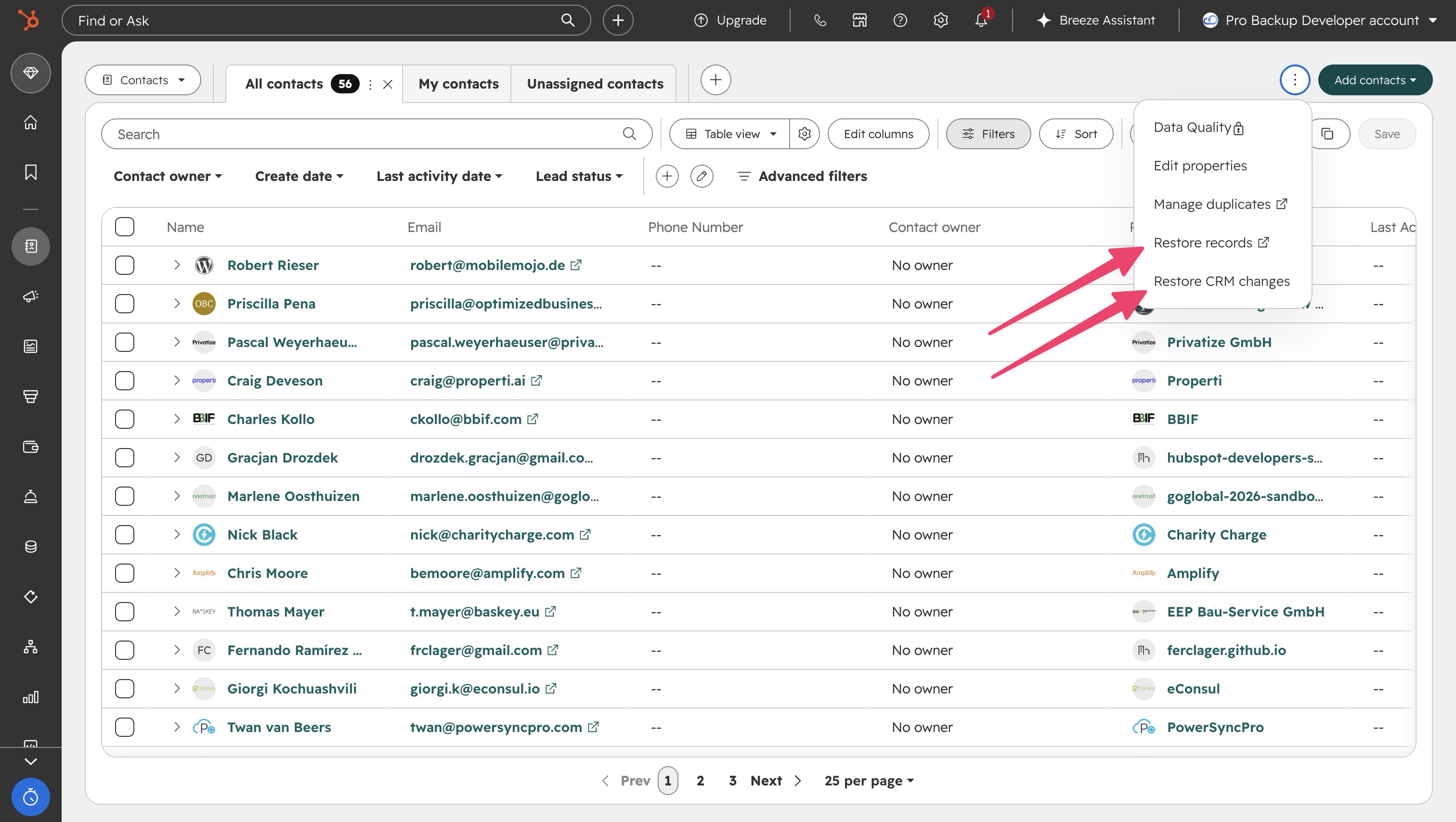
- Go to the index page of the relevant object (for example Contacts)
- In the top right, click Actions, then Restore records. The recycle bin opens in a new tab
- Filter by date (a preset or a custom range up to 90 days), by user, or by workflow if a workflow with a Delete contact action caused the deletion
- Select the records, or use Select all records in this date range
- Click Restore, type the number of records to confirm
Things to know before you rely on it:
- You need account access plus add-and-edit-users permissions to open the tool
- The tool shows and restores a maximum of 10,000 records at a time
- A deleted contact can't be restored if an active contact already uses the same email address. Change or remove the email on the active record first
- If a workflow deleted the records, turn that workflow off before restoring, or it will delete them again
- Permanent and GDPR deletions are never held in the recycle bin
- HubSpot notes that some data associated with a restored contact may still be lost
Restore CRM changes (undo edits, imports and workflows, 14 days)
Deletions are only half the problem. The other half is data that was changed rather than deleted: a bad import that overwrote a field on thousands of contacts, a workflow that updated the wrong lifecycle stage, a manual edit gone wrong. Property history has always shown you that a value changed, but until recently there was no way to reverse it in bulk.
Restore CRM changes fixes that. It rolls records back to a point in time within the last 14 days, and you can scope the rollback by source, object, property and user.
- Click the settings icon, then under Data management open Backup & Restore and the Restore tab (you can also reach it from the Actions menu on an object index page)
- Select Restore CRM changes
- Choose the source: CRM changes (manual edits), Import, Workflow, or Integration (in beta). For imports, workflows and integrations, pick the specific one by name
- Choose the object types to include. For manual changes you can also restrict to specific properties and a specific user
- Pick the date and time to roll back to and click Prepare preview
- When the preview is ready, review the records, current values and last-known values, select what to restore, type the number of changes to confirm, and click Restore
Things to know before you rely on it:
- Requires Super Admin permissions and a Starter, Professional or Enterprise Hub (or Smart CRM Professional and above). Free accounts don't have it
- Supported objects: contacts, companies, deals, tickets, calls, products, leads, marketing events, orders, tasks and custom objects
- It restores property values; it doesn't bring back deleted records. For those, use the recycle bin
- If a rollback covers both created records and modified properties, you restore one type per prepared restore
- Every restore is logged in HubSpot's audit log, and a prepared preview stays available for 14 days
The same rollback is also available from inside a workflow. Open the workflow, go to Performance history → Enrolment history and click Undo CRM changes to revert property changes that workflow made in the last 14 days.
Restore deleted activities and workflows
Activities: open the record where the call, note or task existed, open the activity timeline, click Actions and select Restore activity. Use the date filter to find the engagement.
Workflows: go to Automation → Workflows, open the Deleted tab, hover over the workflow and click Clone. Deleted workflows can be restored for 90 days. HubSpot recreates the workflow as a new, inactive workflow with the logic as it was at deletion. Enrolment history, past versions and execution data are not restored.
Native restore options at a glance
| What went wrong | Native tool | Window | Plan and permission | What comes back |
|---|---|---|---|---|
| Record deleted (restorable delete) | Index page → Actions → Restore records | 90 days | All plans; account access + add/edit users | The record with its properties; some associated data may be lost |
| Properties changed by an import, workflow, integration or manual edit | Settings → Backup & Restore → Restore CRM changes | 14 days | Starter and above; Super Admin | Property values as they were at the chosen point in time |
| Activity deleted from a record | Record timeline → Actions → Restore activity | Limited | All plans | The individual activity |
| Workflow deleted | Workflows → Deleted tab → Clone | 90 days | Workflows access | Workflow logic only; no enrolment history |
| Record permanently deleted | None | None | n/a | Nothing |
| Anything older than the window | None | None | n/a | Nothing; HubSpot support can't extend the window |
Option 2: export or back up your data manually
The simplest way to hold a copy of your data outside HubSpot is to export it yourself. HubSpot gives you two ways to do that, and both are free on paid plans.
Export a table
Every object index page has an export button. Click Actions → Export (or the export icon), give the export a name, choose CSV or XLSX, and confirm. HubSpot emails you a download link. If you only use HubSpot to manage a contact list, doing this once a week or once a month may be all the protection you need.
The catch is that this is an export of a table, not of your CRM. You get the columns and values you see on that index page. You don't get the record's associations to companies, deals or tickets, and you don't get its engagements: notes, emails, calls, tasks and meetings. If you ever need to restore from the file, you'll be re-importing flat rows and rebuilding the relationships by hand. You also have to repeat the export for every object that matters, and remember to do it.
HubSpot's built-in Backup & Restore
Since 2026, HubSpot has offered a native backup feature under Settings → Data management → Backup & Restore. It packages the main CRM objects into a single download instead of making you export them one by one.
- Open Backup & Restore and click Create manual backup, then confirm
- HubSpot notifies you when it's ready. Download the .zip within 14 days; it contains one CSV per object
- On Enterprise, switch on Schedule automated backups and choose weekly or every two weeks, on a set day
Things to know:
- Covers contacts, companies, deals, tickets, custom objects, products, calls, conversations and tasks. Associations and activity data aren't included
- Starter and Professional can back up once a week; Enterprise once every 24 hours
- Scheduling is Enterprise only; other tiers run it manually
- Requires Super Admin permissions
- Sensitive-data properties are included in the files, so store the download somewhere secure
- The download link expires after 14 days, so you need your own storage and retention process
| Method | ✅ Good for | ❌ Not recommended for |
|---|---|---|
| Table export (CSV / XLSX) | Small teams using HubSpot mainly as a contact list; a quick pre-import safety copy of one object | Anything where associations or engagement history matter; teams that won't reliably repeat it |
| HubSpot Backup & Restore | A regular, consistent snapshot of core objects without third-party access; Enterprise teams who want it scheduled | Restoring relationships or activities; retention beyond what you store yourself; teams without a Super Admin to run it |
Option 3: automated third-party backup
The third option is a backup tool that connects to HubSpot through its public API (application programming interface), takes a snapshot of your data every day, keeps the versions, and lets you restore records back into HubSpot. Search for "backup" in the HubSpot App Marketplace and you'll find the main providers: ProBackup, SysCloud and Skyvia are the ones most teams shortlist.
The advantage over the first two options is that it covers the mistakes you weren't aware of: it runs whether or not anyone remembers, keeps history well beyond 90 days, and stores everything outside HubSpot, where a permanent delete or a departed employee can't reach it.
How ProBackup for HubSpot works
Setup takes a few minutes, and there is a fuller step-by-step HubSpot backup setup walkthrough if you want the detail:
- Create a ProBackup account and click the plus icon to add HubSpot
- Sign in to HubSpot and authorise ProBackup to access your portal
- Start the initial backup. From then on ProBackup backs up your data automatically every 24 hours, no scheduling required
Once the first snapshot is in, you can browse every backed-up table (contacts, companies, deals and so on) exactly as they looked on any past date, open a record and step through its previous versions. Restoring works in two modes:
- Restore as new records: creates a copy in HubSpot. If the original was deleted, this brings it back; if it still exists, you get a duplicate. Engagements and files come with it. Because HubSpot won't allow two contacts with the same email, restored contacts get a "+restored" suffix on their email address
- Overwrite existing records: pick the fields you want to roll back and ProBackup updates the live record with the backed-up values, leaving everything else untouched
ProBackup also creates a "ProBackup Deleted Records" object inside HubSpot, so you can see everything deleted from your portal, with a link to restore it, without leaving HubSpot.
At the time of writing, ProBackup backs up HubSpot's CRM objects (contacts, companies, deals, tickets, lists, inbox, calls, tasks, attachments, custom objects and custom properties), marketing assets (email templates, forms, events), commerce data (quotes, products, invoices) and workflows. It does not back up website or landing pages, dashboards and reports, payments, the help desk or knowledge base, and a few other areas that HubSpot doesn't expose through its API. The current list is on our HubSpot data coverage page.
Comparing the three options
| HubSpot native restore | Manual export / HubSpot Backup & Restore | Automated third-party backup | |
|---|---|---|---|
| Recovers deleted records | Yes, for 90 days | Only by re-importing rows | Yes, for as long as your retention runs |
| Reverses overwritten values | Yes, for 14 days (Starter and above, Super Admin) | Only by re-importing rows | Yes, from any daily snapshot |
| Keeps associations and activities | Mostly, for recycle bin restores | No | Yes, within API limits |
| Protects against permanent delete | No | Yes, if the export predates it | Yes |
| Runs without anyone remembering | n/a | Only scheduled backups on Enterprise | Yes, daily |
| Point-in-time view of a whole record | No (property history is per field) | Only at export dates | Yes, any past day |
| Cost | Included | Included on paid plans | Subscription |
If the shortlist comes down to two specific vendors, our side-by-side of ProBackup vs Skyvia for HubSpot goes through coverage and restore behaviour in detail.
Common data loss scenarios and how to recover
| Scenario | Native first step | Where native stops | With an automated backup |
|---|---|---|---|
| A rep bulk-deleted 200 contacts from a segment; nobody noticed for five weeks | Contacts → Actions → Restore records, filter by date or user | Day 91. After that, the records are gone and support can't help | Restore the contacts, with engagements, from any snapshot before the deletion |
| A mismatched import overwrote the Industry field on 3,800 contacts; caught after 10 days | Backup & Restore → Restore CRM changes → Source: Import, pick the import, preview, restore | Day 15. Also needs a Super Admin and a Starter-or-above Hub | Overwrite just the Industry field from the pre-import snapshot, at any age |
| A cleanup workflow with a too-broad trigger deleted 900 active contacts | Turn the workflow off, then Restore records filtered by that workflow | Enrolment history and downstream actions (sequences, notifications) aren't reversed | Restore the contacts as they were the day before the workflow ran |
| An AI agent or integration rewrote lifecycle stage and owner on 1,200 records | Restore CRM changes with Source: Integration (beta) or CRM changes, if the change is within 14 days and attributed to a supported source | Changes older than 14 days, or from sources the tool doesn't recognise, can only be reviewed one record at a time in property history | Compare the record before and after the run and roll back the affected fields in bulk |
| You need to prove what a deal looked like at signing, eight months ago | Property history shows each field change on the deal | No full-record view at a past date; if the deal was deleted more than 90 days ago, nothing | Open the deal as it was on that date, with properties, associations and notes, and export it |
| A departing employee used permanent delete on their contacts before leaving | None. Permanent deletes never enter the recycle bin | Immediately | Backups sit outside HubSpot's permissions. Restore the records and see exactly what was deleted and when |
Six risks to plan for
- Two cliffs, not one. Deleted records fall off at 90 days; changed values fall off at 14. Most teams know the first number and not the second, and it's the second that bites on imports and automations.
- Permanent delete is one click away. It's offered on every record, in bulk, and from inside the recycle bin. There is no confirmation that survives a determined or careless user.
- Exports and native backups keep values, not relationships. Neither the table export nor HubSpot's Backup & Restore includes associations or activities. A re-import gives you rows, not a CRM.
- The best native tools are gated. Restore CRM changes and Backup & Restore need a Super Admin and a paid Hub; scheduled backups need Enterprise. If the one Super Admin is on holiday, the 14-day clock keeps running.
- Third-party tools are bounded by the API. Anything HubSpot doesn't expose can't be backed up by anyone. Check the coverage list, don't assume.
- Automation and AI change data at machine speed. HubSpot's Breeze agents and connected integrations can update thousands of records before a human looks. Those changes appear in property history, not the recycle bin, and the Integration source in Restore CRM changes is still in beta.
What good looks like
- Restorable delete by default. Restrict permanent delete and Super Admin rights to the few people who handle privacy requests, and log who has recycle bin access.
- Reassign before you remove. Move contact and deal ownership before deactivating a user.
- Look inside the window. A monthly check of the recycle bin and audit log catches most problems while HubSpot can still fix them.
- At minimum, export weekly. Run a table export or a Backup & Restore download for your core objects and store it somewhere with its own retention. Enterprise teams should switch on scheduling.
- If HubSpot is your system of record, automate it. A daily third-party backup with retention beyond 90 days is the only option that covers unknown mistakes, permanent deletes and point-in-time evidence.
- Test every restore path once. Restore a record from the recycle bin, roll back a change with Restore CRM changes, re-import a small export, and run a test restore from your backup tool. Do it before you need it.
- Write down the erasure procedure. A GDPR request has to reach your backups too. Know who does what, in which order (see below).
GDPR and compliance
Under GDPR (the EU General Data Protection Regulation), an erasure request has to be honoured in production systems and in backups, and documented. With HubSpot plus a backup tool, that's a three-step process:
Step 1: delete the contact in HubSpot with permanent delete. HubSpot removes it from user view immediately and purges it from its own systems within 30 days.
Step 2: request deletion from your backup vendor. With ProBackup, open a support ticket specifying the contact and date range, and the data is purged from backup storage.
Step 3: keep the confirmation with your compliance records.
👉 Full guide: Handling GDPR deletion requests in your backup system
If you're working towards a SOC 2 report (an audit framework from the AICPA, not a regulation), auditors will ask for documented, regularly run and tested backups with defined retention, so check the retention per plan before you write the policy. ProBackup is SOC 2 Type II certified (May 2025) and stores your data encrypted with AES-256 at rest and TLS in transit, in whichever of nine AWS regions you choose at signup.
Conclusion
HubSpot's native recovery is better than most SaaS platforms offer: a 90-day recycle bin, a 14-day rollback for changes, and since 2026 a built-in CSV backup. If your team is small, checks the bin regularly and exports weekly, that may be enough.
The gap opens when HubSpot becomes the system of record. Then the question changes from "can we undo last week's mistake" to "can we recover what we didn't know we lost, reverse an automation from three weeks ago, or show what this deal looked like last year". Native tools answer none of those. An automated, versioned backup outside HubSpot answers all three.
Backup is one part of a wider stack; our roundup of HubSpot data-quality and migration apps covers the tools teams pair it with.
ProBackup gives you:
✓ Automated daily backups of all API-available HubSpot data, no scheduling required
✓ Version history of 6 months on Plus, 2 years on Pro and unlimited on Premium
✓ Point-in-time restore of any record as it was on any past day
✓ Granular restore: one field, one contact, or a whole table, as duplicates or by overwriting
✓ Google Drive sync for a second copy you control (Pro and Premium plans)
✓ SOC 2 Type II certified (May 2025), AES-256 at rest, TLS in transit, nine customer-selected AWS regions
✓ Plans from $25 per month billed annually; setup in a few minutes
Evaluating tools? See how ProBackup compares to SysCloud for HubSpot.
👉 Start your 7-day free trial at ProBackup: https://app.probackup.io/onboarding
This guide is written for IT administrators, revenue and marketing operations leads, and anyone responsible for the data inside a HubSpot portal. HubSpot feature details were checked against HubSpot's knowledge base in August 2026 and may change.
ClickUp Chat: How does it compare to Slack and other productivity apps
In short: ClickUp Chat is a built-in messaging feature included in every ClickUp plan, including Free Forever, that lets you message teammates, share files, use threads and turn messages into tasks with one click. Unlike Slack, which deletes messages after 90 days on its free plan, ClickUp keeps all messages. Asana, Trello, monday.com and Airtable offer comments rather than a dedicated chat.
ClickUp aims to be the "one app to replace them all". It offers a broad range of project management features such as task managent, time tracking, goals and since recently it has also launched ClickUp Chat. ClickUp Chat lets you send messages to your team members without leaving the app. In this article, we’ll explain what ClickUp Chat is, how to use it, and how it compares to Slack and other tools.
What is ClickUp Chat?
ClickUp Chat is a built-in chat feature in ClickUp. It lets you talk to your team without needing another app like Slack. You can send messages, share files, and even create tasks straight from your conversation. This makes it easier to keep track of discussions and get work done in one place.
How to Use ClickUp Chat
ClickUp Chat is super easy to use. You can:
- Open a chat view to talk with your team.
- Use @mentions to get someone’s attention.
- Share links and files.
- Turn messages into tasks with one click.
- React to messages with emojis.
Is ClickUp Chat Free?
Yes! ClickUp Chat is included in all paid plans and even in the Free Forever plan. Unlike Slack, which deletes old messages after 90 days on the free plan, ClickUp keeps all your messages.
ClickUp Chat vs. Slack: What’s the Difference?
Slack is a great chat tool with advanced features, but ClickUp Chat is better if you want to keep your messages connected to your tasks. A big plus of ClickUp chat is that it keeps all chat messages, even if you're using the free plan. Slack on the other hand deletes messages after 90 days on the free version. Here's a comparison of some of the key features:
Can share files?
- ClickUp: ✅ Yes
- Slack: ✅ Yes
Has an advanced text editor (e.g. quotes, code blocks, etc)
- ClickUp: ✅ Yes
- Slack: ✅ Yes
Allows to have threads within a channel?
- ClickUp: ✅ Yes
- Slack: ✅ Yes
Works with task management?
- ClickUp: ✅ Yes
- Slack: ❌ No
Do old messages remain available?
- ClickUp: ✅ Yes, all messages are kept
- Slack: ❌ No, messages are deleted after 90 days
Doesn't require a separate app & license?
- ClickUp: ✅ Yes
- Slack: ❌ No
Can turn messages into tasks?
- ClickUp: ✅ Yes
- Slack: ❌ No
Do other productivity apps offer similar chat functionality?
Not all productivity apps have a built-in chat like ClickUp. Here’s how some popular tools approach team communication:
- Asana: Instead of live chat, Asana uses task comments to keep discussions tied to specific tasks (which is also possible in ClickUp).
- Trello: Trello doesn’t offer built-in chat, but you can add Slack as a Power-Up to have a closer integration between Trello and Slack. This Power Up allows you to create Trello cards from Slack Conversations.
- Monday.com: It has an Updates section, which works similar to the comments functionality from other apps.
- Airtable: You can leave comments on records, which is great for context, but there’s no dedicated chat feature.
If chatting in the same place where you manage your work is important to you, ClickUp Chat is a solid option that eliminates the need for third-party messaging tools.
Conclusion
ClickUp Chat is a simple and helpful way to talk to your team without switching apps. You don’t have to worry about losing old messages, and you can even turn chats into tasks. If you want an easy way to chat while keeping work organized, ClickUp Chat is a great choice. And whichever tool your team relies on, you can keep those conversations safe with an automated ClickUp backup or Slack backup.
Want to see how it works? Watch this video:
How Notion AI can boost your productivity in 2026
In short: Notion AI is an assistant built into Notion pages, databases and meeting notes that drafts, edits, summarises, extracts action items, translates and autofills database properties using your workspace as context. Notion Agents run multi-step tasks autonomously for up to 20 minutes; Custom Agents (Business and Enterprise) run on schedules at $10 per 1,000 credits from May 2026.
Who this guide is for: Knowledge workers, content teams, project managers, startup operators, and anyone already using, or considering, Notion as their primary workspace. Whether you're new to Notion AI or want to get more out of it, this guide covers everything from the basics to the latest AI features shaping how teams work in 2026.
Notion started as a note-taking tool. Today, it's one of the most powerful AI-connected workspaces on the market, used by over 100 million people across teams at companies like OpenAI, Figma, Ramp, and Nvidia.
If you've been wondering whether Notion AI is worth it, or you're already using it but barely scratching the surface, this guide is for you. We'll cover what Notion AI actually does, where it fits in your workflow, how to get the most out of it, and what the latest AI features mean for how you work.
What is Notion AI?
Notion AI is an intelligent assistant built directly into your Notion workspace. Unlike standalone AI tools like ChatGPT or Claude, Notion AI has full context of your workspace (your pages, databases, projects, and connected apps) making its output far more relevant to your actual work.
It's not a separate product you switch to. It lives inside the pages and databases you're already using, and you activate it in seconds with a keyboard shortcut or slash command.
What can Notion AI help you with?
Notion AI covers a wide range of tasks across writing, organization, analysis, and automation. Here's a breakdown of what's available today:
Writing and content creation: Generate first drafts of blog posts, emails, project briefs, meeting agendas, SOPs, and more. You can prompt it from a blank page or ask it to expand on your bullet points.
Editing and improving existing content: Highlight any text and hit "Ask AI" to fix grammar, improve clarity, change tone (more professional, more concise, more friendly), or rewrite a section entirely.
Summarization: Use the /summarize block to generate an executive overview of any document in seconds. Especially useful for long meeting notes, customer research docs, or lengthy reports.
Action item extraction: Use /action items to extract tasks and commitments from messy notes or call transcripts. Notion AI parses the full context of the page to find what actually needs to happen next.
Brainstorming and ideation: Stuck? Ask Notion AI to generate ideas, write a counter-argument, suggest approaches, or outline a project structure. Give it context about what you're trying to accomplish and it'll generate relevant options.
Translation: Translate content into 10+ languages without switching tools. Useful for global teams or anyone working across language barriers.
Research Mode: Ask Notion AI a research question and it will generate a detailed, structured report, drawing on workspace context plus web knowledge when configured to do so.
Database automation (Autofill): Use AI to auto-populate database properties. For example, automatically generate a summary of a meeting note, categorize a CRM entry, or write a description for a project card.
/summarize and /action items blocks are most powerful when added directly to database templates. If your team uses a standard meeting notes template, embedding these blocks means every meeting automatically gets a summary and action list, without anyone needing to prompt AI manually. This is one of the highest-ROI Notion AI setups for teams.
Where can you use Notion AI?
Notion AI is available throughout the platform:
Pages and Docs: Press Space on any new line to start generating, or highlight text and select "Ask AI" to edit. Use /AI to insert AI blocks that pull context from the whole page.
Databases: Use Autofill to have AI automatically populate properties like summaries, categories, statuses, or descriptions. Great for project trackers, CRM entries, and content calendars.
Meeting Notes: AI Meeting Notes can capture and transcribe meetings from Zoom, Google Meet, or Teams, automatically generating summaries, key decisions, and next steps without a bot joining the call.
Enterprise Search: Search across not just Notion, but connected tools like Slack, Google Drive, GitHub, Jira, Linear, Microsoft Teams, and Gmail, all from one place. Find answers without jumping between apps.
Notion Mail: Notion's email client (launched April 2025) uses AI to auto-label messages, suggest replies, and link email context directly to workspace projects.
The biggest AI feature update: Notion Agents
The most significant evolution in Notion AI is the introduction of Notion Agents, autonomous AI that doesn't just assist, but executes.
Your personal Notion Agent can work autonomously for up to 20 minutes, completing multi-step tasks across your entire workspace. Tell it what you need in plain language and it gets to work: building project plans, compiling research from multiple pages, drafting reports, updating database entries at scale, or creating interconnected page structures.
Custom Agents (available on Business and Enterprise plans) take this further. You can build agents that run on schedules or triggers without any human input. Examples include:
- An agent that automatically compiles daily user feedback from Slack and support tickets into a Notion database
- A weekly status update agent that pulls from project databases and posts a summary to a Notion page
- An IT triage agent that categorizes and routes helpdesk requests as they come in
Custom Agents are priced on a credit model (free to try through May 2026, then $10 per 1,000 credits on Business and Enterprise plans).
How to access Notion AI: 3 methods
1. Highlight and Ask AI: Select any existing text, click "Ask AI," then choose from the dropdown or write a custom prompt. Best for editing, improving, or transforming content you've already written.
2. Use the /AI slash command: Type /AI on any page to insert an AI block: summarize, action items, or custom content. These blocks use the full page context to generate relevant output and can be saved in templates.
3. Press Space on a new line: Open a fresh canvas with the spacebar to start generating new content from a prompt. Best for drafting from scratch.
How to write a prompt that gets good results
The quality of Notion AI's output depends heavily on how specific your prompt is. Here are the principles that consistently produce better results:
Start with a clear goal. What exactly do you want? Don't say "write about our Q2 campaign." Say "write a one-paragraph summary of our Q2 marketing campaign goals for the executive section of a board update. Tone: professional. Length: 100 words max."
Provide context. Include relevant background, who the audience is, what the document is for, what format you need.
Specify tone and length. AI will default to a neutral, fairly long response. If you need something concise, or something written in a casual voice, say so explicitly.
Iterate. Don't expect the first output to be final. Respond to Notion AI with refinements: "make this shorter," "make the tone warmer," "add a bullet list of action items at the end."
Notion AI vs. other AI writing tools
Notion AI is purpose-built for workspace productivity, which makes it different from general-purpose AI assistants:
| Tool | Best for | Limitation vs. Notion AI |
|---|---|---|
| Notion AI | Writing, summarizing, and automating work inside your connected workspace | Requires Notion as your primary workspace to unlock full value |
| ChatGPT / Claude | Long-form content, complex reasoning, general research | No workspace context: outputs are disconnected from your actual projects and data |
| Grammarly | Grammar, clarity, and tone improvements | Writing-only, no generation, summarization, or database automation |
| Jasper | Marketing copy and long-form content generation | Standalone tool, no connection to your projects, notes, or tasks |
| ClickUp AI | Task-oriented breakdowns and project summaries | Weaker document writing; less flexible for knowledge management |
The key differentiator: Notion AI knows your workspace. When you ask it to summarize a project brief, it's reading your brief, not generating something generic. That context gap is why Notion AI often outperforms standalone tools for work that lives inside Notion.
Pricing: what plan do you need for AI?
Notion AI availability changed significantly in May 2025. Here's how it breaks down today:
Free plan: Includes a limited trial of Notion AI (roughly 20 responses). You cannot purchase AI as a standalone add-on on this tier.
Plus plan ($10/user/month annually): Also includes a limited AI trial only. Full AI features not available.
Business plan ($20/user/month annually): Full Notion AI access included: Notion Agent, AI Meeting Notes, Enterprise Search, multi-model AI, and Custom Agents (credit-based). This is the minimum plan for teams that want to use AI seriously.
Enterprise: Custom pricing with additional security controls (SCIM, audit logs, zero data retention with LLM providers, HIPAA compliance).
Is it worth it? If your team already uses Notion heavily for documentation and project management, the Business plan is a strong value. Notion AI at $20/user/month includes access to multiple leading AI models (currently including GPT-4o, Claude, and others), Notion Agent, AI Meeting Notes, and Enterprise Search. Compare that to managing separate ChatGPT Plus, Claude Pro, and search tools, each at $20/month, and Notion consolidates all of that with workspace context included.
Real-world use cases by team type
Content and marketing teams: Use Notion AI to draft blog outlines, write first passes of copy, repurpose existing content into social posts, or summarize customer research into key themes. AI Meeting Notes automatically captures post-mortems and campaign reviews.
Product and engineering teams: Auto-generate PRDs from bullet-point notes, extract requirements from stakeholder feedback threads, summarize sprint notes, and use Custom Agents to triage product feedback from connected tools automatically.
Operations and HR teams: Build and maintain SOPs with AI-assisted writing, auto-translate internal documents for global teams, use agents to route onboarding tasks, and generate weekly summaries of cross-functional project status.
Founders and solo operators: Use Notion as a "second brain", capture meeting notes fast, let AI clean them up and extract actions, build and maintain a personal wiki that AI can query and update on your behalf.
The data protection question: what happens to your Notion data?
As AI features become more deeply embedded in tools like Notion, one question becomes increasingly important: what happens to your data?
Notion is clear that it does not use your content to train AI models. All AI queries are processed with contractual agreements in place with LLM providers (OpenAI, Anthropic, and others) that prohibit training on customer data. Enterprise plans have zero data retention with LLM providers. Data is encrypted in transit (TLS 1.2+) and at rest.
That said, there's a broader risk that most teams don't think about: what happens to your Notion data if something goes wrong inside the app itself?
Notion's native version history helps with accidental edits (7 days on Free, 30 days on Plus, 90 days on Business). But it doesn't protect you from bulk data loss, accidental deletion of databases, corrupted integrations, or, increasingly relevant, AI agents making mass changes across your workspace that are hard to reverse — we cover the Notion trash limits in more detail.
As Notion Agents become more capable of executing changes across hundreds of pages and database entries autonomously, the surface area for unintended data modification grows. This is exactly the scenario where an independent backup matters.
ProBackup provides automated daily backups of your entire Notion workspace (pages, databases, and all their content) with granular item-level restore. If an agent misfires, a bulk delete goes wrong, or a faulty automation corrupts your data, you can roll back precisely without losing everything that happened before or after. How far back you can go depends on your backup retention per plan.
Notion AI feature summary
| Feature | What it does | Available on |
|---|---|---|
| AI writing assist | Generate, edit, summarize, translate, and rewrite text inline | All plans (limited trial on Free/Plus; unlimited on Business+) |
| /summarize block | Auto-summarizes any page using full page context | All plans with AI access |
| /action items block | Extracts tasks and commitments from notes or transcripts | All plans with AI access |
| Autofill (databases) | AI auto-populates database properties (summaries, categories, etc.) | All plans with AI access |
| Notion Agent | Autonomous AI that executes multi-step tasks across your workspace | Business and Enterprise |
| Custom Agents | Build agents that run on schedules or triggers, team-wide automation | Business and Enterprise (credit-based) |
| AI Meeting Notes | Transcribes and summarizes meetings from Zoom, Meet, Teams, no bot required | Business and Enterprise |
| Enterprise Search | Search Notion + connected apps (Slack, Google Drive, GitHub, Jira, etc.) in one query | Business and Enterprise (beta) |
| Research Mode | Generates detailed reports and summaries on a given topic | Business and Enterprise |
Final thoughts
Notion AI has matured from a useful writing shortcut into a genuinely capable workspace automation layer. For teams already living in Notion (managing projects, knowledge, and documentation there) the AI features add real leverage at every stage of work.
The introduction of Notion Agents marks a step change in what's possible: moving from AI that helps you write faster to AI that completes multi-step workflows on your behalf. That's a meaningful shift in how productivity software works, and Notion is one of the first platforms to deliver it in a way that's actually integrated into day-to-day work rather than bolted on.
The tradeoffs are real too: the Business plan requirement for full AI access is a meaningful price jump for small teams, and large databases still have performance limitations. But for organizations that want a single platform for knowledge, projects, and AI-powered automation, Notion is a compelling choice.
And as you invest more in Notion as your system of record, don't overlook the importance of protecting what you build. The same AI capabilities that make Notion powerful also introduce new ways for data to change at scale, which makes a reliable backup strategy not just sensible, but essential.

Airtable Cobuilder: Create Airtable Apps with AI
In short: Airtable Cobuilder generates a working no-code app from a single text prompt, creating interlinked tables, views, workflows and filters on top of Airtable's Interface Designer. It is available to all Airtable users: click Create, then 'Build an app with AI'. Unlike Notion AI (content) or Zapier (automation between apps), Cobuilder produces complete database-driven applications from scratch.
What if you could turn your idea into a fully functional app in seconds? That’s exactly what Airtable’s Cobuilder offers. This exciting update allows users to create no-code apps instantly using AI-generated prompts and Airtable interfaces. In this blog post, we’ll explore how Airtable Cobuilder works, its advantages and limitations, and how it compares to other AI-powered no-code platforms.
What is Airtable Cobuilder?
Airtable is redefining low-code app development with Cobuilder. With just a simple prompt (e.g., "I want an app to manage my recipes"), Cobuilder generates a custom app tailored to your request. Each generated app consists of multiple interlinked tables, complete with views, workflows, and filters.
Built on Airtable’s Interface Designer, Cobuilder enables users to create intuitive dashboards and data-driven applications. Interface Designer already allows users to streamline collaboration by displaying only the most relevant information. With Cobuilder, Airtable has taken accessibility even further, allowing businesses to jumpstart the design process and customize applications without writing a single line of code.
Common Use Cases
Cobuilder streamlines operations for a variety of teams and industries. Whether managing projects, organizing inventory, planning events, or tracking sales, users can generate purpose-built apps with minimal effort—no manual setup or external integrations required.
Here are some example prompts:
- "I need an app to launch a women’s skateboarding shoe for the Olympics."
- "Help me track renovations for our boutique hotels in Marrakesh."
- "Create an app to track parts and production schedules for the Artemis SLS rocket."
How Does It Compare to Other No-Code Solutions?
Airtable Cobuilder stands out for its seamless AI-powered app generation, but how does it stack up against other platforms?
- Notion AI – Primarily designed for content generation and knowledge management, while Cobuilder focuses on structured, database-driven applications.
- Glide – Another AI-powered app builder, but geared more toward mobile applications, making it a strong competitor for mobile-first tools.
- Zapier – Specializes in automating workflows between apps, whereas Cobuilder generates complete applications from scratch.
How to Get Started?
Cobuilder is available to all Airtable users. To try it out, log into your Airtable account, click "Create," and select "Build an app with AI." For further inspiration, check out the following demo video showcasing Cobuilder’s capabilities in action.
Final Thoughts
Airtable Cobuilder is a game-changer in the no-code space, making app creation faster and more accessible than ever. While still evolving, it already offers immense value for businesses seeking efficiency without developer resources. If you use Airtable, experimenting with Cobuilder could unlock new opportunities for automation and streamlined workflows. And as your bases become more business-critical, an automated Airtable backup from ProBackup keeps that data safe.
What's new in ClickUp Whiteboards?
In short: ClickUp Whiteboards 3.0, released December 2024, is available on every ClickUp plan including Free. It embeds in tasks, Docs and Chat, turns whiteboard items into tasks with assignees and due dates, runs ten times faster than before, and adds dark mode, touch controls, AI image generation and a template library. Create one from the sidebar, a Space or a task.
Work today moves at lightning speed, and teams need tools that can keep up. Enter ClickUp Whiteboards 3.0 - a huge update that makes brainstorming, planning, and executing easier than ever. In this blog post, we will explain how to use Whiteboards 3.0 and highlight the most important updates in this version.
What is ClickUp Whiteboards 3.0?
In 2022, ClickUp introduced their Whiteboard feature, a fresh approach to virtual whiteboards for hybrid work environments. It is similar to other tools like Miro, but it is fully integrated with ClickUp's task management system. This integration allows you to create a ClickUp whiteboard to start a brainstorming session, design a flowchart, or discuss the team's retrospectives, using the whiteboard as a foundation to kickstart a project.
How to get started with Whiteboards?
The Whiteboard feature is available in every plan, even the free one! You can create a whiteboard in several ways:
- Via the Sidebar: Whiteboards are listed as an option in the sidebar below the home page and inbox. This page shows all whiteboards created in your workspace and lets you create a new one.
- Via a space: Click on the plus next to a space and click on Whiteboard.
- Via a Task: When you open a task, you can add a whiteboard directly to it. Click "/" to open the commands and search for "Create whiteboard." You can embed a whiteboard into the description, making it easy to quickly draw and add flowcharts.
- Via the Menu Bar: Click "New" in the menu bar, and you'll see whiteboards as an option. You can assign each whiteboard to a specific space, folder, or task.
What is new in ClickUp 3.0?
The 3rd iteration of ClickUp Whiteboards introduces some strong new features and impressive quality of life improvements.
Seamless Sharing and Integration
One of the strongest points of Whiteboards 3.0 is its seamless integration with the rest of ClickUp.
- Tasks: You can easily embed whiteboards into task descriptions, mention your team in comments, and create tasks directly on the whiteboard. The connection between Whiteboards and Tasks ensures every great idea is executed. '
- Docs: Embed Docs in Whiteboards and vice versa for real-time collaboration and updates.
- Chat: Whiteboards and chat live together for real-time brainstorming and sharing without switching apps.
This integration make it incredibly useful for turning brainstorm session action items into tasks with due dates, priorities, and assignees.
Improved speed
Nobody likes waiting for things to load. That's why Whiteboards 3.0 is now 10 times faster than the previous version. Whether you're mapping out a project or collaborating live with your team, it's smooth, responsive, and reliable.
A Design That Inspires
Your workspace should be as inspiring as your ideas. Whiteboards 3.0 offers a clean, intuitive interface that's a joy to use. Love working at night? The new dark mode is not only easy on the eyes—it helps you stay focused and creative, no matter the hour.
Turn Text Into Stunning Visuals Using AI
Bring your ideas to life with the power of AI-driven image generation. Simply type out your concept, and the AI will work its magic to create a stunning graphic right on your whiteboard. There's no need to switch between different apps or waste precious time—experience a seamless flow of creativity without any interruptions.
Touch-Friendly Controls
Sometimes, it's just easier to draw things out rather than trying to explain them verbally or through text. The touch interface is designed to let you sketch, draw, and move items naturally on any device you choose to use. Whether you're working on a tablet or a touchscreen laptop, Whiteboards 3.0 feels incredibly intuitive and effortless to use.
Ready-to-Use Templates
Looking for a starting point? Check out the new template library. It's filled with professionally designed options for brainstorming, project planning, and more. These templates let you dive in and get productive right away. Some of our favourites include the 2x2 priority matrix and the 5 whys.
Closing thoughts
We think the that whiteboards functionality is really well executed and covers most of the use cases. It takes a bit of time to get used to the UI but once you're used to adding new shapes and text, it is a very fast and useful tool to visualise your thoughts. And since whiteboards often capture your team's best ideas, it's worth protecting them with an automated ClickUp backup.
If you're interested to learn more about white, then we strongly recommend watching the tutorial below:
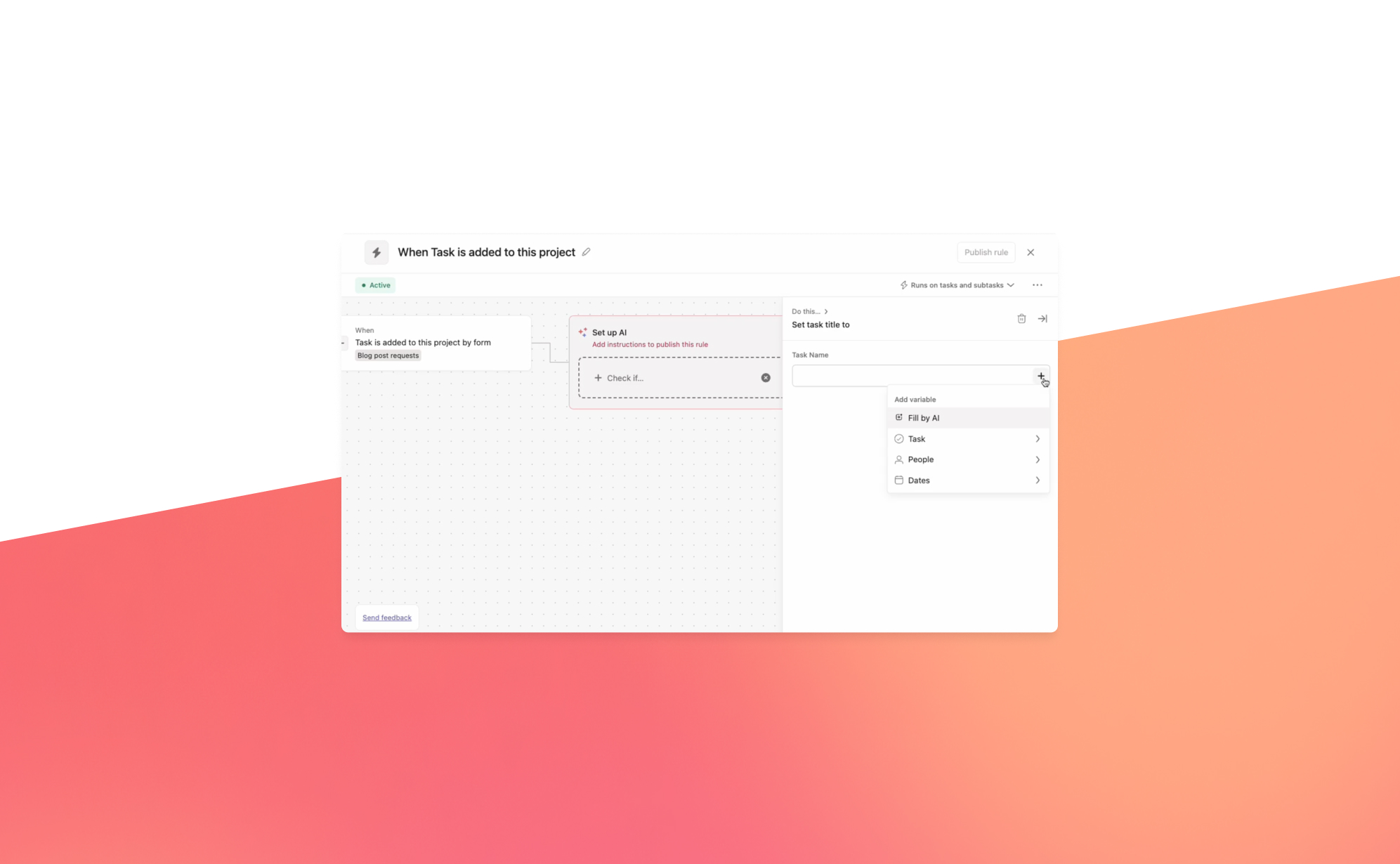
Will Asana AI Studio make a splash?
In short: Asana AI Studio, unveiled at Asana's Work Innovation Summit in 2024, extends Asana's rules engine so teams can build no-code workflows with embedded AI agents across intake, planning, execution and reporting. At launch it was available to Enterprise and Enterprise+ customers: admins enable it in the admin console, then users add it via Customize in any project or My Tasks.
2024 marked a pivotal year for productivity apps, with AI becoming an integral part of their offering. Major platforms like monday.com and ClickUp introduced powerful AI-driven features, such as enabling users to summarize Zoom calls, enhance writing, and get instant answers. AI assistants are steadily taking on more routine tasks, making work simpler and more efficient.
At Asana’s Work Innovation Summit in New York, the company unveiled AI Studio—a new tool designed to automate repetitive tasks. Whether it’s assigning work, organizing updates, or summarizing progress, AI Studio helps you focus on high-impact tasks by eliminating busywork.
What is AI Studio?
Asana AI Studio is an extension of the app's existing rules engine. It enables teams to design workflows, embed AI agents into that workflow, and deploy it directly within Asana—without needing to write a single line of code. AI Studio can be used by every kind of team, from marketing and operations to IT and HR. It is designed to approach varied tasks in the same four stages -- intake, planning, execution, and reporting -- regardless of the nature of the project.
Use Cases
Unlike traditional AI tools that focus on synthesizing information, AI Studio integrates directly with teams, acting as a virtual teammate. Here are some practical ways teams are using it:
- AI Teammate for Quick Answers: Tag the AI in task comments to get instant suggestions or answers, simulating a knowledgeable team member.
- Lead Evaluation for Sales: Use Smart Workflows to assess leads based on predefined criteria, helping sales teams prioritize opportunities efficiently.
- Meeting Preparation: Summarize key updates before meetings, ensuring teams are informed and ready to contribute.
- Content Creation Assistance: Enable marketing teams to generate keyword suggestions or automatically tag and organize content drafts, reducing manual effort.
How to get started with AI Studio?
AI Studio is available to Enterprise and Enterprise+ customers. Follow these steps to enable and use it:
- Enable Asana AI Features: Ensure your organization has activated Asana AI features.
- Admins, super admins, and billing owners can enable AI Studio via the admin console.
- Grant access to individual users as needed.
- Access AI Studio:
- In any project or My Tasks, click the Customize button in the top-right.
- Under the Add section, select AI Studio.
- Build Smart Workflows:
- Open AI Studio to create custom workflows tailored to your team’s needs.
Responsible Usage
To maximize the benefits of AI Studio, ensure your workflows are designed responsibly. Familiarize yourself with industry-standard policies from Asana’s AI partners, including OpenAI and Anthropic. These guidelines can help you create ethical and effective AI-driven processes.
AI Studio represents a significant leap forward in workflow automation, making Asana an even more indispensable tool for teams striving to work smarter, not harder. Ready to revolutionize your workflows? Explore AI Studio today. And as AI agents take on more of your team’s work, an automated Asana backup from ProBackup ensures none of that work gets lost.
.jpg)
Airtable Portals: the complete guide to external collaboration in Airtable
In short: Airtable Portals let external users such as customers, vendors and partners log in through a branded page and see only the Interfaces you share, without a full Airtable seat. Portals are a paid add-on for Teams, Business and Enterprise Scale plans at $8 per guest per month, or $120 per month for 15 guests, billed annually.
Who this guide is for: Airtable power users, operations managers, consultants, and anyone who needs to share Airtable data with clients, vendors, or partners without giving them full platform access. Whether you're evaluating Portals for the first time or trying to decide if they're worth the cost, this guide covers everything.
Airtable has long been one of the most powerful no-code database platforms available. But for years, one question kept coming up from teams using it:
"How do we share data with external users without paying for a full Airtable seat?"
The answer (for a long time) was awkward workarounds: shared read-only links, inviting clients as collaborators with minimal permissions, or building third-party portals on top of Airtable. None of these were ideal.
That changed with the launch of Airtable Portals. Here's a full look at what Portals are, how they work, where they genuinely shine, what their real limitations are, and how to decide if they're right for your team.
What are Airtable Portals?
Portals are a dedicated feature that lets you give external users (e.g. clients, vendors, partners, contractors) access to your Airtable Interfaces through a custom, branded sign-in experience. Crucially, these users don't need a full Airtable account or license.
Instead of logging into airtable.com, external users log into your portal. From there, they see only the Interfaces (and data within them) that you've explicitly shared, nothing more. You control exactly what they can view, and optionally, what they can edit.
This is a meaningful step forward from the previous options available, which required either paying for full user seats or relying on imperfect read-only sharing workarounds.
How Portals differ from Airtable Interfaces
A common source of confusion: Portals are not a replacement for Interfaces. They work on top of them.
Airtable Interfaces let you present curated views of your base data to any Airtable user, internal team members with accounts. You control which tables and fields are visible, how they're laid out, and whether users can edit records.
Portals add an external login layer. They let people who are not Airtable users access those same Interfaces through a separate sign-in page tied to your organization, not to Airtable itself. The underlying Interface design stays the same. Portals just change who can access it and how they log in.
Think of it this way: Interfaces are the rooms in your house. Portals are a separate door for guests who don't have a key to the main entrance.
Key features of Airtable Portals
Custom sign-in page: External users log into your portal URL rather than airtable.com. This creates a more professional, branded experience and avoids confusing clients with the full Airtable UI.
Granular permissions: You control exactly what each guest can see and edit. A client can be given read-only access to their project status, while a vendor can have limited edit access to update their own delivery data, all within the same portal.
White-label branding (available): Portals support custom branding: your company logo, colors, and visual identity. The experience looks and feels like your product, not Airtable's.
No full Airtable license required for guests: Guests access your Interface without you needing to pay for an Airtable user seat on their behalf. This is the core cost efficiency of Portals.
Separate guest identity: A "guest" in Airtable's definition is someone who doesn't share your organization's email domain. This distinction matters: team members cannot be reclassified as guests to reduce licensing costs.
Portals pricing: what does it actually cost?
Portals are available as a paid add-on for Teams, Business, and Enterprise Scale customers.
The pricing structure is:
- $8 per guest per month (billed annually)
- Or $120/month for 15 guests and one portal (annual billing)
For context: a full Airtable Team seat costs $20/user/month (annual). So for external users who only need limited, curated access, Portals represent a meaningful saving, roughly 60% less per external user.
That said, the $120/month entry point for 15 external users means Portals are primarily cost-effective for teams with multiple external collaborators. For organizations needing to give just one or two external users occasional read-only access, the cost math may not be favorable compared to alternatives.
The main use cases for Airtable Portals
Client portal: Share project status, deliverables, timelines, and milestone tracking with clients, all filtered to show only their data. Clients see what's relevant to them without navigating your full base structure.
Vendor management: Give suppliers view or edit access to procurement data, delivery schedules, or compliance documents. Vendors can update their own records without accessing anything unrelated to their scope.
Partner collaboration: Enable external business partners to access shared data (co-marketing assets, joint project trackers, pipeline data) in a controlled, secure environment.
Customer support and self-service: Create a portal where customers can submit and track support tickets, access FAQs, or view the status of their requests, all pulling live from your Airtable data.
Agency-client reporting: Agencies managing multiple clients can give each client a tailored view of their campaign performance, content calendar, or project progress. Clients see only their own data, not other clients'.
Portals vs. other ways to share Airtable data
Understanding Portals requires understanding the full landscape of how you can share Airtable access externally. Here's a practical breakdown:
| Method | Best for | Limitations | Cost |
|---|---|---|---|
| Airtable Portals | External users who need a branded, login-protected experience with curated Interface access | Add-on cost; requires Interface design upfront; limited customization vs. dedicated portal tools | $8/guest/month or $120/month for 15 guests |
| Public Interface share link | Read-only views for stakeholders who don't need to log in (e.g., an executive dashboard) | No authentication: anyone with the link can view; no per-user filtering possible | Free |
| Invite as Airtable collaborator | External users who need full or editor-level access and are comfortable with Airtable | Requires a paid Airtable seat; gives access to full base, not just a curated view | $20/user/month (Teams) |
| Invite as Commenter | External users who only need to comment on records | Still requires a paid seat; no Interface filtering | $20/user/month (Teams) |
| Third-party portal (Noloco, Softr, etc.) | Teams needing deep customization, complex permissions, or more affordable per-user pricing | Additional tool to manage; requires integration setup | Varies, often cheaper per user |
Real limitations: what Portals don't do well
Portals are a solid feature, but they aren't a complete client portal solution. It's worth being clear-eyed about what they lack, particularly if you're considering them as a replacement for a dedicated client management platform.
No built-in client communication tools: Portals don't include native messaging, threaded conversations, or notification systems designed for client interaction. Clients can view and edit data, but you'll need external tools for async communication.
No client-specific onboarding flows: There's no built-in way to guide a new external user through a structured onboarding experience within a Portal. Purpose-built client portal tools typically offer this.
Limited deep customization: While branding is supported, the underlying layout and navigation is constrained by what Airtable Interfaces allow. Teams that need highly custom, workflow-specific client experiences may find third-party tools like Noloco, Softr, or Pory offer more flexibility, often at a lower per-user cost.
Cost can escalate with scale: At $8/guest/month, the pricing is reasonable for teams with 5–15 external users. But for agencies or consultancies managing dozens of clients, costs add up quickly compared to third-party portal solutions with flat-rate pricing.
The guest definition is strict: Only users external to your organization, with a different email domain, qualify as guests. This is intentional, but it means teams can't use Portals as a workaround for reducing internal seat costs.
How to get started with Airtable Portals
Portals are available to Teams, Business, and Enterprise Scale customers as a paid add-on. Here's the general setup flow:
- Design your Interface first. Build the Interface pages your external users will see. Keep them clean and intuitive, external users won't have the context your team does.
- Add the Portals add-on from your Airtable account billing settings.
- Create a new Portal and configure the sign-in page with your branding (logo, colors, background).
- Connect your Interface to the Portal and select which pages are accessible.
- Invite guests by email. They'll receive a login invitation for your portal, not for Airtable itself.
- Set permissions for each guest or group: what they can view, what they can edit, and what's hidden.
- Test the experience as a guest before going live. The guest view is often quite different from what you see as a base admin.
Portals and your Airtable data: a note on risk
The more external access you open up to your Airtable base (through Portals, shared links, or full collaborator invites) the more important it becomes to have a solid data protection strategy in place.
Airtable Portals allow guests to edit records if you grant them that permission. This is useful, but it introduces risk: a guest could accidentally overwrite data, submit incorrect entries, or trigger automations with unintended consequences. Airtable's native 30-day trash for deleted records offers some protection, but it doesn't cover bulk overwrites or corrupted field values, and it has no version history for record-level changes; our Airtable backup and recovery guide walks through where those gaps sit.
This is where ProBackup fills a critical gap. ProBackup creates daily automated snapshots of your entire Airtable workspace (tables, fields, records, attachments, and all) with granular item-level restore. If a guest accidentally overwrites a set of records, or a misconfigured portal permission leads to unintended edits, you can restore exactly what was changed without rolling back your entire base.
As your use of Airtable deepens (more bases, more automations, more external users) the cost of data loss or corruption compounds. A backup strategy that's independent of Airtable's own recovery tools is the safety net that makes confident external collaboration possible. If you're comparing options, see ProBackup vs On2Air.
Summary: is Airtable Portals worth it?
| ✅ Portals is a good fit | ❌ Consider alternatives | |
|---|---|---|
| Team size | 5–20 external users who need regular, structured access | 1–2 occasional viewers, or 50+ external users where cost scales up |
| Use case | Client reporting, vendor data sharing, partner access to live Airtable data | Full client management workflows with messaging, onboarding, and milestone tracking |
| Customization needs | Branded sign-in, curated Interface views, basic permission control | Deeply custom layouts, complex per-client workflows, or client-facing app features |
| Budget | $120/month for 15 guests is justifiable value vs. full Airtable seats | Cost is prohibitive; free shared links or third-party tools (Softr, Noloco) may be better value |
| Technical comfort | Your team is already building Interfaces and wants a cleaner external access layer | You want a purpose-built client portal with less Airtable configuration required |
Airtable Portals are a well-designed, practical addition to the platform, particularly for teams already investing heavily in Airtable Interfaces and who need a professional, low-friction way to share curated data with external stakeholders. They don't replace a dedicated client portal tool for complex client management scenarios, but for many teams, they're exactly the right fit.
If you're building on top of Airtable and want to protect the data that powers your workflows, ProBackup keeps your workspace backed up daily, so your team and your clients can work with confidence.
See Portals in action
Here are a few tutorial videos to help you explore Airtable Portals:

ProBackup Picks ClickUp's Highlights of 2024
In short: ClickUp's biggest 2024 updates were ClickUp Chat (channels and direct messages that convert into tasks with one click), ClickUp Brain (summarise, write and ask AI from a widget), Whiteboards 3.0 (a full rebuild with new templates and AI image generation, released December 2024) and Clips 3.0 (screen recordings stored in a Clips Hub, shareable without a separate tool).
ClickUp ended 2023 strong with the launch of ClickUp 3.0. As 2024 wraps up, we're eager to see if they kept their momentum (spoiler alert: they did!).
Here are some of the biggest updates ClickUp added or improved in 2024.
ClickUp Chat
ClickUp is fulfilling its promise to become the "one app to replace them all" with ClickUp Chat. Previously, you could communicate by commenting on tasks and docs, but now ClickUp Chat has its own spot on the sidebar (here's how to activate it).
The feature set is familiar: post announcements, message colleagues directly, and create channels for each department. The biggest advantage is its deep integration with other parts of the app. Here are two examples:
- Create a chat view for a specific list to ask for general updates related to that list or team.
- Turn conversations into tasks with one click and link chats to related work items.
Additionally, you can use the AI option to suggest replies and summarize threads. This leads us to another significant improvement...
ClickUp Brain
The rise of AI was initially met with skepticism, but 2024 proved it's here to stay. Many big SaaS players are integrating AI into their apps, and ClickUp is leading the way with impressive AI features for productivity.
When you log in, the new AI features are easy to find. The pink widget in the bottom right corner gives quick access to summarize, write, or ask a question. It's a clever way to highlight the three main AI use cases within ClickUp.
Summarize: Select text in ClickUp and "ask AI" to summarize, improve, lengthen, or shorten it. You can also check spelling and grammar or translate it. It's super handy and quick!
Writer: This feature helps you draft new text. Use it for anything: generate a meeting minutes template, draft a brainstorming agenda, or write an email with feedback. While the output is often impressive, a human review is recommended.
Ask AI: This option lets you ask questions to the ClickUp Brain. It's the most exotic option, and we haven't explored it much. In theory, you can ask AI to summarize project updates or explain a team process.
Whiteboards 3.0
In December, ClickUp launched the third version of ClickUp Whiteboards. This version is a complete rebuild, featuring a sleek design and powerful capabilities. With improved features and impressive speed, it's easier than ever to work and chat with your team in real-time on the same board.
ClickUp added hundreds of new, professionally designed templates for brainstorming, project planning, and more. They also introduced AI-powered image generation to transform text into stunning visuals in seconds. These updates make it easy to jumpstart sessions and get ideas flowing quickly.
Once you're done, convert whiteboard ideas into tasks, making it simple to turn brainstorming sessions into assigned tasks. You can also export the whiteboard as a PDF, PNG, or JPEG.
Clips 3.0
With Clips, you can instantly create and share videos, making it easy to convey your message clearly and effectively. The process is as simple as hitting record, sharing your screen, and sending your ideas to your team faster than typing a response.
Clips stand out because they integrate seamlessly into the platforms where you already work. There's no need to switch to Loom or upload files.
The flexibility in sharing Clips is remarkable: embed a Clip directly within ClickUp, send a public link to anyone outside your Workspace, or download the video file. Every Clip you record, whether in a comment, task, or Doc, is automatically stored in the Clips Hub (accessible via the navigation bar).
Conclusion
It's clear that ClickUp has had another banging year with new and improved features. This exciting development makes us even more eager to see what innovative features they'll bring in 2025! And if your team relies on ClickUp every day, make sure all that work is protected with an automated ClickUp backup.

Asana Vs. Trello Vs. Monday.com: Which Project Management Platform Is Right For You?
In short: Asana suits mid-sized and larger teams with structured cross-functional workflows and offers AI Studio on Starter plans and above; Trello suits small teams and freelancers running simple linear projects, with Atlassian Intelligence on Premium and Enterprise; monday.com suits teams wanting an all-in-one, highly customisable platform and has the biggest AI push (monday vibe, monday sidekick).
Who this guide is for: Operations managers, team leads, founders, and anyone responsible for choosing or evaluating a project management tool for their team. Whether you're setting up your first workflow or switching from a tool that no longer fits, this guide will help you cut through the noise and make a confident decision.
When it comes to project management, there are a lot of tools on the market. While having options is great, the truth is that all these competing platforms can make choosing the right one feel like searching for a needle in a never-ending haystack.
Today, we're taking a deep dive into three of the most widely used project management platforms: Asana, Trello, and Monday.com. We'll look at what each does best, who they're built for, how their AI features compare in 2025, and give you clear scenarios to help you decide.
Asana
As a legacy platform with more than 15 years in the market, Asana offers teams comprehensive tools for collaboration, automation, and building fully integrated workflows. With both free and paid plans, it's a strong choice for organizations looking to scale.
Pros
100+ Software Integrations
Asana eliminates bottlenecks with integrations across tools like Microsoft Teams, Google Workspace, Slack, and Salesforce — keeping your workflow in one place.
Customized Automation
Asana lets you build automations based on your own criteria, taking the stress out of routine tasks so your team can focus on higher-value work.
Multiple Views
From lists and timelines to calendars and Kanban boards, Asana gives every team member a view that suits how they work best — reducing errors and improving prioritization.
AI: Asana AI Studio
Asana's biggest recent development is AI Studio, a no-code workflow builder that lets teams embed AI agents directly into their processes. Rather than using AI as a separate chat tool, Asana positions it inside your existing workflows.
With AI Studio, you can:
- Automatically capture, sort, and triage incoming requests
- Have AI draft project briefs and suggest task owners based on capacity
- Route approvals, summarize stakeholder feedback, and generate reports
- Build workflows by describing them in plain language, with AI generating the steps
AI Studio is available on Starter, Advanced, Enterprise, and Enterprise+ plans, with tiered access (Basic, Plus, and Pro).
Who It's For
Asana works best for mid-sized to larger teams with structured, cross-functional workflows that benefit from goal tracking and reporting. It's also a strong choice for operations and marketing teams who want to automate intake processes using AI Studio.
Cons
Asana's per-user pricing can add up quickly for larger teams. Advanced AI features (AI Studio Plus/Pro) come at an additional cost on top of the base subscription.
Trello
Launched in 2011 and acquired by Atlassian, Trello offers a visual, Kanban-inspired approach to project management that's fast to adopt and intuitive for almost anyone.
Pros
Visual Kanban Boards
Trello's core strength is its visual simplicity. Cards move across columns as work progresses, giving your team an instant snapshot of project status without needing a training session.
User-Friendly Interface
In just a few clicks, team members can assign tasks, add checklists, attach files, and move work through the pipeline — no onboarding required.
Mobile-First Design
Trello is particularly well-optimized for mobile, making it a strong choice for teams who need to manage work on the go.
AI: Atlassian Intelligence
Trello has introduced Atlassian Intelligence (AI), available on Premium and Enterprise plans. It's integrated directly into card editing and covers practical day-to-day tasks:
- Generate, summarize, and improve card descriptions and comments
- Brainstorm new content or ideas based on a prompt
- Extract and organize action items from messy notes into clean checklists
- Improve spelling, grammar, and tone of team communications
AI is activated by clicking the Atlassian Intelligence button or typing /ai in any card.
Who It's For
Trello is ideal for small teams, freelancers, and departments that manage straightforward, linear projects. It's especially well-suited for teams that frequently onboard new members and need a tool anyone can pick up in minutes.
Cons
Trello's Kanban-only structure can become limiting as projects grow in complexity. Managing dependencies, tracking goals, or running multi-team reporting requires paid Power-Ups or additional integrations. AI features are only available on Premium and Enterprise plans, which adds cost.
Monday.com
Despite being a younger platform, Monday.com has grown rapidly since its launch and now supports teams across project management, CRM, product development, and service management — all under one roof.
Pros
Visual Dashboards
Monday.com's dashboards give you an instant, customizable overview of all active projects, workloads, and progress — with Kanban, Gantt, calendar, and list views all available.
Real-Time Collaboration
Multiple team members can work simultaneously, with custom permission levels, comment threads, and live updates built in.
Deep Customization
With 200+ templates and highly configurable boards, Monday.com adapts to almost any team's workflow — from marketing campaigns to IT service desks.
AI: monday vibe & monday sidekick
Monday.com has made the biggest recent AI push of the three platforms, with two distinct AI products:
monday vibe (currently in beta) is a no-code AI app builder. Describe what you need in plain language — a time tracker, a recruiting portal, a campaign health dashboard — and monday vibe generates a fully functional custom app that runs securely on the monday.com platform. Apps are private by default, mobile-responsive, and built on enterprise-grade infrastructure. Available to all monday.com users with AI activated.
monday sidekick is an AI-powered Digital Worker built for marketing teams. Feed it a campaign brief once, and it can spin up a full campaign workspace: auto-generate briefs, assign task owners based on capacity, draft content, localize for multiple markets, route approvals, flag bottlenecks, and summarize KPIs — all within monday.com. Currently in early access.
Who It's For
Monday.com is best for teams that want an all-in-one platform that can grow with them across departments. Its product suite (Work Management, CRM, Dev, Service, Campaigns) makes it especially attractive for companies that want to consolidate multiple tools. Particularly strong for marketing, operations, and cross-functional teams.
Cons
Monday.com's breadth of features can feel overwhelming for small teams with simple needs. Some advanced AI features (like sidekick) are still in early access, meaning adoption requires some tolerance for a product that's actively evolving.
When to Choose Which Platform: Real Scenarios
Choose Asana if:
- You're a marketing or operations team running structured, repeatable workflows (campaign intake, project briefs, approvals) that would benefit from AI-powered automation
- You need robust goal tracking and portfolio-level reporting across multiple teams
- Your organization is scaling and needs clear ownership, dependency mapping, and milestone tracking
- You want mature, well-documented AI workflow tooling (AI Studio) that's been rolled out across enterprise customers
Choose Trello if:
- You're a small team, startup, or individual managing projects that don't require complex dependencies
- You're frequently onboarding new collaborators and need them productive within minutes
- Your team works mostly in a single pipeline and Kanban is the right mental model for your work
- You want a lightweight, affordable tool where the AI helps polish communication rather than orchestrate processes
Choose Monday.com if:
- You want a single platform that can replace multiple tools across project management, CRM, and marketing
- You're a marketing team that would benefit from AI-powered campaign execution (monday sidekick)
- You want to build custom internal apps without writing code (monday vibe)
- Your team is diverse in how they work, and you need a tool that offers many views and deep customization
Summary Comparison Table
| Feature | Asana | Trello | Monday.com |
|---|---|---|---|
| Best for | Mid-to-large teams with structured workflows | Small teams & simple linear projects | Cross-functional teams wanting an all-in-one platform |
| Ease of use | Moderate learning curve | Very easy — minimal training needed | Moderate — powerful but feature-rich |
| AI features | AI Studio: no-code workflow automation with AI agents | Atlassian Intelligence: writing & action item assist on cards | monday vibe (app builder) + monday sidekick (campaign agent) |
| AI availability | Starter plan and above (tiered add-on) | Premium & Enterprise plans only | All tiers with AI activated (vibe); sidekick in early access |
| Views available | List, Timeline, Calendar, Kanban, Portfolio | Kanban (primary); Calendar, Timeline via Power-Ups | Kanban, Gantt, Calendar, List, Map, Chart, Workload |
| Integrations | 100+ native integrations | Power-Ups marketplace (many free, some paid) | 200+ integrations across products |
| Free plan | Yes — up to 15 users | Yes — unlimited cards, limited features | Yes — up to 2 seats |
| Pricing model | Per user/month | Per user/month | Per seat/month (minimum 3 seats) |
| Complexity handling | Strong — dependencies, portfolios, goals | Limited for complex projects | Strong — especially with multiple product modules |
| Mobile experience | Good | Excellent | Good |
No matter the size and scope of your team, all three platforms are capable, well-supported, and actively investing in AI. The right choice comes down to how complex your workflows are, how much customization you need, and whether AI will be used to orchestrate work or simply assist with it.
Whichever tool you choose, don't overlook data protection. Your project management tool holds critical business information (e.g. tasks, timelines, decisions, and client data) and most SaaS providers don't protect you from accidental deletion, bulk errors, or unwanted changes. ProBackup provides automated daily backups for Asana, Trello, and Monday.com so your data is always recoverable, no matter what.
The 6 best project management apps in 2026
In short: The six leading project management apps in 2026 are ClickUp (all-in-one workspace with Super Agents), monday.com (automation plus monday vibe and monday agents), Asana (structured, goal-driven work with AI Studio), Airtable (database-driven flexibility), Miro (visual collaboration) and Notion (customisable workspace with Agents). All six are betting on agentic AI, which makes an independent backup of their data more important.
In my role as product manager for ProBackup, I work closely with the project management apps we integrate with. We explore their core features to build a deeply-integrated backup solution, and we track every major update and release. We speak with implementation partners about their needs and requests, which gives us a solid grasp of the strengths and weaknesses of the most popular project management apps.
2026 is a pivotal year for this space. Every major platform is betting heavily on AI agents and agentic workflows, turning project management tools from passive organizers into active collaborators. With an array of options available, choosing the right tool can significantly enhance productivity and streamline workflows. In this article, we give an overview of the six tools currently leading the market, each excelling in unique ways.
Why use a project management app
The use of a project management app has become more of a necessity than a luxury. These platforms offer benefits that streamline workflows, enhance productivity, and foster collaboration, regardless of your team's size or industry.
Organisation and structure
These apps provide a structured platform to manage tasks, projects, and deadlines. They allow you to organise work into manageable segments, ensuring nothing falls through the cracks.
Communication and collaboration
Most apps include tools that facilitate better team collaboration. Whether assigning tasks, sharing updates, or giving feedback, everything happens in one place, reducing the need for lengthy email threads and meetings.
Accessibility and flexibility
Cloud-based functionality means you can access your work anywhere, anytime. This accessibility is essential for remote teams or individuals who travel frequently.
Time management and efficiency
By providing an overview of tasks and deadlines, these apps help prioritise work. Many also include time-tracking features, offering insights into how time is spent on each task.
Data-driven decisions
Most platforms have reporting tools that provide data and insights on project progress, team performance, and resource allocation. This information is vital for making informed decisions and planning future projects.
Project management apps are the backbone of modern, efficient work methods. They simplify task management and contribute to a more organised, collaborative, and data-driven work culture.
ClickUp: The all‑in‑One AI powerhouse
ClickUp stands as a multifaceted project management tool, offering a suite of features to cover diverse work needs. It is highly customisable, with over 35 ClickApps to tailor task management. Key features include nested subtasks, checklists, time tracking, voice and video recording, and a variety of views like list, board, and calendar.
ClickUp enhances team collaboration with real-time chat, document sharing, and proofing tools. It also excels in automation, offering over 50 actions to streamline workflows. The platform even includes features like video recording, whiteboards, and an integrated document editor. ClickUp integrates with more than 1,000 tools, making it a top choice for adaptable project management. With all of these features, ClickUp is making good on its promise to build "one app to replace them all". If you want to avoid switching apps too often, ClickUp might be the ideal solution.
What changed in 2025/2026
ClickUp launched version 4.0 and introduced Super Agents, which represent a major step toward autonomous AI teammates. Following the acquisition of Codegen in late 2025, ClickUp's Super Agents can now autonomously complete projects, generate software, and take action with over 500 work skills. These agents feature what ClickUp calls "human-level memory", meaning they learn from every interaction and operate natively within the workspace. This positions ClickUp as one of the first platforms to let any user create and deploy AI teammates without writing a single line of code.
ProBackup expert notes
ClickUp's ambition to be the all-in-one workspace is paying off. No other tool on this list packs as many features into a single platform. That said, the breadth can be overwhelming for smaller teams. The Super Agents launch is bold, though teams should evaluate carefully how much autonomy they want to give AI in their workflows.
Good for: Multi‑functional teams needing a single unified workspace powered by automation and AI.
Not recommended for: Very small teams or individuals who need something simple and quick to set up. The sheer volume of features can be a distraction if your needs are straightforward.
👉 Read how teams protect their ClickUp data with ProBackup
monday.com: Automation meets agentic workflows
Monday.com is a dynamic project management platform that uniquely combines automation with advanced features. It offers customisable automation for streamlining workflows and reducing manual tasks by automating task assignments, status updates, and notifications. Most project management apps offer some form of automation, but monday.com excels in this domain. The process of creating new automations is both intuitive and detailed, allowing you to build advanced workflows in no time.
Alongside this, monday.com provides customisable templates, diverse views like timelines and Kanban, and seamless integrations with other tools. This blend of automation and versatility enhances team collaboration and productivity, making monday.com a comprehensive solution for various business needs.
What changed in 2025/2026
Monday.com launched three major AI capabilities: monday magic, monday vibe, and monday sidekick. Monday vibe is especially notable as it brings vibe coding to the platform, allowing users to build custom applications using plain English without writing code. The company also introduced monday agents, a no-code agent builder that lets organisations create AI-powered specialists tailored to their specific needs. These agents can execute tasks end-to-end, from scheduling meetings to conducting research and creating strategies. Monday.com also expanded into new product areas, including monday service for enterprise service management and monday campaigns for AI-powered marketing within the CRM suite.
ProBackup expert notes
Monday.com's strength has always been its approachable automation engine, and the new AI capabilities amplify that advantage. The introduction of vibe coding through monday vibe is a game-changer for teams who want to build custom apps without involving developers. However, the AI credits pricing model means teams should monitor their usage carefully.
Good for: Fast-moving startups and marketing teams managing multiple workflows that want to embrace agentic AI.
Not recommended for: Teams that prioritize simple list-based project tracking.
Asana: The strategic project leader
Asana is an established project management tool that excels in organising work into manageable tasks and projects. It offers various views, including lists, calendars, timelines, Gantt charts, and Kanban boards, making it versatile for different team needs. Asana enables effective top-down task delegation, starting by defining goals and milestones, then structuring your projects with clear due dates and responsibilities.
Its custom fields feature allows for personalised task organisation, facilitating easier sorting and filtering. Asana also provides real-time status updates, time tracking, and reporting dashboards, offering insights into team progress. It supports automated workflows, resource management, and integrates with various popular tools, enhancing overall team coordination.
What changed in 2025/2026
Asana has made a significant push into AI with the launch of AI Teammates. These are collaborative, context-aware agents that you can assign work to just like any other team member. They understand the context of all work across your organisation and deliver updates where your team already collaborates. Asana also introduced AI Studio, which lets teams build custom AI-powered automation rules, and AI risk reports that proactively flag potential project risks before they become blockers. Multilingual semantic search now helps users find relevant items across languages.
ProBackup expert notes
Asana remains one of the most mature platforms for structured task delegation and goal tracking. Its new AI Teammates are promising, though still in beta. We see Asana work best for teams that value clear hierarchies of goals, milestones, and tasks, with strong top-down planning.
Good for: Enterprises or teams focused on OKR frameworks and strategic visibility
Not recommended for: Teams that primarily manage large data sets or need spreadsheet-style views. If your work is more data-heavy than task-heavy, consider Airtable instead.
Airtable: The developer’s playground
Airtable excels in managing complex data sets and creating linked tables, making it a powerful tool for data organisation and analysis. It offers the flexibility of a database with the ease of a spreadsheet. Users can customise fields to store various types of data, link records between tables to show how data is related, and create views that display this information in meaningful ways such as table, kanban, and calendar.
Airtable's rich field types, like checkboxes, dropdowns, and file attachments, enhance its capability to handle diverse data needs. Its focus on the table view makes Airtable the ideal candidate when you have to deal with a higher volume of records, let's say more than 100, in a project or base.
What changed in 2025/2026
Airtable relaunched itself as "the AI-native app platform" with the introduction of Omni, an agentic AI app-building assistant. Airtable CEO Howie Liu described Omni as combining the magic of vibe coding with enterprise reliability. Unlike standalone vibe coding tools that produce throw-away prototypes, Omni creates production-ready apps with data, automations, and interfaces, all from natural language prompts. Airtable also introduced intelligent agents that can work across thousands of records, driving decisions and orchestrating actions across entire operations. The platform now supports AI models from multiple providers including OpenAI, Gemini, Llama, and Anthropic.
ProBackup expert notes
Airtable's pivot to AI-native app building is the most dramatic transformation on this list. If your team needs to build custom internal tools on top of structured data, Airtable with Omni is now a compelling alternative to dedicated no-code platforms. That said, it remains a data-first tool, and teams looking purely for task management may find simpler options elsewhere.
Good for: Teams managing large, structured data sets such as inventories, content calendars, CRM workflows, or product catalogues. Ideal for operations, marketing ops, and data-driven teams.
Not recommended for: Teams that need traditional task management features like Gantt charts, resource allocation, or time tracking. Airtable is a database that can manage projects, not a project management tool that stores data.
Miro: Visual collaboration at scale
Miro is a robust platform known for its extensive whiteboarding capabilities, ideal for creative brainstorming and collaborative planning. It features an infinite canvas that allows teams to map out ideas freely, with tools like sticky notes and smart drawing.
Miro also supports various workstyles with customisable templates and seamless integrations with other cloud apps. This makes it perfect for diverse teams to collaborate visually, regardless of location. Miro's emphasis on whiteboards and visual tools fosters a dynamic and engaging way to manage projects and ideas. If you want to focus on ideation and brainstorming rather than following up on tasks and projects, Miro is the ideal tool.
What changed in 2025/2026
Miro has continued refining its core visual collaboration experience, with deeper integrations into platforms like Asana, Jira, and monday.com. The platform has added more structured planning tools to bridge the gap between brainstorming and execution, including improved diagramming capabilities and enhanced template libraries for agile workflows.
ProBackup expert notes
Miro is the clear leader for visual collaboration and ideation. However, it is not a standalone project management tool. We see it used most effectively alongside a dedicated task management platform. Teams typically brainstorm and plan in Miro, then move execution into ClickUp, Asana, or monday.com.
Good for: Teams that need a visual space for brainstorming, design sprints, workshops, and strategic planning. Popular with design, product, and consulting teams.
Not recommended for: Day-to-day task management or tracking project deliverables. Miro lacks the structured task, deadline, and reporting features that purpose-built project management tools offer.
Notion: The customizable WorkOS
Notion is renowned for its exceptional visual dashboards, which allow for a highly personalised and flexible project management experience. Its interface supports intricate project planning and tracking with customisable tables and timeline views. Notion's strength lies in its ability to represent complex information visually, making project oversight more intuitive and accessible.
The platform's versatility extends to managing tasks with calendar views, embedding diverse content types, and offering a cohesive workspace that can adapt to various project requirements. Notion doubles as a knowledge base and documentation platform, making it the go-to tool for teams that want to combine project management with internal wikis and company documentation.
What changed in 2025/2026
Notion continues to expand its AI capabilities, with Notion AI now deeply embedded across the platform. Users can generate summaries, extract action items, translate content, and answer questions about their workspace using natural language. Notion has also improved its database capabilities and introduced more advanced automation features, narrowing the gap with dedicated project management tools. The platform's API has been expanded, allowing for more sophisticated third-party integrations.
ProBackup expert notes
Notion is the strongest option when you need a combined workspace for both documentation and project management. Its flexibility is unmatched, but that same flexibility means it requires more upfront setup compared to dedicated project management tools. We often see Notion used alongside another tool, for example Notion for documentation and ClickUp or Asana for task management.
Good for: Teams that need a unified workspace for documentation, knowledge management, and lightweight project management. Popular with startups, content teams, and product teams.
Not recommended for: Enterprises needing strict process control or permission hierarchies. Notion can become unwieldy at scale without careful structuring.
The AI shift in project management
In 2024, these six apps each approached project management from a different angle: Asana focused on task delegation, Airtable on spreadsheets, Miro on whiteboards, and so on. While the core strengths remain, the landscape in 2026 has shifted dramatically with the arrival of AI agents and agentic workflows.
ClickUp's Super Agents and monday.com's monday agents are leading the charge, offering autonomous AI teammates that can execute entire workflows without manual intervention. Airtable's Omni and monday.com's monday vibe bring vibe coding into the enterprise, allowing anyone to build custom apps through natural language. Asana's AI Teammates take a more measured approach, acting as collaborative assistants that work within existing team structures. HubSpot, while primarily a CRM, has introduced Breeze Agents across sales, marketing, and service, including a Prospecting Agent that researches target accounts using both CRM data and external sources like company websites and news publications.
This convergence around AI means the selection process is no longer just about features. It is about how much intelligence and autonomy you want embedded in your workflows, and how much control you want to maintain.
Why backing up your project management data matters
As these platforms become more powerful and more autonomous, the data stored within them becomes increasingly valuable. AI agents making changes across hundreds of records, automated workflows triggering bulk updates, and vibe-coded apps processing data at scale all introduce new risk vectors alongside the traditional threats of human error and accidental deletions.
ProBackup provides daily, automated backups for all six platforms covered in this article. With granular one-click restore, version history, and optional Google Drive sync, you can recover from any data loss scenario, whether caused by a team member, a faulty integration, or an overzealous AI agent. See how ProBackup helps project managers keep the work their teams depend on safe.
Start your free trial of ProBackup today to secure your SaaS data: https://app.probackup.io/onboarding