In short: HubSpot offers two native recovery tools: the recycle bin restores deleted records for 90 days (up to 10,000 at a time, all plans) and 'Restore CRM changes' reverts edits from imports and workflows for 14 days. Permanent deletes bypass the bin. For anything older, or for lost associations and activity history, you need an export or a third-party backup.
HubSpot has grown from a marketing tool into a full system of record for many teams. Contact histories, deal pipelines, support tickets and marketing automation all live there, and so does the risk that something important disappears or gets overwritten without anyone noticing until it's too late.
As of August 2026, you have three ways to protect HubSpot data. The first is HubSpot's own restore tools, which cover deleted records for 90 days and recent changes for 14 days. The second is exporting or backing up your data manually, either table by table or with HubSpot's built-in Backup & Restore. The third is an automated third-party backup that runs in the background. This guide walks through all three, what each one can and can't recover, and how to combine them.
Full disclosure: this guide is written by ProBackup, one of the third-party tools covered in option three. We've tried to be objective about HubSpot's native tools, which are better than most SaaS platforms offer, and about the alternatives.
Prefer to watch? This video walks through all three options in about seven minutes.
👉 Start your 7-day free trial at ProBackup: https://app.probackup.io/onboarding
How HubSpot structures your data
HubSpot organises everything around objects (contacts, companies, deals, tickets, custom objects), records within those objects, properties on each record and associations between records. Activities such as calls, notes, emails and meetings hang off the records they relate to, and so do sales assets (products, quotes), marketing assets (templates, forms) and automation (workflows, sequences). Before deleting anything, it helps to know what goes with it.
Deleting a CRM record removes:
❌ Every property value stored on that record
❌ All associated activities (calls, notes, emails, meetings, tasks)
❌ All associations to other records (company links, deal links)
❌ The record's interaction timeline and any sequence enrolment history
⚠️ Before removing a user: reassign their contact and deal ownership first. Records left without an owner can drop out of filtered views and lead rotation rules, causing silent data problems that are hard to diagnose later.
How to delete data in HubSpot
HubSpot offers two types of deletion, and choosing the wrong one has very different consequences.
🟢 Restorable delete: the default, and the right choice in almost all cases
- Moves the record to the recycle bin with a 90-day recovery window
- Property values and activity history are preserved during that window
- Can be reversed by any user with the right permissions
🔴 Permanent delete: only for GDPR and similar privacy requests
- Bypasses the recycle bin entirely; there is no recovery window
- Intended for data subject deletion requests where you must prove the data is gone
- Cannot be undone, not even by HubSpot support
| Action | ✅ Good for | ❌ Not recommended for |
|---|---|---|
| Restorable delete | Duplicates, records created by mistake, deals that fell through, anything you might conceivably need back within 90 days | Records you are legally required to erase (use permanent delete) |
| Permanent delete | GDPR and other data subject deletion requests | Anything you might want back. There is no recovery path |
| Automated deletion workflow | Systematically removing inactive or unsubscribed contacts at scale (Professional and Enterprise) | Any bulk automation you haven't first tested on a small, manually verified segment |
| Bulk delete from an index page | Cleaning up large batches of duplicate or junk records | Segments with meaningful activity history. There is no preview of what associated activities will go with each record |
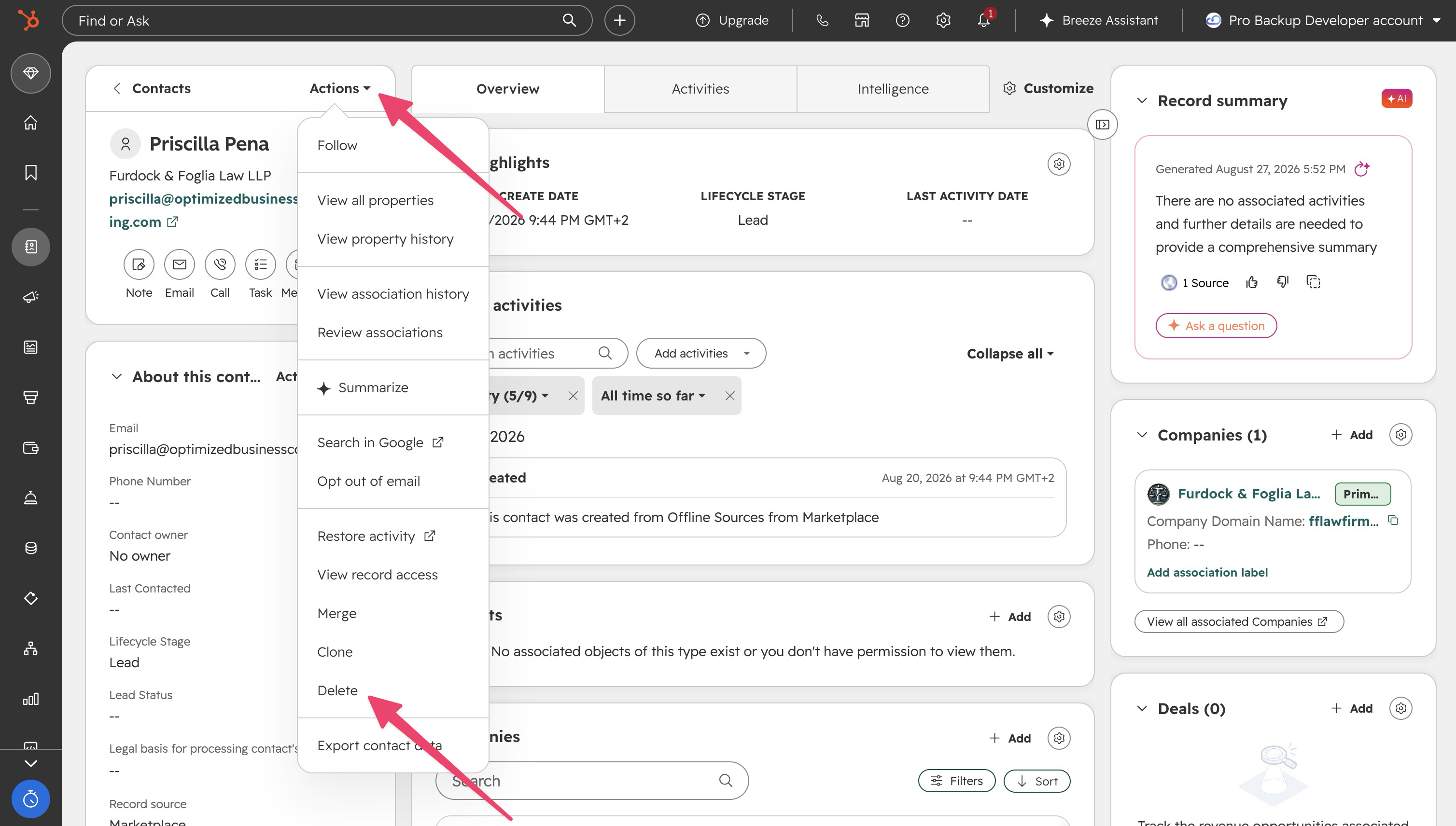
How to delete an individual record
- Open the record from the relevant index page (Contacts, Companies, Deals, Tickets and so on)
- Click the Actions dropdown in the left panel and select Delete
- Choose restorable or permanent deletion and confirm
How to delete multiple records (bulk delete)
- On the object index page, select the checkboxes next to the records
- Click Delete in the header row
- Type the number of records to confirm
⚠️ Warning: bulk deletion is fast and shows no preview of the associated activities that go with each record. Before bulk deleting any segment with real engagement history, open a sample of records manually to understand what will be lost.
How to set up automated deletion (Professional and Enterprise)
- Go to Automation → Workflows
- Set the enrolment trigger (lifecycle stage, inactivity date, subscription status)
- Add the Delete contact action
- Test on a small, manually verified segment before enabling it for your full database
Option 1: HubSpot's native restore tools
HubSpot gives you two separate tools. One recovers deleted records; the other rolls back changes to records that still exist. They have different windows, different permission requirements and different plan availability, so it pays to know both before you need them.
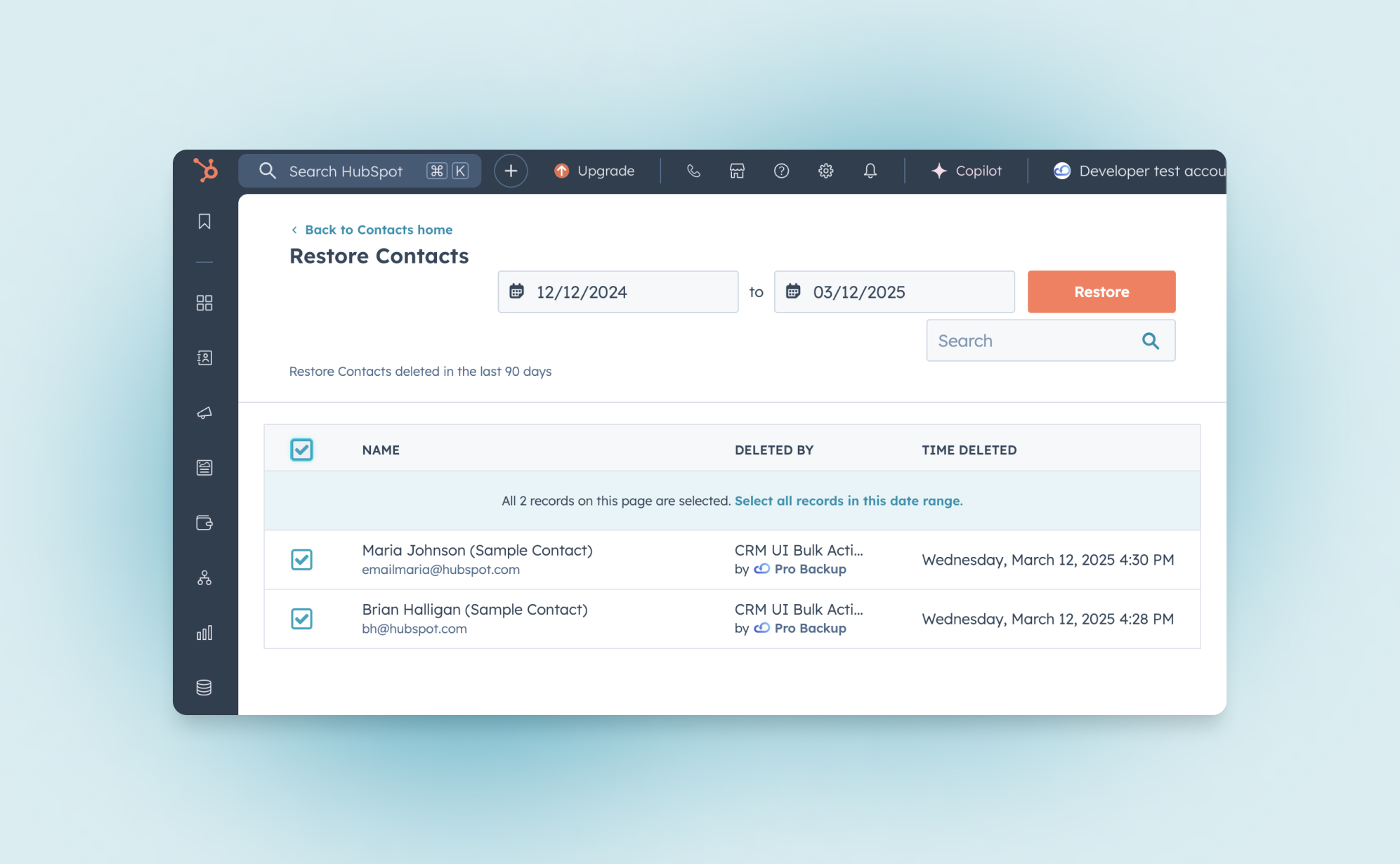
Restore deleted records (the recycle bin, 90 days)
Every HubSpot-defined object (contacts, companies, deals, tickets, products, custom objects and more) has its own recycle bin. Deleted records stay there for 90 days. This is available on all plans, including free.
HubSpot's Knowledge Base states that you can restore HubSpot-defined object records "up to 90 days after they were deleted", and that "permanent or GDPR-related deletions aren't held in the recycle bin" (Restore deleted records, checked 16 September 2026). Ninety days is the longest trash window of any platform we back up: Asana, ClickUp and monday.com hold deleted items for 30 days, Airtable's base trash for 7, and Trello and Jira Cloud have no trash at all. The full plan-by-plan table is in Version history and trash retention per app and plan.
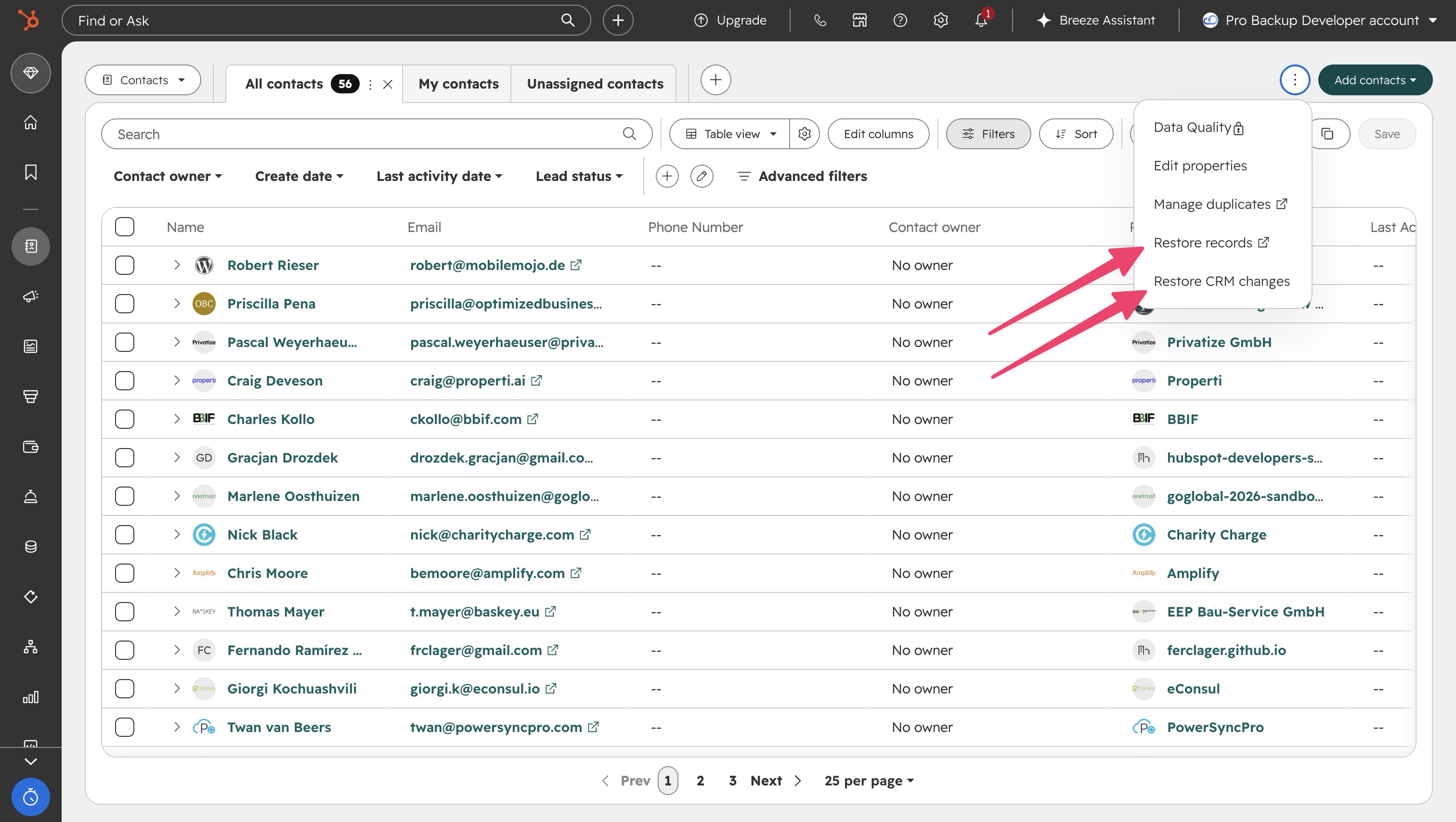
- Go to the index page of the relevant object (for example Contacts)
- In the top right, click Actions, then Restore records. The recycle bin opens in a new tab
- Filter by date (a preset or a custom range up to 90 days), by user, or by workflow if a workflow with a Delete contact action caused the deletion
- Select the records, or use Select all records in this date range
- Click Restore, type the number of records to confirm
Things to know before you rely on it:
- You need account access plus add-and-edit-users permissions to open the tool
- The tool shows and restores a maximum of 10,000 records at a time
- A deleted contact can't be restored if an active contact already uses the same email address. Change or remove the email on the active record first
- If a workflow deleted the records, turn that workflow off before restoring, or it will delete them again
- Permanent and GDPR deletions are never held in the recycle bin
- HubSpot notes that some data associated with a restored contact may still be lost
Restore CRM changes (undo edits, imports and workflows, 14 days)
Deletions are only half the problem. The other half is data that was changed rather than deleted: a bad import that overwrote a field on thousands of contacts, a workflow that updated the wrong lifecycle stage, a manual edit gone wrong. Property history has always shown you that a value changed, but until recently there was no way to reverse it in bulk.
Restore CRM changes fixes that. It rolls records back to a point in time within the last 14 days, and you can scope the rollback by source, object, property and user.
- Click the settings icon, then under Data management open Backup & Restore and the Restore tab (you can also reach it from the Actions menu on an object index page)
- Select Restore CRM changes
- Choose the source: CRM changes (manual edits), Import, Workflow, or Integration (in beta). For imports, workflows and integrations, pick the specific one by name
- Choose the object types to include. For manual changes you can also restrict to specific properties and a specific user
- Pick the date and time to roll back to and click Prepare preview
- When the preview is ready, review the records, current values and last-known values, select what to restore, type the number of changes to confirm, and click Restore
Things to know before you rely on it:
- Requires Super Admin permissions and a Starter, Professional or Enterprise Hub (or Smart CRM Professional and above). Free accounts don't have it
- Supported objects: contacts, companies, deals, tickets, calls, products, leads, marketing events, orders, tasks and custom objects
- It restores property values; it doesn't bring back deleted records. For those, use the recycle bin
- If a rollback covers both created records and modified properties, you restore one type per prepared restore
- Every restore is logged in HubSpot's audit log, and a prepared preview stays available for 14 days
The same rollback is also available from inside a workflow. Open the workflow, go to Performance history → Enrolment history and click Undo CRM changes to revert property changes that workflow made in the last 14 days.
Restore deleted activities and workflows
Activities: open the record where the call, note or task existed, open the activity timeline, click Actions and select Restore activity. Use the date filter to find the engagement.
Workflows: go to Automation → Workflows, open the Deleted tab, hover over the workflow and click Clone. Deleted workflows can be restored for 90 days. HubSpot recreates the workflow as a new, inactive workflow with the logic as it was at deletion. Enrolment history, past versions and execution data are not restored.
Native restore options at a glance
| What went wrong | Native tool | Window | Plan and permission | What comes back |
|---|---|---|---|---|
| Record deleted (restorable delete) | Index page → Actions → Restore records | 90 days | All plans; account access + add/edit users | The record with its properties; some associated data may be lost |
| Properties changed by an import, workflow, integration or manual edit | Settings → Backup & Restore → Restore CRM changes | 14 days | Starter and above; Super Admin | Property values as they were at the chosen point in time |
| Activity deleted from a record | Record timeline → Actions → Restore activity | Limited | All plans | The individual activity |
| Workflow deleted | Workflows → Deleted tab → Clone | 90 days | Workflows access | Workflow logic only; no enrolment history |
| Record permanently deleted | None | None | n/a | Nothing |
| Anything older than the window | None | None | n/a | Nothing; HubSpot support can't extend the window |
Option 2: export or back up your data manually
The simplest way to hold a copy of your data outside HubSpot is to export it yourself. HubSpot gives you two ways to do that, and both are free on paid plans.
Export a table
Every object index page has an export button. Click Actions → Export (or the export icon), give the export a name, choose CSV or XLSX, and confirm. HubSpot emails you a download link. If you only use HubSpot to manage a contact list, doing this once a week or once a month may be all the protection you need.
The catch is that this is an export of a table, not of your CRM. You get the columns and values you see on that index page. You don't get the record's associations to companies, deals or tickets, and you don't get its engagements: notes, emails, calls, tasks and meetings. If you ever need to restore from the file, you'll be re-importing flat rows and rebuilding the relationships by hand. You also have to repeat the export for every object that matters, and remember to do it.
HubSpot's built-in Backup & Restore
Since 2026, HubSpot has offered a native backup feature under Settings → Data management → Backup & Restore. It packages the main CRM objects into a single download instead of making you export them one by one.
- Open Backup & Restore and click Create manual backup, then confirm
- HubSpot notifies you when it's ready. Download the .zip within 14 days; it contains one CSV per object
- On Enterprise, switch on Schedule automated backups and choose weekly or every two weeks, on a set day
Things to know:
- Covers contacts, companies, deals, tickets, custom objects, products, calls, conversations and tasks. Associations and activity data aren't included
- Starter and Professional can back up once a week; Enterprise once every 24 hours
- Scheduling is Enterprise only; other tiers run it manually
- Requires Super Admin permissions
- Sensitive-data properties are included in the files, so store the download somewhere secure
- The download link expires after 14 days, so you need your own storage and retention process
| Method | ✅ Good for | ❌ Not recommended for |
|---|---|---|
| Table export (CSV / XLSX) | Small teams using HubSpot mainly as a contact list; a quick pre-import safety copy of one object | Anything where associations or engagement history matter; teams that won't reliably repeat it |
| HubSpot Backup & Restore | A regular, consistent snapshot of core objects without third-party access; Enterprise teams who want it scheduled | Restoring relationships or activities; retention beyond what you store yourself; teams without a Super Admin to run it |
Option 3: automated third-party backup
The third option is a backup tool that connects to HubSpot through its public API (application programming interface), takes a snapshot of your data every day, keeps the versions, and lets you restore records back into HubSpot. Search for "backup" in the HubSpot App Marketplace and you'll find the main providers: ProBackup, SysCloud and Skyvia are the ones most teams shortlist.
The advantage over the first two options is that it covers the mistakes you weren't aware of: it runs whether or not anyone remembers, keeps history well beyond 90 days, and stores everything outside HubSpot, where a permanent delete or a departed employee can't reach it.
How ProBackup for HubSpot works
Setup takes a few minutes, and there is a fuller step-by-step HubSpot backup setup walkthrough if you want the detail:
- Create a ProBackup account and click the plus icon to add HubSpot
- Sign in to HubSpot and authorise ProBackup to access your portal
- Start the initial backup. From then on ProBackup backs up your data automatically every 24 hours, no scheduling required
Once the first snapshot is in, you can browse every backed-up table (contacts, companies, deals and so on) exactly as they looked on any past date, open a record and step through its previous versions. Restoring works in two modes:
- Restore as new records: creates a copy in HubSpot. If the original was deleted, this brings it back; if it still exists, you get a duplicate. Engagements and files come with it. Because HubSpot won't allow two contacts with the same email, restored contacts get a "+restored" suffix on their email address
- Overwrite existing records: pick the fields you want to roll back and ProBackup updates the live record with the backed-up values, leaving everything else untouched
ProBackup also creates a "ProBackup Deleted Records" object inside HubSpot, so you can see everything deleted from your portal, with a link to restore it, without leaving HubSpot.
At the time of writing, ProBackup backs up HubSpot's CRM objects (contacts, companies, deals, tickets, lists, inbox, calls, tasks, attachments, custom objects and custom properties), marketing assets (email templates, forms, events), commerce data (quotes, products, invoices) and workflows. It does not back up website or landing pages, dashboards and reports, payments, the help desk or knowledge base, and a few other areas that HubSpot doesn't expose through its API. The current list is on our HubSpot data coverage page.
Comparing the three options
| HubSpot native restore | Manual export / HubSpot Backup & Restore | Automated third-party backup | |
|---|---|---|---|
| Recovers deleted records | Yes, for 90 days | Only by re-importing rows | Yes, for as long as your retention runs |
| Reverses overwritten values | Yes, for 14 days (Starter and above, Super Admin) | Only by re-importing rows | Yes, from any daily snapshot |
| Keeps associations and activities | Mostly, for recycle bin restores | No | Yes, within API limits |
| Protects against permanent delete | No | Yes, if the export predates it | Yes |
| Runs without anyone remembering | n/a | Only scheduled backups on Enterprise | Yes, daily |
| Point-in-time view of a whole record | No (property history is per field) | Only at export dates | Yes, any past day |
| Cost | Included | Included on paid plans | Subscription |
If the shortlist comes down to two specific vendors, our side-by-side of ProBackup vs Skyvia for HubSpot goes through coverage and restore behaviour in detail.
Common data loss scenarios and how to recover
| Scenario | Native first step | Where native stops | With an automated backup |
|---|---|---|---|
| A rep bulk-deleted 200 contacts from a segment; nobody noticed for five weeks | Contacts → Actions → Restore records, filter by date or user | Day 91. After that, the records are gone and support can't help | Restore the contacts, with engagements, from any snapshot before the deletion |
| A mismatched import overwrote the Industry field on 3,800 contacts; caught after 10 days | Backup & Restore → Restore CRM changes → Source: Import, pick the import, preview, restore | Day 15. Also needs a Super Admin and a Starter-or-above Hub | Overwrite just the Industry field from the pre-import snapshot, at any age |
| A cleanup workflow with a too-broad trigger deleted 900 active contacts | Turn the workflow off, then Restore records filtered by that workflow | Enrolment history and downstream actions (sequences, notifications) aren't reversed | Restore the contacts as they were the day before the workflow ran |
| An AI agent or integration rewrote lifecycle stage and owner on 1,200 records | Restore CRM changes with Source: Integration (beta) or CRM changes, if the change is within 14 days and attributed to a supported source | Changes older than 14 days, or from sources the tool doesn't recognise, can only be reviewed one record at a time in property history | Compare the record before and after the run and roll back the affected fields in bulk |
| You need to prove what a deal looked like at signing, eight months ago | Property history shows each field change on the deal | No full-record view at a past date; if the deal was deleted more than 90 days ago, nothing | Open the deal as it was on that date, with properties, associations and notes, and export it |
| A departing employee used permanent delete on their contacts before leaving | None. Permanent deletes never enter the recycle bin | Immediately | Backups sit outside HubSpot's permissions. Restore the records and see exactly what was deleted and when |
Six risks to plan for
- Two cliffs, not one. Deleted records fall off at 90 days; changed values fall off at 14. Most teams know the first number and not the second, and it's the second that bites on imports and automations.
- Permanent delete is one click away. It's offered on every record, in bulk, and from inside the recycle bin. There is no confirmation that survives a determined or careless user.
- Exports and native backups keep values, not relationships. Neither the table export nor HubSpot's Backup & Restore includes associations or activities. A re-import gives you rows, not a CRM.
- The best native tools are gated. Restore CRM changes and Backup & Restore need a Super Admin and a paid Hub; scheduled backups need Enterprise. If the one Super Admin is on holiday, the 14-day clock keeps running.
- Third-party tools are bounded by the API. Anything HubSpot doesn't expose can't be backed up by anyone. Check the coverage list, don't assume.
- Automation and AI change data at machine speed. HubSpot's Breeze agents and connected integrations can update thousands of records before a human looks. Those changes appear in property history, not the recycle bin, and the Integration source in Restore CRM changes is still in beta.
What good looks like
- Restorable delete by default. Restrict permanent delete and Super Admin rights to the few people who handle privacy requests, and log who has recycle bin access.
- Reassign before you remove. Move contact and deal ownership before deactivating a user.
- Look inside the window. A monthly check of the recycle bin and audit log catches most problems while HubSpot can still fix them.
- At minimum, export weekly. Run a table export or a Backup & Restore download for your core objects and store it somewhere with its own retention. Enterprise teams should switch on scheduling.
- If HubSpot is your system of record, automate it. A daily third-party backup with retention beyond 90 days is the only option that covers unknown mistakes, permanent deletes and point-in-time evidence.
- Test every restore path once. Restore a record from the recycle bin, roll back a change with Restore CRM changes, re-import a small export, and run a test restore from your backup tool. Do it before you need it.
- Write down the erasure procedure. A GDPR request has to reach your backups too. Know who does what, in which order (see below).
GDPR and compliance
Under GDPR (the EU General Data Protection Regulation), an erasure request has to be honoured in production systems and in backups, and documented. With HubSpot plus a backup tool, that's a three-step process:
Step 1: delete the contact in HubSpot with permanent delete. HubSpot removes it from user view immediately and purges it from its own systems within 30 days.
Step 2: request deletion from your backup vendor. With ProBackup, open a support ticket specifying the contact and date range, and the data is purged from backup storage.
Step 3: keep the confirmation with your compliance records.
👉 Full guide: Handling GDPR deletion requests in your backup system
If you're working towards a SOC 2 report (an audit framework from the AICPA, not a regulation), auditors will ask for documented, regularly run and tested backups with defined retention, so check the retention per plan before you write the policy. ProBackup is SOC 2 Type II certified (May 2025) and stores your data encrypted with AES-256 at rest and TLS in transit, in whichever of nine AWS regions you choose at signup.
Conclusion
HubSpot's native recovery is better than most SaaS platforms offer: a 90-day recycle bin, a 14-day rollback for changes, and since 2026 a built-in CSV backup. If your team is small, checks the bin regularly and exports weekly, that may be enough.
The gap opens when HubSpot becomes the system of record. Then the question changes from "can we undo last week's mistake" to "can we recover what we didn't know we lost, reverse an automation from three weeks ago, or show what this deal looked like last year". Native tools answer none of those. An automated, versioned backup outside HubSpot answers all three.
Backup is one part of a wider stack; our roundup of HubSpot data-quality and migration apps covers the tools teams pair it with.
ProBackup gives you:
✓ Automated daily backups of all API-available HubSpot data, no scheduling required
✓ Version history of 6 months on Plus, 2 years on Pro and unlimited on Premium
✓ Point-in-time restore of any record as it was on any past day
✓ Granular restore: one field, one contact, or a whole table, as duplicates or by overwriting
✓ Google Drive sync for a second copy you control (Pro and Premium plans)
✓ SOC 2 Type II certified (May 2025), AES-256 at rest, TLS in transit, nine customer-selected AWS regions
✓ Plans from $25 per month billed annually; setup in a few minutes
Evaluating tools? See how ProBackup compares to SysCloud for HubSpot.
👉 Start your 7-day free trial at ProBackup: https://app.probackup.io/onboarding
This guide is written for IT administrators, revenue and marketing operations leads, and anyone responsible for the data inside a HubSpot portal. HubSpot feature details were checked against HubSpot's knowledge base in August 2026 and may change.

Related posts

SaaS backup pricing explained: models, real numbers and how to calculate ROI
How to evaluate a SaaS backup vendor: criteria, questions and red flags


Metadata in SaaS backups: why comments, fields and attachments matter more than you think