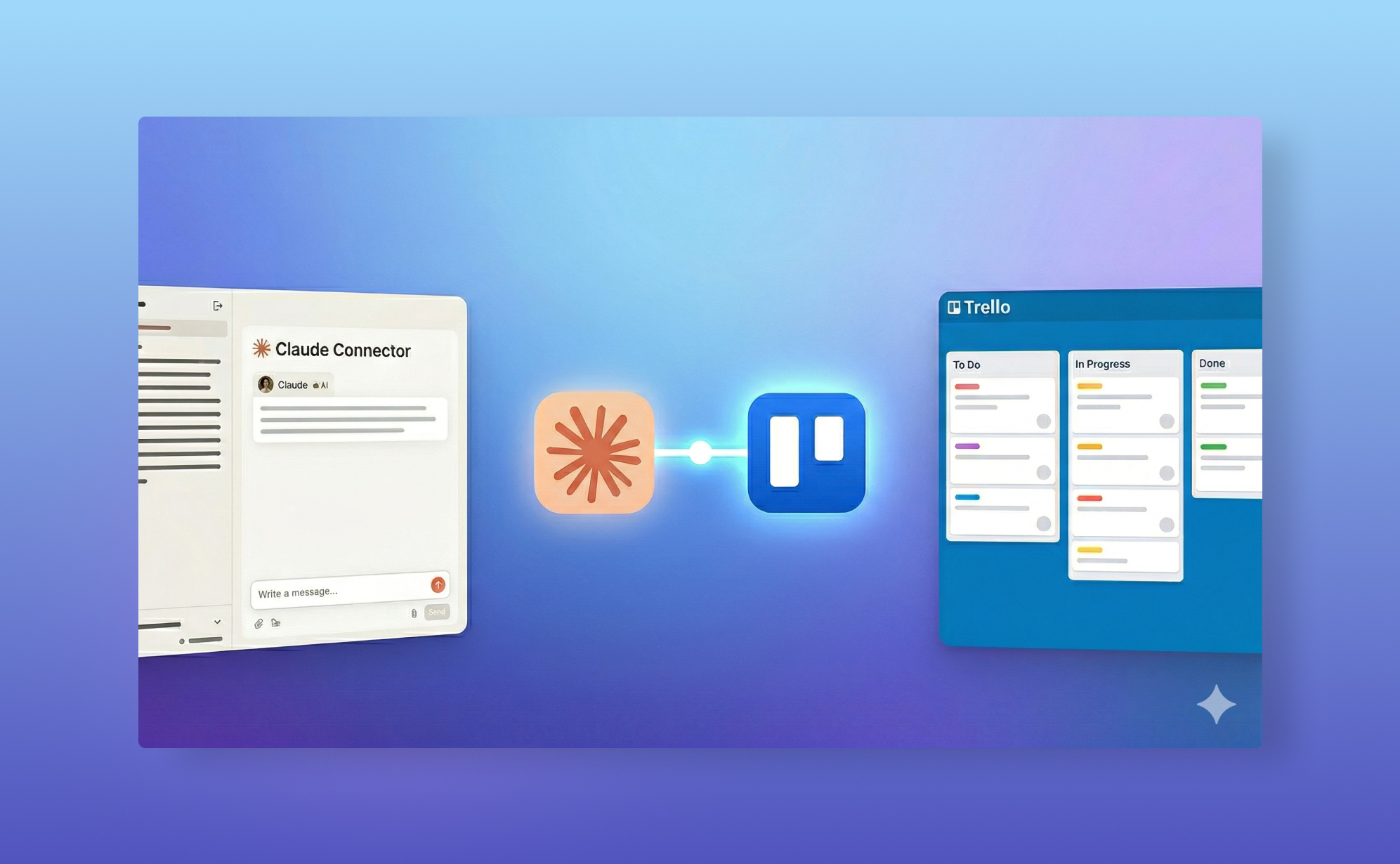
In short: To connect Claude to Trello without code: in the Claude desktop app open Settings > Connectors, click Add Custom Connector, name it, paste https://mcpfortrello.com/mcp and save. Claude can then list overdue cards, find cards from vague descriptions, prioritise your work, summarise a board or build a new one. Because the AI can write to boards, keep a daily Trello backup.
If you've been watching the AI space lately, you've probably noticed that "chat with your tools" is having a moment. The problem is that most of what's out there is too technical, too expensive, or doesn't actually connect to the tools you use every day.
This week, something changed for Trello users.
Michael Pryor (former CEO of Trello) released a Trello MCP (Model Context Protocol) server. In plain English: it's a connector that lets AI assistants actually talk to your Trello boards. Not just describe Trello. Not just give you generic productivity advice. Actually read your boards, find your cards, and take action.
The setup takes about two minutes.

What Is an MCP and why should you care?
You don't need to know what MCP stands for. Here's what it does.
Think of it as a bridge. On one side: your Trello boards, with all their lists, cards, due dates, and comments. On the other side: an AI assistant. The MCP connects them so the AI can see and interact with your actual data.
Until now, making this work required messing around in the terminal. With the connector Michael built, you do it directly inside the Claude desktop app by pasting a URL. No code. No API wrangling. Just clicking "allow," like adding a Power-Up.
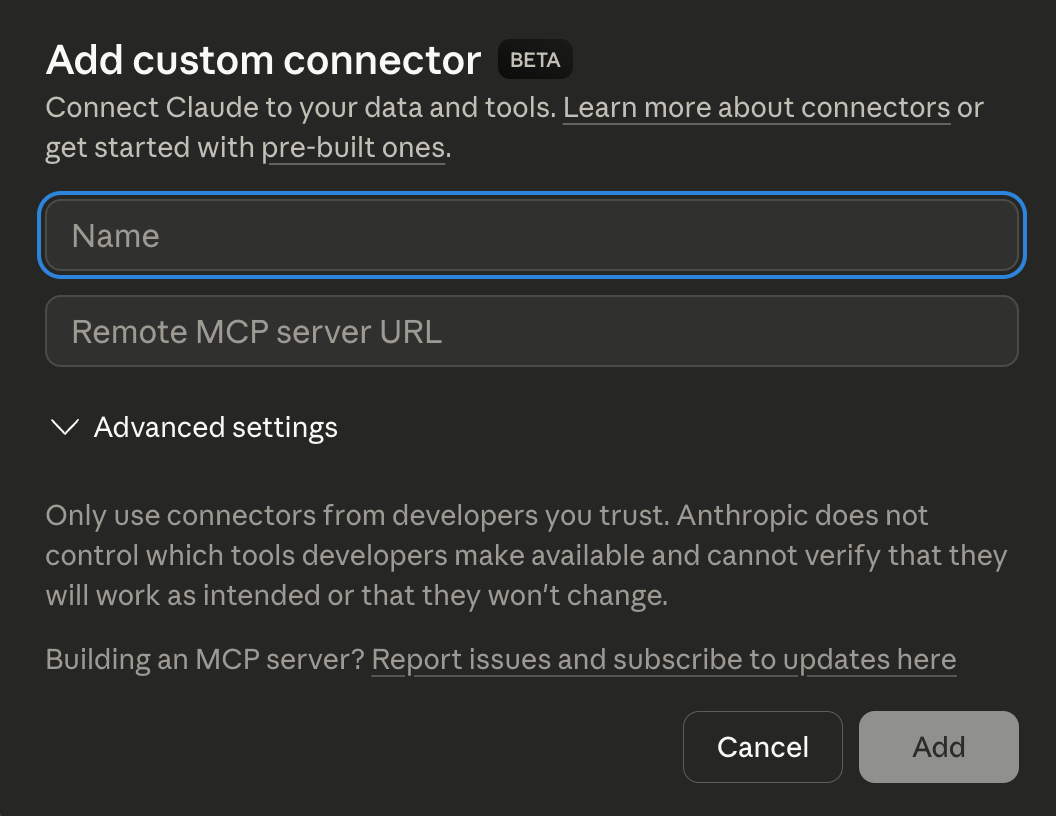
How to set it up
- Download the Claude desktop app (or open it if you already have it)
- Go to Settings → Connectors
- Scroll to the bottom and click Add Custom Connector
- Give it a name (like "Trello") and paste in this URL:
https://mcpfortrello.com/mcp - Save it. Done.
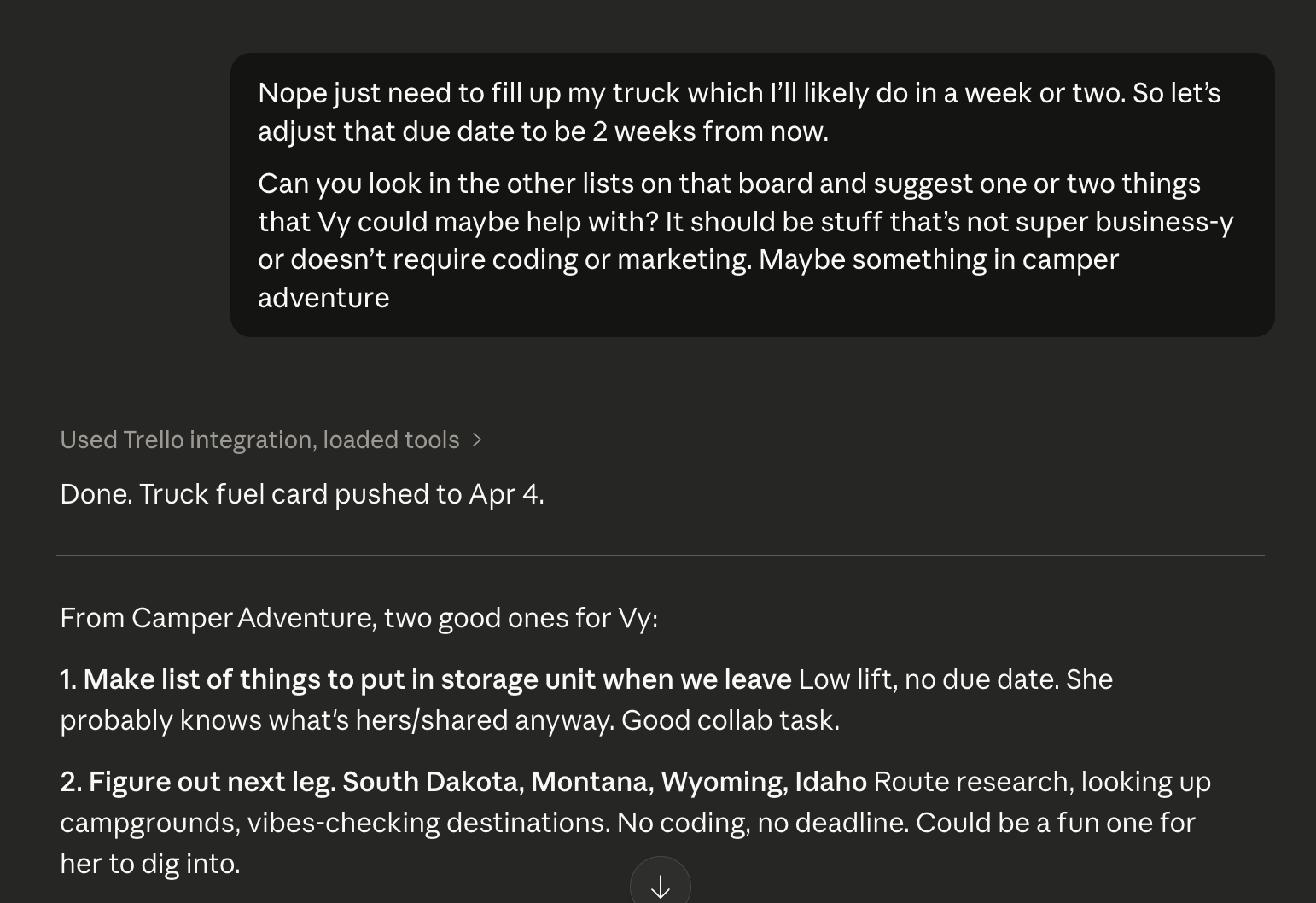
Once connected, open any chat and ask questions about your boards in plain English. The first time you ask something Trello-related, Claude will find the connector, ask you to confirm access (just like a Power-Up prompt), and get to work.
What can you actually do with it?
Here's what I've personally used it for:
"What cards do I have that are overdue?" Claude reads your boards and surfaces everything past due. No scrolling through seventeen lists. Just an answer.
"Where's that card about [thing I forgot]?" Describe it vaguely. Claude will search for similar terms and track it down.
"What should I be working on next?" It looks across your boards, weighs due dates and context, and gives you a prioritized answer. Not magic, but surprisingly useful.
Review or reflect without the blank-page panic. This is my favorite. Ask Claude to summarize a board you used to track a project or your year. Then ask it to help you spot patterns and figure out what to focus on next. Your Trello board already has all the data — you just need something to help you make sense of it.
Build a board from a conversation. Talk through your goals, then ask Claude to create a matching board. It'll set up lists, add cards, and have something ready. I've used this for trip planning and for organizing my Dungeons & Dragons campaign. It's a fast way to go from "thinking through what I want to do" to "actually having a place to put it."
And when an experiment goes sideways, it helps to know you can restore a Trello card an agent changed.
You don't have to be technical
I want to be direct about this: you do not need to know what MCP stands for. You do not need to understand how the connector works under the hood.
You paste a URL into a settings screen, then have a conversation. If you can write a Slack message, you can do this.
Setting up the safety net is just as simple — this ProBackup vs Rewind for Trello comparison shows what each one covers.
About the author
I'm Britt, and I've been obsessed with Trello for over a decade. I help people build smarter workflows through my weekly newsletter, my YouTube channel, and my book on Trello. If you're trying to get more out of Trello (or just trying to feel less buried by it) let's keep in touch.

Related posts

SaaS backup pricing explained: models, real numbers and how to calculate ROI

How to evaluate a SaaS backup vendor: criteria, questions and red flags


Metadata in SaaS backups: why comments, fields and attachments matter more than you think