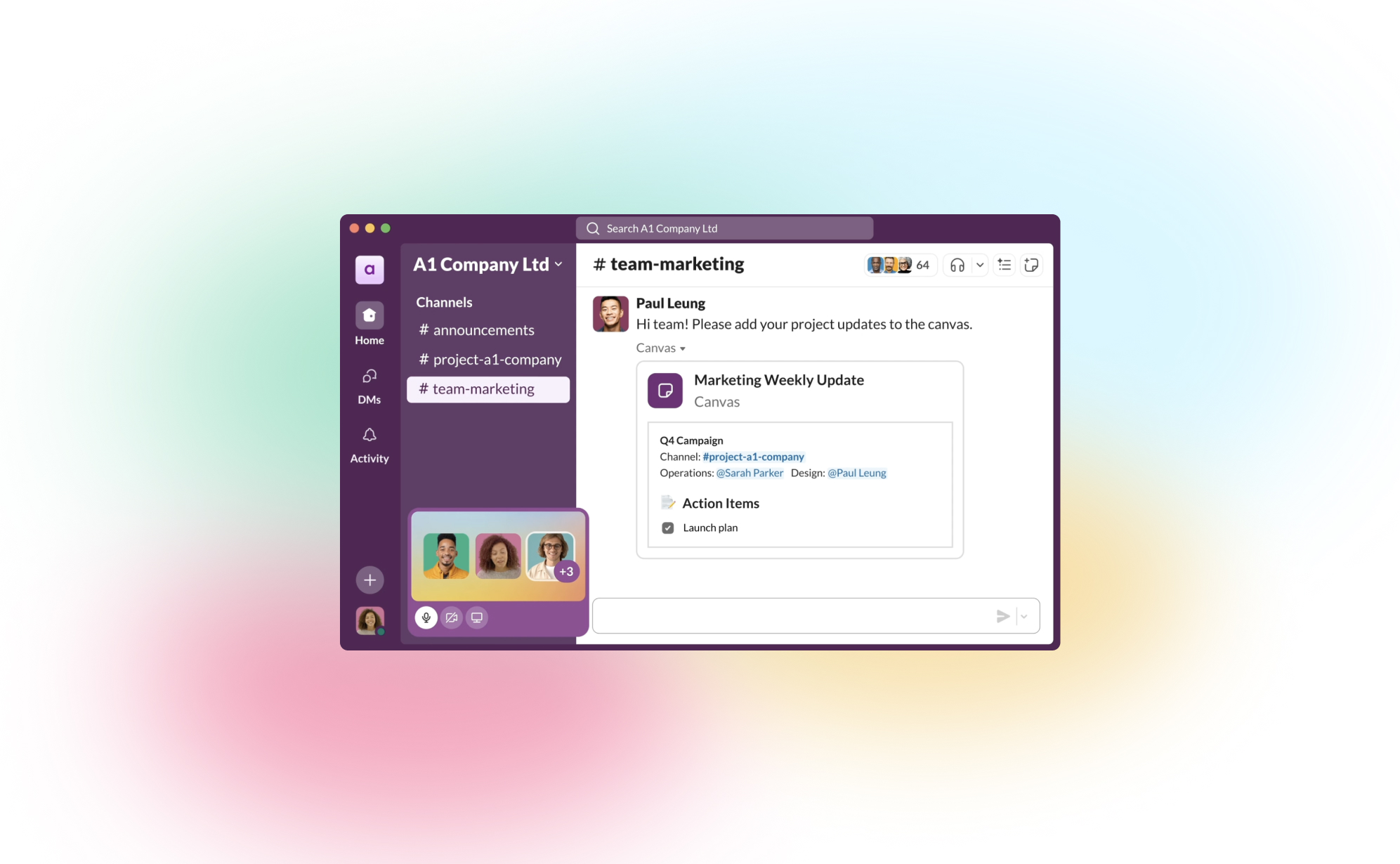
In short: Slack's free plan only shows the last 90 days of messages and files and permanently deletes anything older than a year. A workspace export is a one-off JSON dump, not a backup. To back up Slack, connect ProBackup via OAuth: it snapshots channels, messages, threads, files and the connected user's DMs every 24 hours and restores them back into Slack.
Slack is where decisions get made and context lives. It is also where that context quietly disappears: a channel is deleted, an admin removes a departing user's messages, or a free workspace ages out a year of history. This guide covers what Slack keeps, what an export gives you, what the Slack API lets a backup tool capture, and how to set up automated daily backups.
What Slack keeps on the free plan (checked 16 September 2026)
Slack's help article Usage limits for free workspaces sets two rules for free workspaces:
- Members can access messages and files from the last 90 days. Once a workspace reaches that window, Slack starts hiding messages and files older than 90 days.
- Messages and files more than one year old are permanently deleted.
Hidden content comes back if the workspace upgrades to a paid plan, but only until the one-year mark. After that no plan change or support request brings it back. These free-plan history limits are the clearest illustration of why a SaaS recycle bin will not save you.
Paid plans remove the history limit, not the other loss scenarios. Deleting a message is immediate and deleting a channel removes every message and file in it. Slack's own retention policies (Business+ and Enterprise) exist to delete data on a schedule, which is the opposite of a backup.
Export vs backup: they are not the same thing
Slack lets workspace owners and admins export data from Settings & administration > Workspace settings > Import/export data. The help article Export your workspace data (checked 16 September 2026) sets the scope:
| Plan | What a standard export includes | Format |
|---|---|---|
| Free and Pro | Public channels only: messages and file links | JSON |
| Business+ | Public channels; all channels and DMs only after Slack approves an application | JSON |
| Enterprise | All channels, private conversations and DMs, plus custom exports | JSON or TXT |
An export is useful for a legal hold or a migration. It is not a backup, for four reasons:
- It is manual. Someone has to remember to run it, and that lapses.
- It is one point in time. An export taken in March says nothing about a message deleted in June.
- It is partial on most plans. Private channels and DMs are excluded on Free and Pro, and file links are not files; once a file is deleted in Slack, the link is dead.
- It is not restorable. A folder of JSON is readable by a developer, not by the operations lead who needs a thread back in Slack this afternoon.
A backup is an automated, versioned, independent copy you can search and restore from. Slack does not offer one, so the job falls to you.
What the Slack API exposes to ProBackup
ProBackup backs up through Slack's public API, so its scope is exactly the API's scope. According to the support article What data is backed up for Slack? (checked 16 September 2026), each daily snapshot captures:
- Users: the member directory of the workspace.
- Channels: public channels, and private channels the connected user belongs to.
- Messages: every message in those channels, including edits captured as new revisions.
- Threads: thread replies, up to 1,000 messages per thread.
- Attachments: files and images shared in channels and threads, stored as the files themselves rather than links. There is no attachment size limit.
- Direct messages: DMs the connected user is part of.
Not backed up, because the API does not expose it: direct messages between other users, private channels the connected user cannot see, group membership and permissions, and Slack Workflows. ProBackup's rule is simple: it can only back up what the connected user can access. Connect an admin account with broad channel membership, or add more than one team member's account to the backup, to widen coverage.
One general limit applies across all ProBackup platforms: text fields are captured up to the first 2,000 characters.
How to back up Slack with ProBackup
ProBackup is a SaaS backup service that takes automated daily snapshots of your cloud app data and lets you restore individual records, files or whole projects back to the original account. Setting it up for Slack takes a few minutes:
- Start a trial. Go to app.probackup.io/onboarding, choose Slack and create your account. The 7-day trial needs no credit card.
- Connect Slack via OAuth. Click Connect Slack and authorise the ProBackup app with a Slack user that can see the channels you want protected. ProBackup never stores your Slack password; it holds an OAuth token you can revoke from Slack at any time.
- Choose the scope. Confirm the workspace. Everything the connected user can access in that workspace is in scope; add further users if you need their private channels and DMs covered.
- Wait for the first snapshot. The first snapshot completes within 24 hours (large workspaces take longer to pull) and you receive an email when it is done. From then on ProBackup takes a new snapshot every 24 hours, with no scheduling required.
- Optional: turn on Smart Alerts (Pro and Premium plans) to be notified of unusual changes between snapshots, so a mass deletion is noticed in hours rather than months.
Each snapshot is stored as JSON and files on AWS S3, encrypted with AES-256 at rest and TLS in transit, in one of nine AWS regions you select at signup. ProBackup is SOC 2 Type II certified (May 2025) and GDPR compliant; two-factor authentication is available on every plan and SSO on Premium. You can also sync backups to your own Google Drive (Pro and Premium plans) for a second copy.
Restoring Slack data
Restore is where a backup earns its keep. From the ProBackup vault you browse channels by snapshot date, use Global Search (unlimited on Pro and Premium; 3 free uses per month on Plus) to find a message by keyword, and restore at the level you need with granular restore:
- A single message. Restored as a new message in the original channel; its thread replies and attached files come back with it.
- A thread or a set of messages. Select multiple items and restore them in one action.
- A whole channel. Restore a deleted channel's message history from any snapshot in your retention window.
- Files. Download an attachment directly, or restore it alongside its message.
Restores to Slack create copies rather than overwriting, so nothing in the live workspace is touched. You can also export any channel or snapshot as XLSX, or bulk-download attachments (Premium). Version history is 6 months on Plus, 2 years on Pro and unlimited on Premium; plans start at $25 per month, billed yearly, and one licence covers the whole workspace.
Best practices for Slack backups
- Decide who the connected user is. Coverage follows that account's channel membership; an admin who sits in the channels that matter is the right choice.
- Match retention to obligations. If a regulator or contract expects communication records for years, pick a plan whose history covers that period.
- Treat DMs deliberately. Only the connected user's DMs are captured. Move decisions into channels, or add those users to the backup.
- Test a restore each quarter. A backup you have never restored from is an assumption, not a control.
- Mind privacy. Chat is personal data. Limit who can open the vault (invited users can be scoped to view, export or restore) and record ProBackup as a processor.
FAQ
Does Slack back up my messages? Slack keeps its own infrastructure backups to recover from its failures, not to restore your deleted messages. On the free plan, messages and files older than 90 days are hidden and anything older than a year is permanently deleted (checked 16 September 2026).
Can I back up private channels and direct messages? Yes, for any private channel or DM the connected user is part of. Slack's API does not expose other users' DMs or channels the connected user cannot see, so add more users to the backup to widen coverage.
Is a Slack export a backup? No. It is a manual, point-in-time JSON dump that includes only public channels on Free and Pro plans and file links rather than files. A backup runs automatically, keeps versions and lets you restore into Slack.
How often does ProBackup back up Slack? Every 24 hours, automatically, with no scheduling required. Each snapshot is stored encrypted in the AWS region you chose at signup, and you can restore from any snapshot within your plan's version history.
Start backing up Slack with a free 7-day trial.
.png)
Related posts
How to back up Webflow (and restore deleted data)

How to back up Notion (and restore deleted data)

How to back up Teamwork (and restore deleted data)