
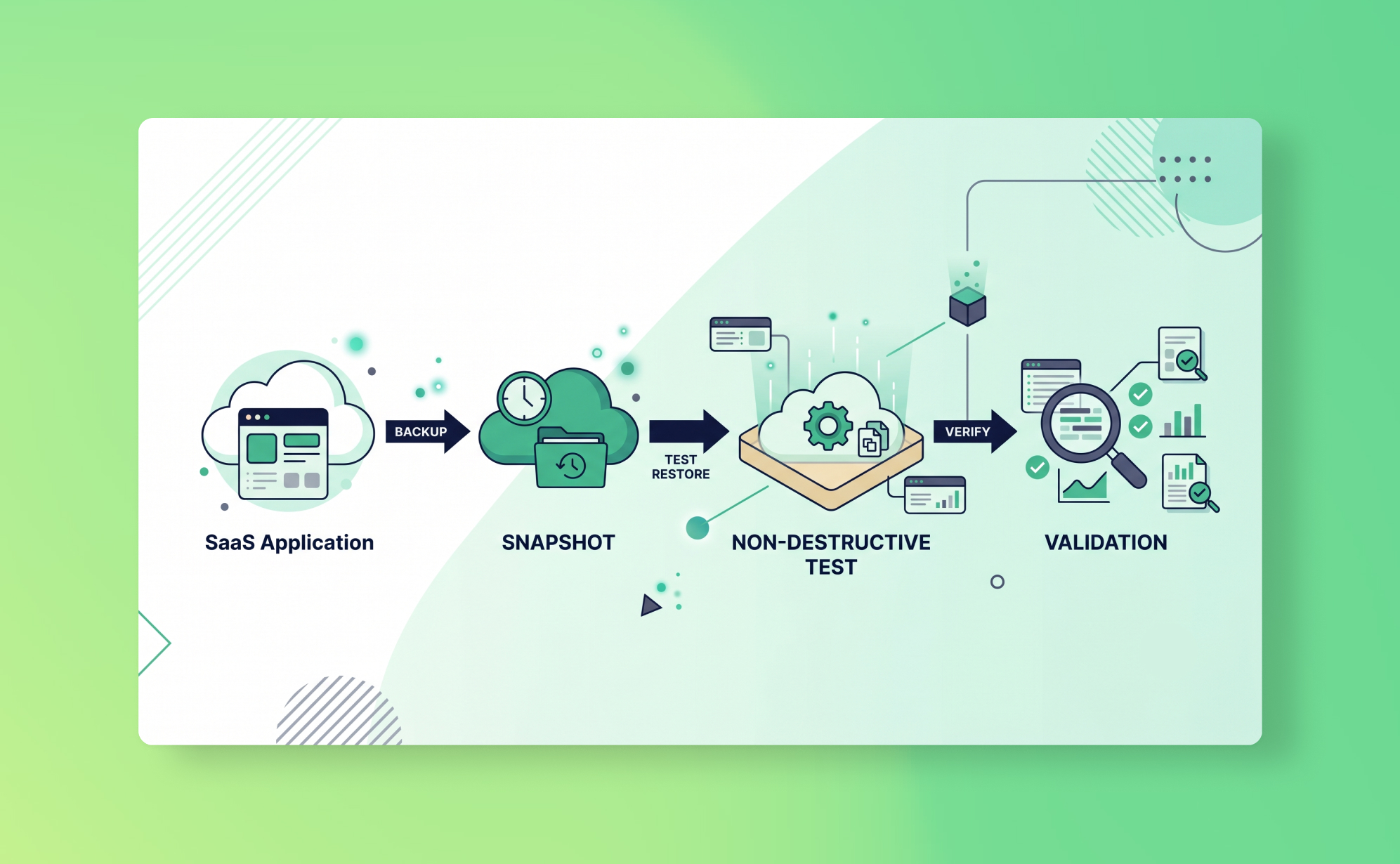
In short: test a SaaS backup with a non-destructive restore drill: pick a recent snapshot, restore one item as a new record, check that fields, comments and attachments arrive intact, then delete the test copy. It takes about 20 minutes — and until you have done it, your backup is an assumption rather than a safeguard.
The worst moment to discover your backup doesn't work is when you're already in an incident. Your Asana workspace is corrupted, the client is waiting for an update, someone is standing behind you asking what's happening, and you're clicking around in a backup tool you haven't opened in six months trying to figure out what "restore as new records" means.
This happens more than it should. Not because teams don't have backups, but because they never test them. Setting up automated backups feels like the finish line. It isn't. A backup you've never tested is an assumption, not a safeguard.
Testing takes about 20 minutes. It's non-destructive. It answers the questions you don't want to be answering for the first time during a real incident: where do I find the snapshot? What do I restore? How long does it take? Where do the restored items appear? What if the data looks wrong?
This post walks you through the full process.
Why backup testing gets skipped (and why that's a problem)
The common reasons are predictable. "We have backups running, so we're covered." "We'll figure it out if it ever happens." "It would take too long."
None of these hold up. A backup that runs successfully every night doesn't guarantee the data inside it is usable. APIs have limitations. Some data types can't be restored due to platform constraints. Certain field values don't survive the restore process. You won't know any of this until you actually try restoring something.
There's also the time pressure problem. During a real incident, people are stressed, decisions need to be made quickly, and the person doing the restore is probably not the person who set up the backup tool. If nobody has ever done a restore before, the learning curve hits at exactly the wrong moment.
A quarterly test costs 20 minutes. An untested restore during a live incident can cost hours, and sometimes data you can't recover at all.
What you're actually testing
Before running a test, be clear on what you're trying to verify. A good backup test answers four questions:
Is the data there?
Can you find a clean snapshot from a recent date? Is the data you'd want to restore actually in the backup vault?
Is the data complete?
When you look at a backed-up record, are the field values, comments, files, and related items all present? It helps to know how the backup engine stores each revision before you judge a gap. Or are there gaps you'd expect to be filled?
Does the restore work end to end?
Can you trigger a restore, have it complete successfully, find the restored items in your SaaS app, and verify they match the original?
How long does it take?
For a single record, for a project, for a larger set of items. This is your RTO data point. If restoring 200 tasks takes 40 minutes, that's your RTO for that scenario, and you should know it now.
What to test
Don't try to test everything in one session. Pick a representative sample across the data types your team relies on most.
A useful test set for a first run:
- One task or record with comments, attachments, and custom field values (tests field-level restore fidelity)
- One project or board from a few weeks ago (tests point-in-time snapshot integrity and project-level restore)
- One recently deleted item still within the retention window (tests deleted-item recovery)
- One item deleted long enough ago that it's gone from the platform's own recycle bin; this tests the core value proposition of an independent backup (see why SaaS recycle bins aren't enough)
That last one is the most important. If your backup can recover something the platform's native recycle bin can no longer see, you know the independent backup is doing what it's supposed to.
How to run a test restore in ProBackup
The process is the same for any platform you have connected.
Step 1: Open the vault and navigate to your data.
On the Home page, click "Go to..." for the app you want to test. In the left sidepane, navigate to the workspace, folder, project, or board that contains the data you want to restore. Switch between data type tabs (tasks, comments, files, and so on) to browse what's captured.
Step 2: Select a snapshot date.
Use the date filter to select a past snapshot, the further back the better for a meaningful test. If your retention is six months, try a snapshot from two months ago. This confirms both that the snapshot exists and that the data looks as expected.
Step 3: Select the records and click "Restore..."
Select one or more records and click "Restore..." at the bottom of the screen or via the preview panel. A restore pane opens on the right. Before confirming, check two things:
Restore location: confirms where the restored items will appear. This is set automatically based on the original location.
Restore method: choose between "Restore as new records" (creates copies alongside existing data, the safest option and the right choice for testing) and "Overwrite existing records" (updates existing records with backed-up field values, useful for rolling back changes to a record that still exists). For testing, always use "Restore as new records." Nothing gets overwritten, and you can delete the test copies once you've verified them.
Also review "Restore constraints" at the bottom of the pane. This lists any data types that can't be restored due to API limitations for that platform. For example, Asana tasks can't have formula fields or read-only custom fields restored. This is important to note in your test log as a known limitation.
Step 4: Track progress and find restored items.
After confirming, go to Reports > Restore Report to follow progress. Large restores can take a few minutes. Once complete, open your SaaS app:
- Restored projects and boards appear with "restore" and the date appended to the name, for example "Q3 Campaign (restore 2026-04-15)." Find them in the relevant workspace.
- Restored tasks and records appear as new items in the original project or board. Sort by creation date to find them quickly.
- Restored comments appear as new entries in the related record.
Step 5: Verify the data.
Compare the restored items against what you'd expect. Check field values, comments, files, and any custom fields that are central to how your team uses the app. Note anything that's missing or looks wrong. Some gaps are expected (known API limitations), and some might be surprises worth investigating.
Step 6: Delete the test copies.
Once you've verified the restored data, delete the test copies to keep your workspace clean. The original data is untouched throughout this process.
What to do when a test reveals missing data
Not every restore test comes back clean. Sometimes you'll find data types that are missing or field values that didn't survive the restore. Before treating this as a backup failure, check whether it's an expected API limitation.
ProBackup's restore pane shows "Restore constraints" before you confirm a restore. These are the known limitations for that platform and data type. For Monday.com, for example, subitems, relationship fields, and mirror fields can't be restored. Button columns, lookup columns, and board-relation columns are also excluded due to API constraints. For Asana, formula fields and read-only custom fields can't be restored.
If missing data falls within these documented constraints, it's a known limitation, not a bug. Document it in your test log so it's captured as an explicit gap in your coverage, and evaluate whether a manual workaround (like a scheduled export of those specific field types) can compensate.
If missing data falls outside the documented constraints, something unexpected is happening. Check the Restore Report for any errors. If the report shows failures or partial restores that don't match the known limitations, contact ProBackup support with the restore report details.
Either way, the point of testing is to discover these things now, not during a real incident.
Keeping a test log
Every test should be documented. Not because it's bureaucratic box-ticking, but because the test log is your evidence during an audit, your reference when something goes wrong, and your record of known limitations.
For each test, record:
- Date of test
- Platform tested
- Snapshot date used
- Data types tested (tasks, comments, files, custom fields)
- Restore method used
- Time from trigger to completion
- Pass / Fail
- Notes: what matched, what was missing, whether missing data was a known API limitation or an unexpected gap
If you're using the backup policy template from our SaaS data backup policy post, Appendix A already has a restore test log table you can fill in. Use it. Auditors asking for SOC 2 or ISO 27001 evidence will want to see exactly this, and under GDPR Article 32, the ability to restore data "in a timely manner" is meaningless unless you can demonstrate you've actually tested it.
How often to test
Quarterly is the right cadence for most teams. That's frequent enough to catch configuration drift and infrequent enough that it doesn't become a burden.
Rather than testing the same app every quarter, rotate through your stack so all critical platforms get covered over the course of a year. If you've done the SaaS data protection audit and categorised your apps by tier, a simple four-quarter rotation works well:
- Q1: Your primary project management tool (Asana, Monday.com, ClickUp, or Jira). This is typically the highest-criticality app and the one most likely to surface API limitation surprises.
- Q2: Your CRM (HubSpot, Pipedrive, or similar). Focus on records with comments, associated files, and activity history, since these are the data types most likely to have restore constraints.
- Q3: Your knowledge base or collaboration tool (Notion, Confluence, Slack). Test from a snapshot that's at least two months old to verify retention depth.
- Q4: Any remaining Tier 1 apps, plus a spot-check on a Tier 2 app you haven't tested before.
By the end of the year, every critical platform has had a dedicated test, and you've built enough familiarity with the restore process that doing it under real pressure won't feel like the first time.
Test more frequently if you've recently changed something: added a new platform, changed retention settings, updated workspace permissions, or onboarded a significant number of new users. Any of these can affect backup scope in ways that aren't immediately obvious.
Also test after any real incident. If you restored data to fix an actual problem, document the experience while it's fresh: how long it took, where the friction was, what you'd do differently. That's more useful than any scheduled test because it's based on a real failure mode in your specific environment.
Beyond testing: proactive monitoring
Testing is periodic. Monitoring is continuous.
ProBackup's smart alerts notify you when unusual deletion activity is detected, for example a spike where 50 tasks disappear in an hour, or a board is deleted by someone who doesn't normally delete things. On Pro and Premium plans, you also receive weekly status emails summarising backup health, recent changes, and storage usage across all connected platforms.
These two things together (proactive alerts and weekly status reviews) help close the detection gap that makes slow-burn data loss so dangerous. If you know about a problem within hours rather than weeks, the right snapshot is much easier to find. The test confirms the backup works. The monitoring helps you catch problems early enough that the backup matters.
Proactive alerts and weekly reports are available on Pro and Premium plans.
What to do next
If you haven't run a restore test since setting up your backups, do one this week. Pick one platform, pick a snapshot from a few weeks ago, restore a small set of records, verify them, and document the result. It takes 20 minutes and tells you more about your actual data protection posture than any configuration page.
If the test surfaces gaps (known API limitations you weren't aware of, retention windows that don't cover the period you need, workspaces that fell out of scope), address them as part of your backup policy review.
If you don't yet have automated backups in place and you're still relying on the platform's native recycle bin, start a free trial of ProBackup. Setup takes three minutes per app. Your first snapshot runs within 24 hours. See how other teams use ProBackup when things actually go wrong on our success stories page.

Related posts

How to back up Webflow (and restore deleted data)


How to back up Notion (and restore deleted data)

How to back up Teamwork (and restore deleted data)