Linear backup is here: bring back deleted issues and undo bad edits
ProBackup now backs up Linear daily. Restore a deleted issue, project or document into the same workspace, or roll one issue's fields back to an earlier day.


In short: ProBackup now backs up Linear. Every 24 hours it takes a snapshot of the teams you choose: issues with their comments, files and relations, plus projects, milestones, documents and labels. A deleted issue, project or document goes back into the same Linear workspace. An issue that still exists but was overwritten can be rolled back to an earlier day’s version, for just the fields you pick. Cycles, initiatives, customer requests and workspace settings are not backed up.
What Linear already gives you
Cmd/Ctrl + Z brings back an issue you just deleted. After that, deleted issues, projects and documents wait in the team’s Recently deleted tab for 30 days. Then deleted issues are removed for good and can’t be restored (Linear docs, checked 2026-11-02).
Admins (owners on Enterprise) can also export the workspace’s issues to CSV, and members can export smaller issue views. The export has issue fields such as title, description, status and labels, but no comments, documents or attachment files, and you start it by hand: Linear’s docs don’t describe a way to schedule it. A single issue can be copied as Markdown with its comments (Linear docs, checked 2026-11-02).
That leaves two gaps. One is a deletion nobody notices for a month, until someone needs that project back in week six. The other is damage without a deletion. An automation, a script or an AI agent with write access can rewrite titles, descriptions, priorities and labels on issues that still exist. Recently deleted can’t help there, because nothing was deleted.
Restore a deleted issue, project or document
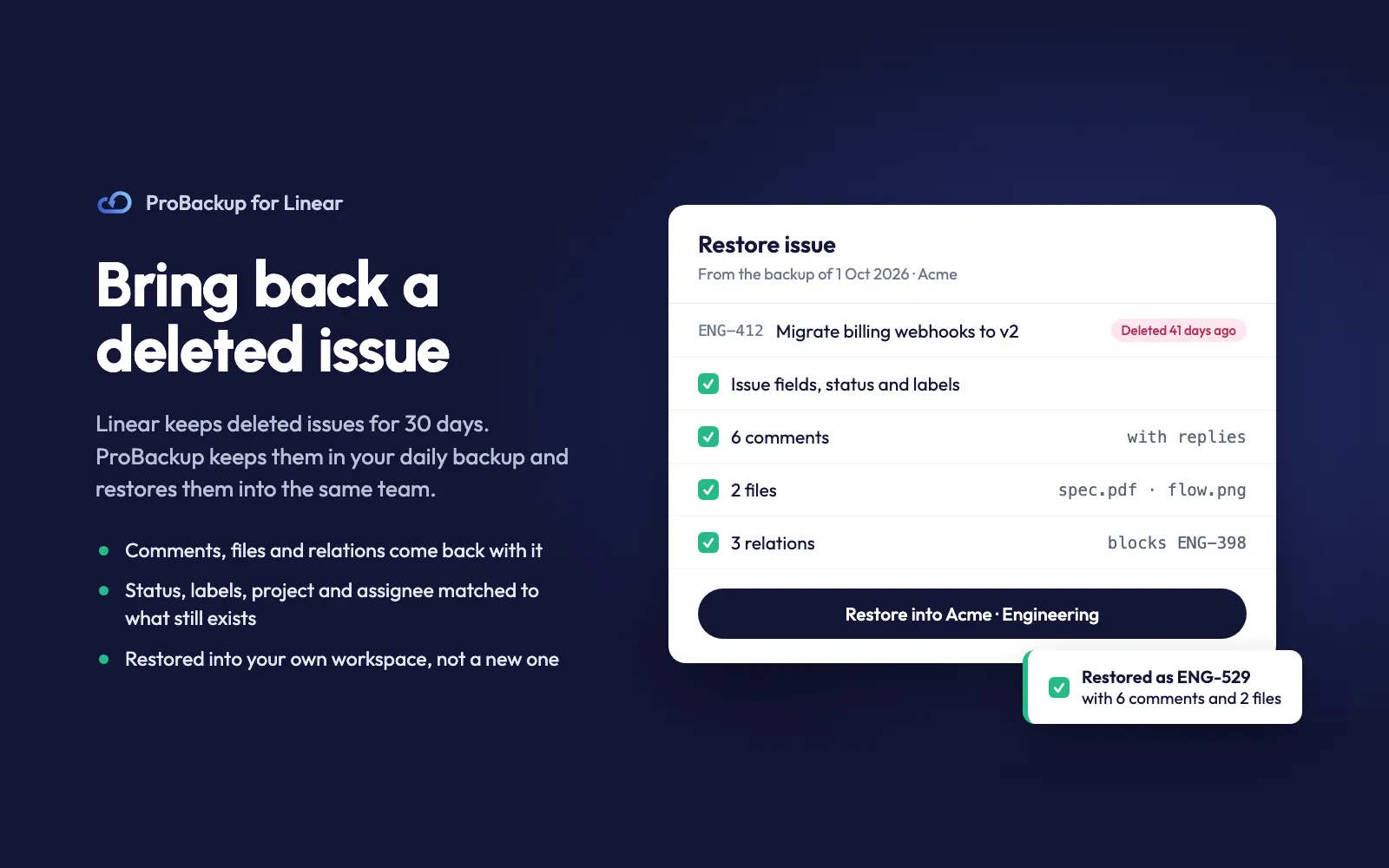
In ProBackup you browse the backup by team, pick a day and choose what to restore. A deleted issue comes back in its original team with its comments, attachments and documents. Files stored in the backup are uploaded to Linear again; a file ProBackup never managed to download comes back as a link to the original. The parent issue and relations (blocks, blocked by, duplicate of, related to) are linked again when the other issue still exists or is restored with it. Status is matched by name, then by type. Labels are matched by name, and a label that no longer exists is created again. Project, milestone and assignee are kept when they still exist; if Linear refuses one of them, the issue comes back without all three.
Projects, milestones, documents, labels, comments and attachments can also be restored on their own. A restored project brings its milestones and documents with it. Issues of the team it’s listed under in ProBackup follow: existing ones move into the restored project, and deleted ones are re-created inside it.
Worth knowing before you need it:
- The restored issue gets a new identifier, for example ENG-245 instead of ENG-112.
- Restored comments appear under the name of the person who connected the backup. ProBackup still shows the original author.
- Cycle membership, issue history and project status are not restored.
- A restore never deletes anything in Linear. It adds items next to what is there.
Roll back one issue to an earlier day
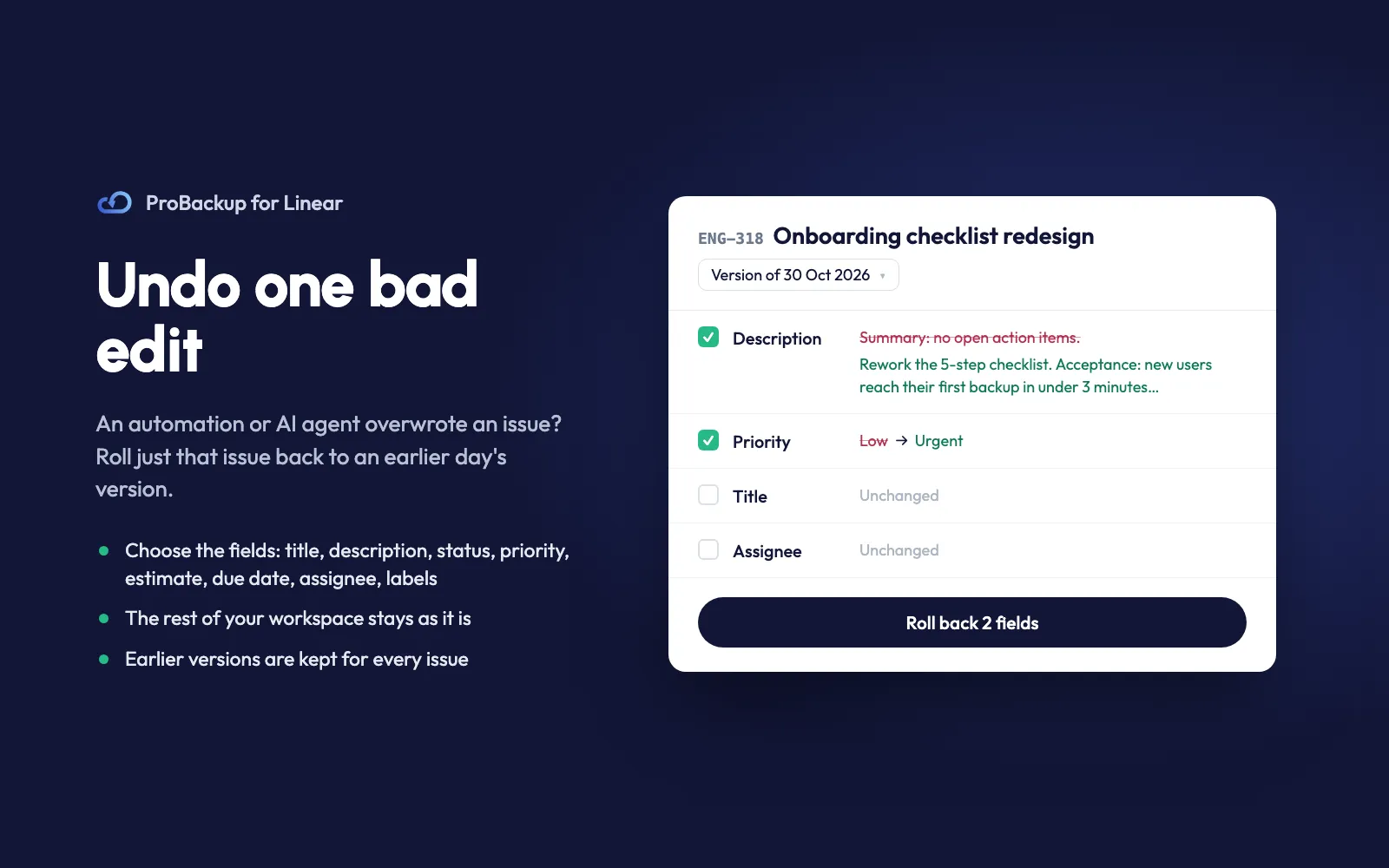
An issue that still exists can be overwritten with an earlier day’s version instead. You choose the fields to set back: title, description, status, priority, estimate, due date, assignee or labels. Only those fields of the selected issues change.
Say an AI agent “tidied up” forty issue descriptions overnight. You select those issues in ProBackup, open yesterday’s version, choose “Overwrite existing records” and leave only Description ticked. Status, assignee and labels stay the way your team left them this morning.
What is backed up, and what isn’t
ProBackup backs up, per team: issues (including archived issues and sub-issues), comments with replies, attachments, projects, project milestones, documents and labels, plus the workspace’s users for reference.
It does not back up cycles (each issue keeps its cycle name), workflow settings (each issue keeps its status name), initiatives, project updates, comments on documents, customer requests, views, templates, reactions, the issue activity log, or workspace settings and integrations. It backs up your teams’ work, not the whole workspace.
Images inside a description, comment or document are kept as a link to Linear, not as a file; files in an issue’s attachment section are stored. And ProBackup sees the teams that the connecting Linear user can see, so connect with someone who is in every team you want covered. The full lists are in our help articles on what is backed up and what can be restored.
Snapshots are encrypted and stored in the AWS region you choose. They are kept for 6 months on Plus, 2 years on Pro and 4 years on Premium. ProBackup is SOC 2 Type II audited.
Already a ProBackup customer?
Linear lives in the same account as your other backups, on the plan you already have. The same dashboard and restore flow now cover Linear next to ClickUp, Asana, Notion, HubSpot and the rest of the 22 apps ProBackup supports, and global search finds Linear issues too (included on Pro and Premium; Plus can try it 3 times a day). Add Linear from your account and its first snapshot starts right away.
Try it on your workspace
Setup takes a few minutes. Sign in with Linear, approve read access (to back up) and write access (to restore), and choose your teams. You don’t need to be a Linear admin, unless your workspace requires approval for third-party apps. The setup guide walks through each step.
Start your free Linear backup How ProBackup backs up Linear
The 7-day trial needs no credit card. Plans start at $25 per month, billed yearly (see pricing).