
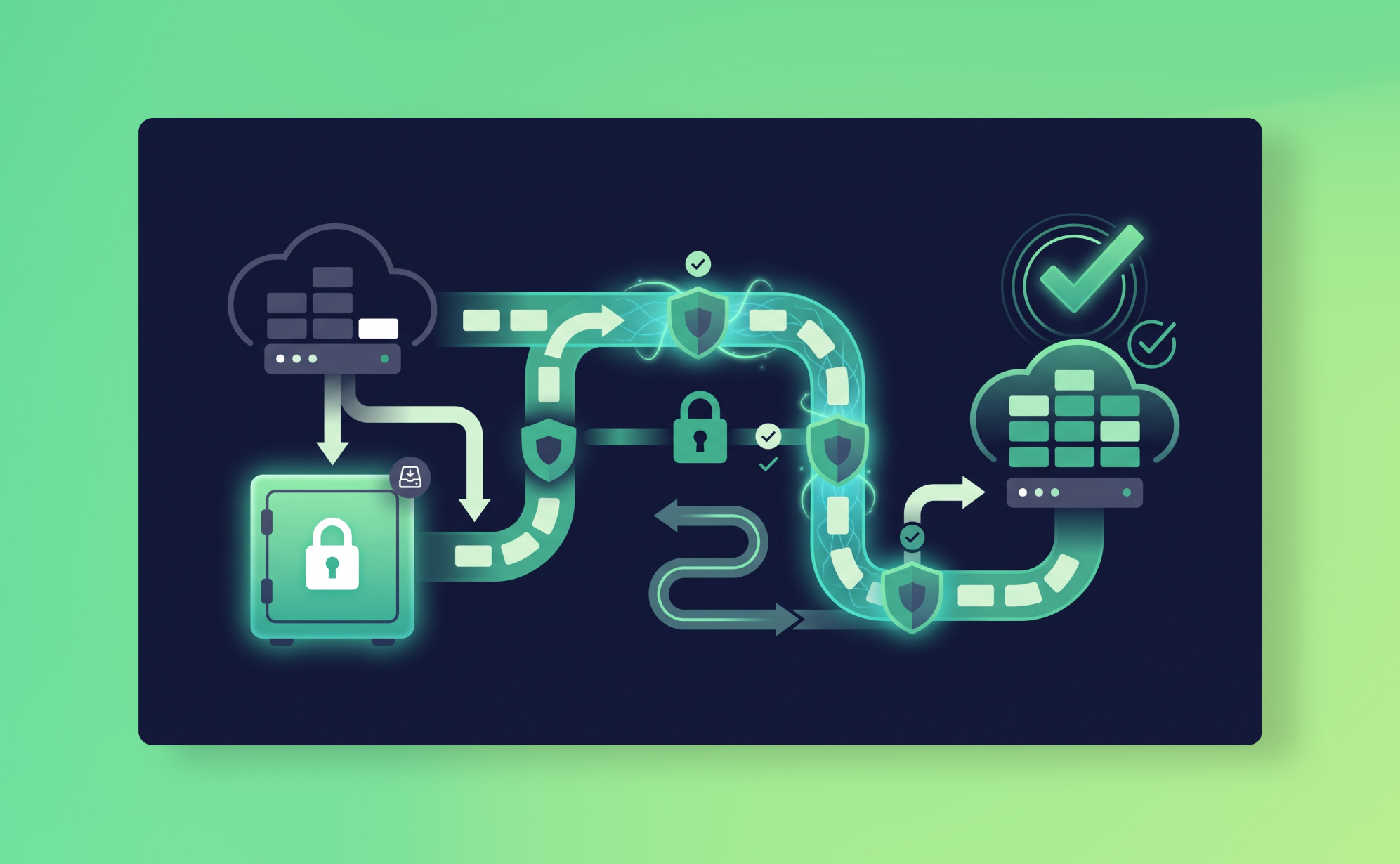
In short: Before a SaaS platform migration, take an independent backup of the source platform 24 to 48 hours before any export, keep the source account live for at least 30 days after go-live, and verify data quality (not just record counts) against that backup before decommissioning. ProBackup restores only to the original platform instance: a rollback net, not a migration tool.
A client services manager moved her team from Trello to Asana last quarter. The migration tool worked cleanly: all 2,400 cards transferred, custom fields mapped correctly, due dates preserved. The Trello account was cancelled two weeks after go-live.
Six weeks later, a client asked for the decision trail on a project from eight months ago. The comment threads where the scope changes had been discussed, the back-and-forth over timelines, the approval messages. None of it had migrated. The migration tool had transferred card titles, descriptions, and fields. Comments weren't in scope.
The Trello account was gone. The only CSV export she had was the one she'd taken before the migration, which also didn't include comments. The data existed nowhere.
The data protection problem in a migration isn't the migration itself. Most migration tools work fine for structured records. The problem is the window: the period between "we're leaving Platform A" and "we're settled on Platform B" when your data exists in a half-migrated, half-connected state and your usual safety nets don't apply.
This post is about how to protect yourself in that window, and what to do if something goes wrong during or after the move.
✅ Good for: Teams moving between SaaS platforms who want an independent backup of the source platform before they start, and a rollback option if the migration loses or corrupts data.
❌ Not for: Teams looking for a tool to migrate data between platforms. ProBackup restores data to the original platform instance, not to a different app or account. For that, you need a dedicated migration tool.
Why migrations are high-risk for data
A migration is the single moment in your SaaS lifecycle where more things can go wrong with your data than at any other time.
You're exporting from a live platform in active use, often while the team is still working in it. You're running imports into a new platform that behaves differently, has different field types, different required fields, different relationship structures. You may be doing this in stages, or running both platforms in parallel for weeks while the team transitions.
Each of these creates specific risks:
Data that doesn't survive the export. Most SaaS platforms export to CSV or their own proprietary format. Comments, activity history, nested structures, and file attachments rarely survive a CSV export intact. If your migration tool relies on the platform's native export rather than the API, you're already losing data before the move starts.
Data that imports but lands wrong. Field type mismatches silently corrupt data. A single-select field on Platform A becomes a text field on Platform B. Dates parse differently. Custom fields that don't have an equivalent on the new platform get dropped or flattened. The import completes without errors and the data looks fine on the surface, but something is wrong in a field your team uses every day.
Data that exists nowhere during the transition. If you export from Platform A and delete the records before confirming the import to Platform B went cleanly, you have a brief window where that data exists only in an unverified export file. If the import fails, you're restoring from that file, which may itself be incomplete.
The source platform gets decommissioned before problems are found. Someone notices six weeks after migration that a custom field didn't transfer. By then, the source platform account has been cancelled, the trial is expired, and the only copy of the original data is the export file from day one. This is the shared responsibility model in its starkest form: the migration tool did what it was supposed to do. What you lost was your own responsibility to protect.
Step 1: Back up the source platform before you start
This is the single most important thing you can do, and almost nobody does it deliberately.
Before you run a single export, before you install the migration tool, take a complete independent backup of the source platform. Not a CSV export. An independent snapshot stored separately from the platform, with its own authentication, that you can access even after the source account has been cancelled.
This is exactly what ProBackup is designed for. Connect the source platform, wait for the first snapshot to complete, and verify that the data is there. Now you have a clean, point-in-time backup of your data as it existed before the migration started. If the migration goes wrong two weeks from now, you can restore from this snapshot regardless of what's happened to the source account.
This backup has a specific value that no export file can provide: it's a complete, structured, searchable record of your data at a specific date. If you need to find out what a specific task's comments said on the day before the migration, or what a deal's field values were before the import overwrote them, the backup has it. The CSV export doesn't.
Step 2: Don't cancel the source platform until you've verified the migration
The impulse to cancel the source platform the day the migration completes is understandable. You're paying for two platforms, the team has moved, and keeping the old one running feels wasteful.
Resist it for at least 30 days.
Data problems from migrations are rarely found immediately. The team is adapting to the new platform, workflows are being rebuilt, and nobody is systematically checking that every field, every comment, every attachment landed correctly. The problems surface when someone tries to use the data: "Where's the history on this deal?" "The status field only has three options, it should have five." "The files on this project aren't loading."
Keep the source platform accessible for a minimum of 30 days post-migration. If you had ProBackup connected, you also have the backup vault to reference even after the account is cancelled, which covers you beyond 30 days for as long as your retention period runs. On a Plus plan that's six months, on Pro it's two years. That's the window within which you can go back and find what the data looked like before the migration. It's also worth noting that the source platform's native recycle bin won't help here: if the account is cancelled, the recycle bin goes with it.
Step 3: Verify the migration before you decommission anything
Before you cancel the source platform, run a structured verification. Don't just look at record counts. Check the data quality in the new platform against the backup of the old one.
A practical verification checklist:
- Record count: Export the relevant workspace from the ProBackup vault as an Excel file and compare the row count against the equivalent view on the new platform. A discrepancy of even a few records usually indicates dropped items.
- Field values: Pick ten records at random and open them side by side: the vault view on the source platform and the live record on the new platform. Check every field value. Pay particular attention to single-select and multi-select fields, which are most likely to have lost options during the schema mapping.
- Comments and activity history: In the ProBackup vault, navigate to three or four records that had significant comment threads and check the Comments tab. Compare what's there against the new platform. Comments are the most commonly lost data type in migrations because many export formats don't include them.
- File attachments: Open the Attachments tab in the vault for the source platform and compare against the new platform. Try loading ten files on the new platform. If the migration tool linked to the old platform's file storage rather than copying the files, links will break the moment you cancel the source account.
- Custom fields: Export a complete data table from the vault and open it in Excel. Check that every column header corresponds to a field on the new platform, and that none of the expected columns are blank across all rows.
- Relational data: If your source platform had linked records, parent-child relationships, or dependencies, check a sample of these specifically. They're the most likely data type to be silently dropped or flattened during schema transformation.
Document the verification results. If problems are found, you still have the source platform running and the backup vault to restore from. If the verification passes cleanly, you can decommission with confidence.
Step 4: Connect the destination platform immediately
As soon as the migration is complete and you've verified the initial data, connect the destination platform to your backup tool.
Migration day is not the time to start thinking about backup coverage on the new platform. The early days after a migration are actually the highest-risk period for data loss: the team is still adapting, workflows are being rebuilt, and small configuration mistakes are common. Your effective RPO on the new platform is undefined until you have at least one snapshot running. If someone accidentally deletes a project they thought was a test project but was actually a real one, you want that covered from day one.
In ProBackup, connecting the destination platform takes about three minutes. The first backup snapshot will run within 24 hours. From that point, you have continuous coverage on the new platform with the same retention and restore capabilities as your old one.
Using your backup data during a migration
Even if you use a dedicated migration tool (which you should, for the actual data transfer), your ProBackup backup data is useful as a reference during the migration process.
As a verification source. Export your source platform data from the backup vault as Excel files. Use these as your ground truth when checking that migration data landed correctly. The vault export includes field configurations and data types that a raw CSV might not preserve, so it's a more reliable comparison document than a native platform export.
For accessing attachments. If you need to retrieve specific files from the source platform after the migration, ProBackup's attachment download feature lets you download individual files or, on Premium, bulk download all attachments for a project as a ZIP file. This is particularly useful if the migration tool didn't copy attachments and you need to manually upload them to the new platform.
For rollback scenarios. If the migration corrupts data and you need to restore the source platform to a working state, ProBackup can restore data to the original platform instance. This gives you a clean rollback path if the migration has to be aborted and restarted.
As a read-only archive. After the migration is complete and the source account is cancelled, the backup vault remains accessible. Teams who need to reference historical data from the old platform (for client work, compliance, or institutional knowledge) can browse and export it from the vault indefinitely, within their retention period.
What ProBackup doesn't do in a migration
Being clear about this matters, because it's easy to conflate backup with migration and end up with gaps.
ProBackup is not a migration tool. It can't move your data from Trello to Asana, or from monday.com to ClickUp. It doesn't map fields between platforms, handle schema transformations, or write data to a different platform than the one it backed up. For the actual data transfer, you need a dedicated migration tool (Truvault, Orca, AppVizer, or the native import features on the destination platform, depending on which platforms you're moving between).
What ProBackup provides in a migration context is the safety net: a complete, independent, searchable snapshot of your data before the migration starts, continuous coverage during the transition period, a verification reference during the migration, and a rollback path if something goes wrong.
The migration tool moves your data. ProBackup protects it.
What to do next
A platform migration usually means the team has outgrown something, which means the data you're moving matters more than it did when you first started using the platform. It's worth protecting properly.
If you have a migration coming up, start by connecting your source platform to ProBackup now, before any migration activity begins. Plans start at $25/month (billed yearly) and include all supported platforms under a single licence: Asana, monday.com, ClickUp, Trello, HubSpot, Notion, Jira, Airtable, Slack, and more.
Once the migration is complete, connect the destination platform to the same account. Your backup history on the source platform stays accessible, and coverage on the new platform starts immediately.
If you want to understand the broader data protection strategy for your SaaS stack, the SaaS data protection audit post walks through how to inventory your apps and identify gaps. The backup policy template includes a scope table that's worth updating to reflect any new platforms after a migration.
See how other teams use ProBackup to protect business-critical data on our success stories page.

Related posts

What happens to their work when someone leaves: offboarding data in Asana, ClickUp, monday.com and HubSpot
.png)
ProBackup's SOC 2 Type II report: what it covers, how to request it, and what it does not mean

The dangers of vibe coding a backup tool for your business