
This article explains how to update which bases and workspaces are included in your Airtable backup.
How to update your backup scope in Airtable
- In Airtable, click on your avatar and select “Integrations”.
- Click “Third-party integrations”.
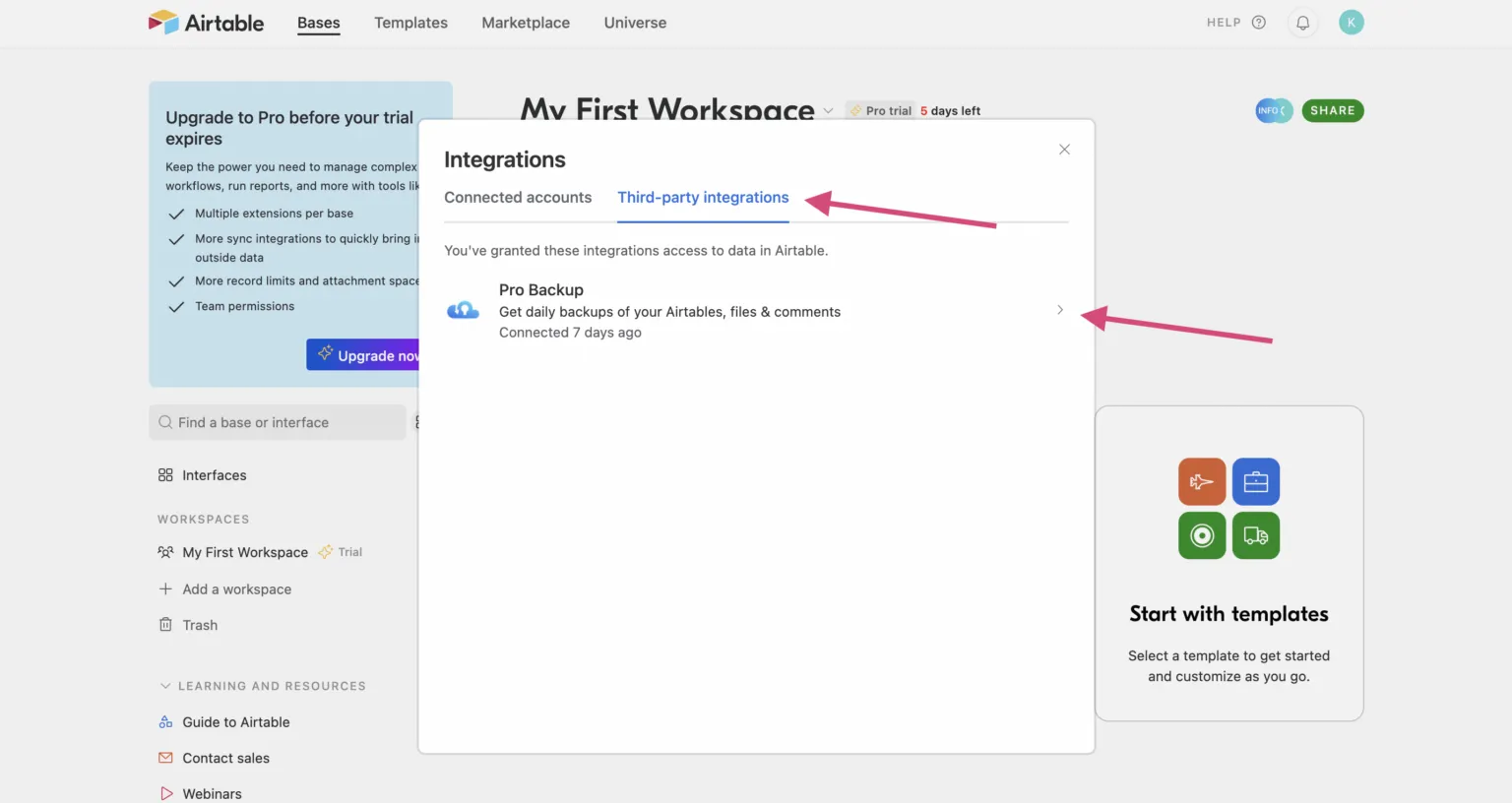
- Click “ProBackup”.
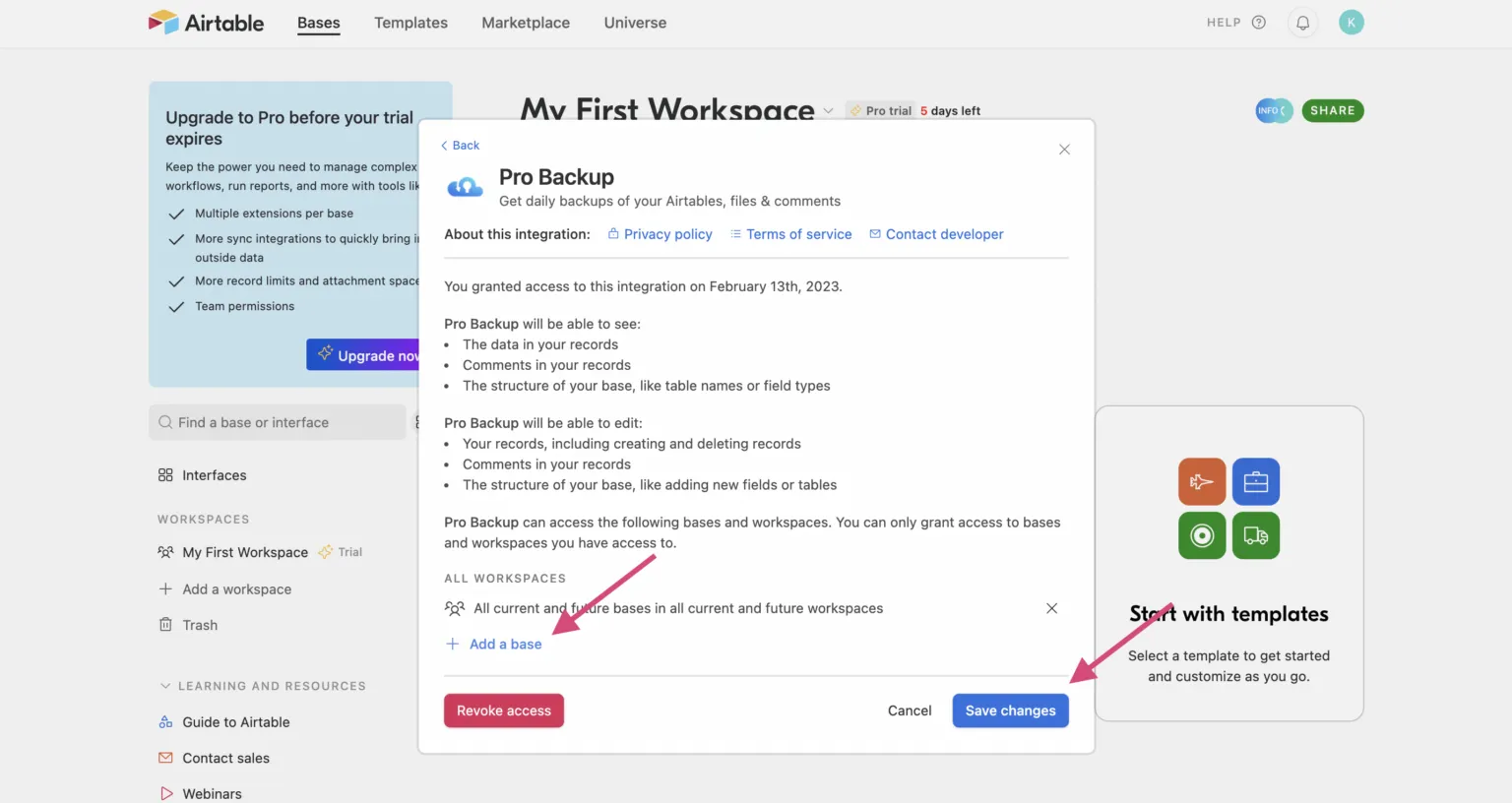
- At the bottom of the page, click “Add a base”.
- Select the workspaces and bases you want to include or remove.
- Click “Save changes”.
Note: Changes to the backup scope will take effect during the next backup cycle. Any newly added bases will be fully backed up within 24 hours.
Connected with a personal access token?
If you set up your backup with a personal access token, ProBackup is not listed under Third-party integrations. Instead:
- Go to the Airtable developer hub and open the token you created for ProBackup.
- Add or remove bases (or workspaces) under its access settings and save.
Stop backing up a base from ProBackup
You can also exclude a base without changing anything in Airtable:
- Open your Airtable backup in the ProBackup vault and click Scope.
- Next to the base, choose Exclude base and confirm.
Excluded bases are no longer backed up and their backed-up data is removed. To undo, open the Excluded bases tab and choose Re-enable this base.
Updated 2 Nov 2026