
This article explains how to connect your Make.com account to ProBackup using an API key. Use these steps to set up automated workflows that trigger when records are deleted from your backups.
Prerequisites
- A ProBackup account with an active subscription
- A Make.com account
Create the connection
- Create a new scenario in Make.com.
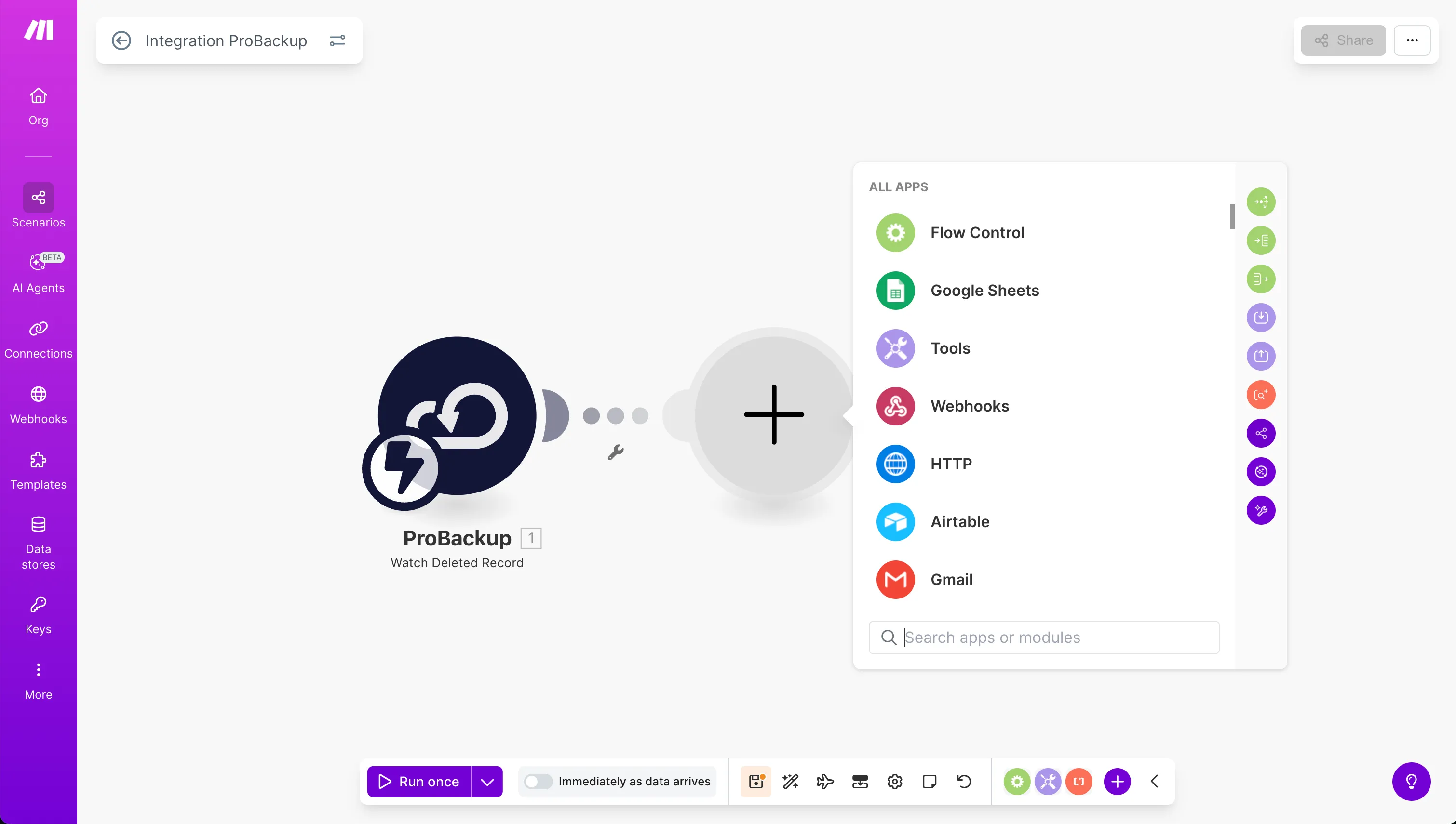
- Click the ”+” button to add a module.
- Search for “ProBackup” in the apps list and select it.
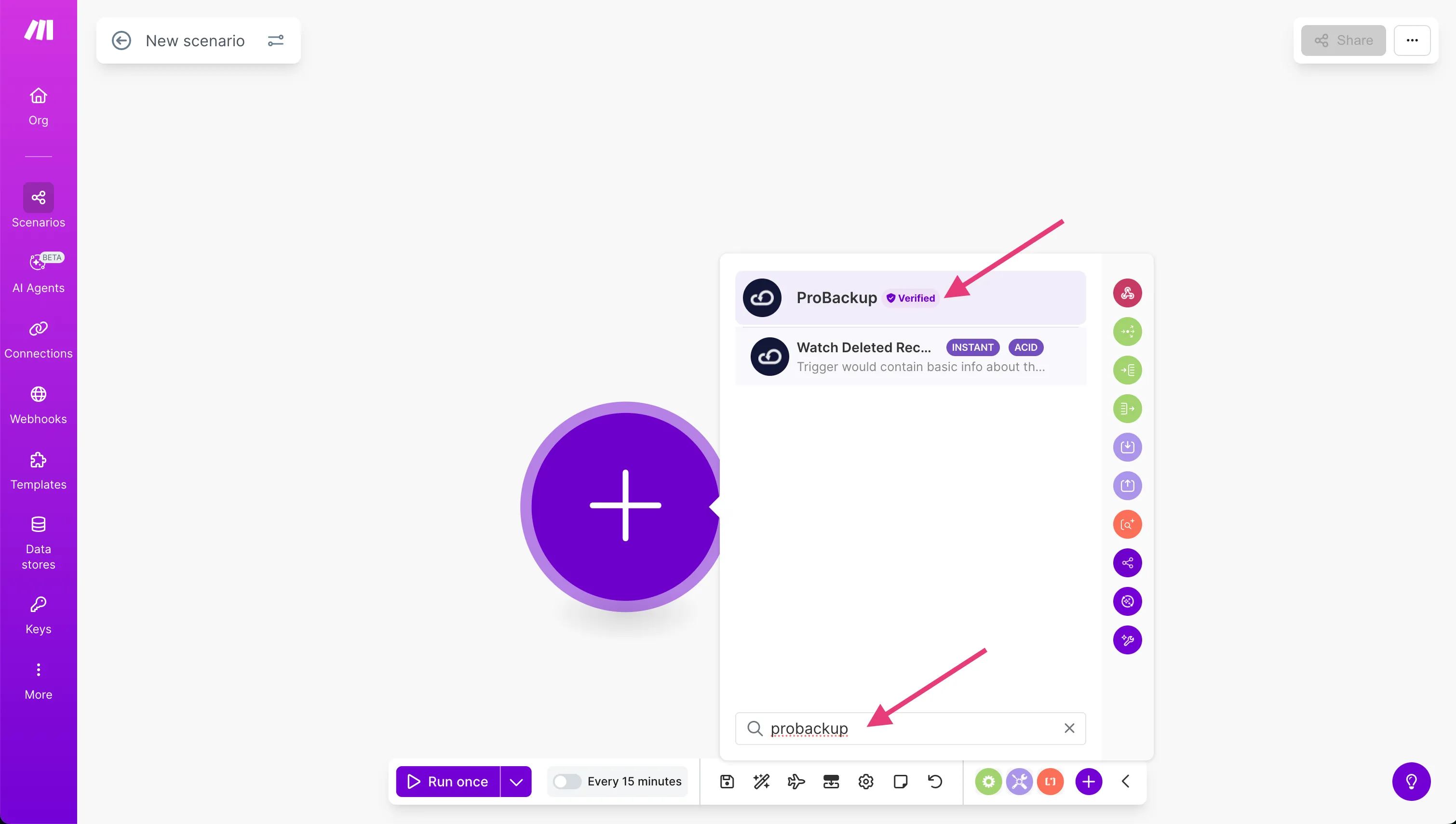
- Choose “Watch Deleted Records” as your trigger.
- In the webhook dropdown, select “Add” to create a new webhook.
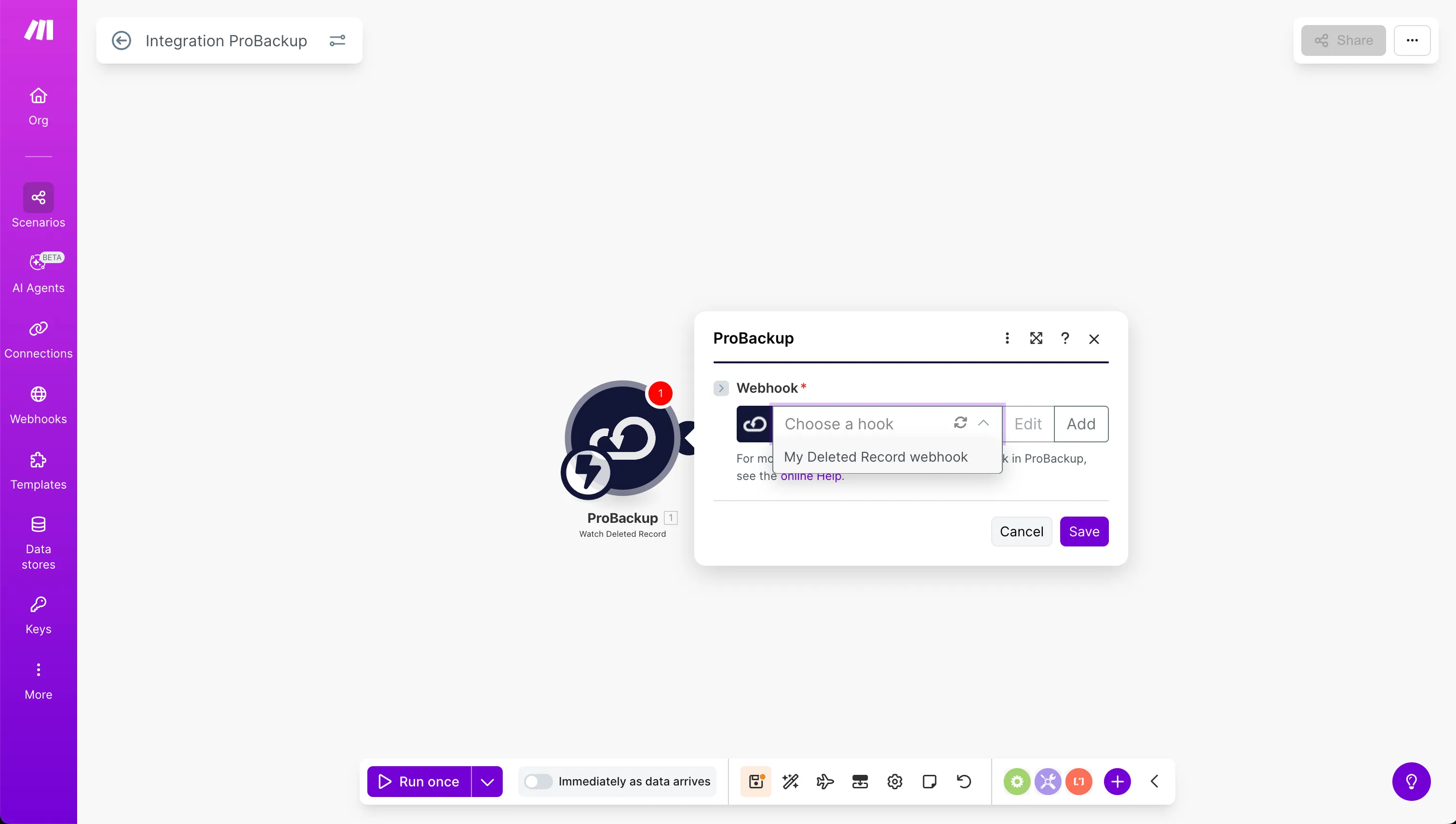
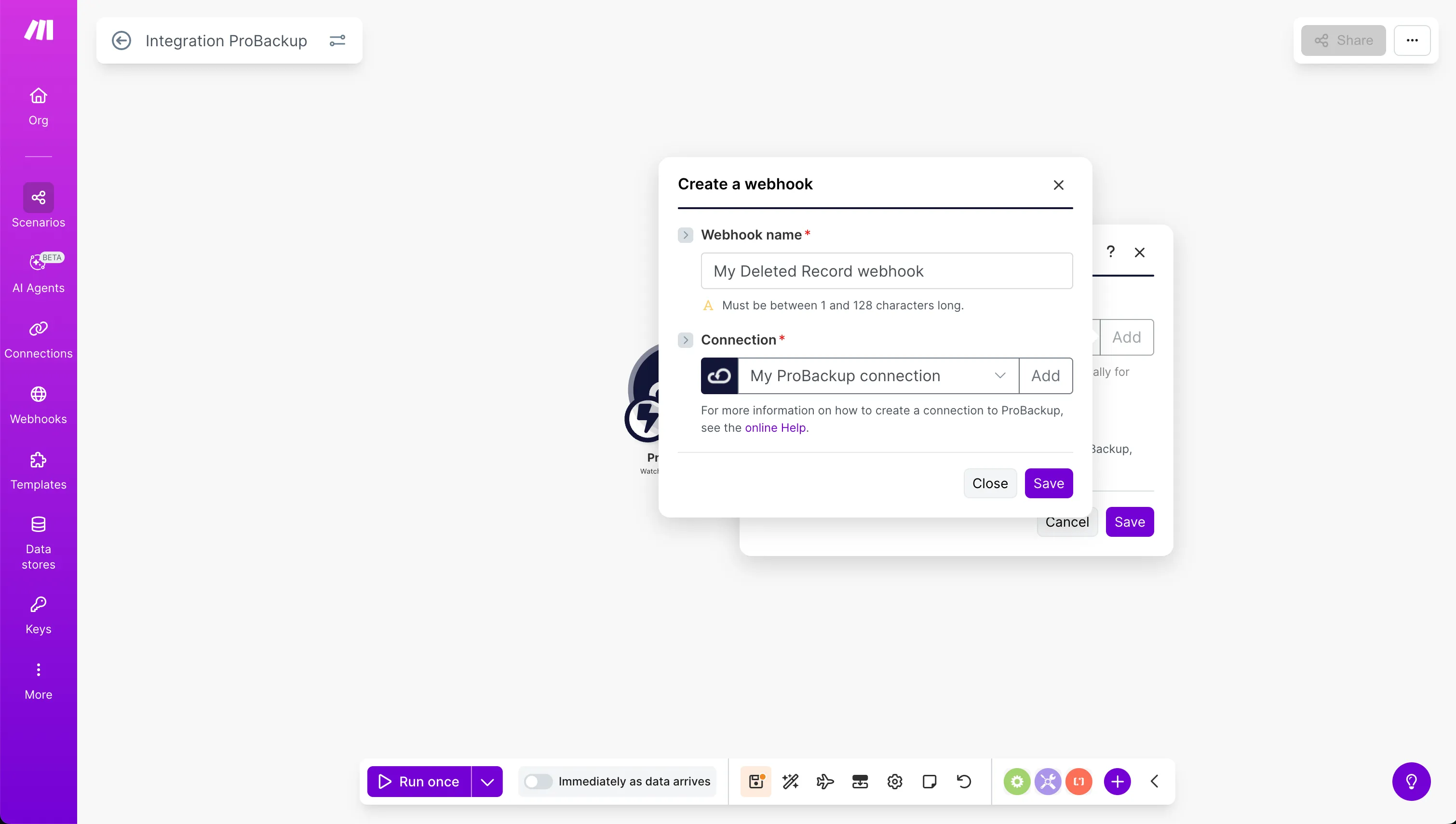
- Give your webhook a name.
- Click “Add” next to “My ProBackup connection”.
Retrieve your API key
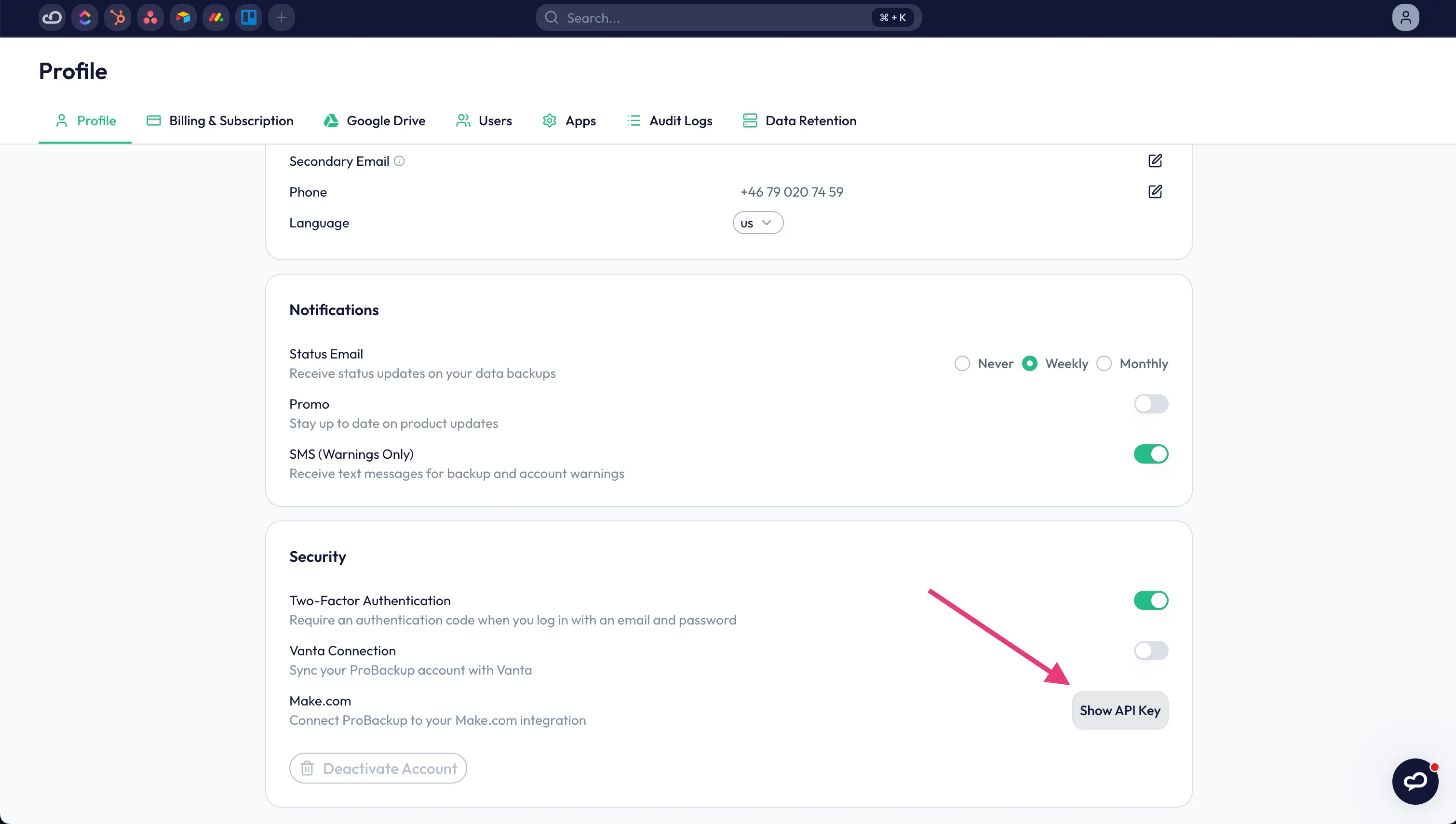
- Go to https://app.probackup.io/settings/profile.
- Scroll down to the “Security” section.
- Click “Show API Key”.
- Copy the key.
Complete the setup
- Paste your API key into the Make.com connection popup.
- Click “Save” to save the connection.
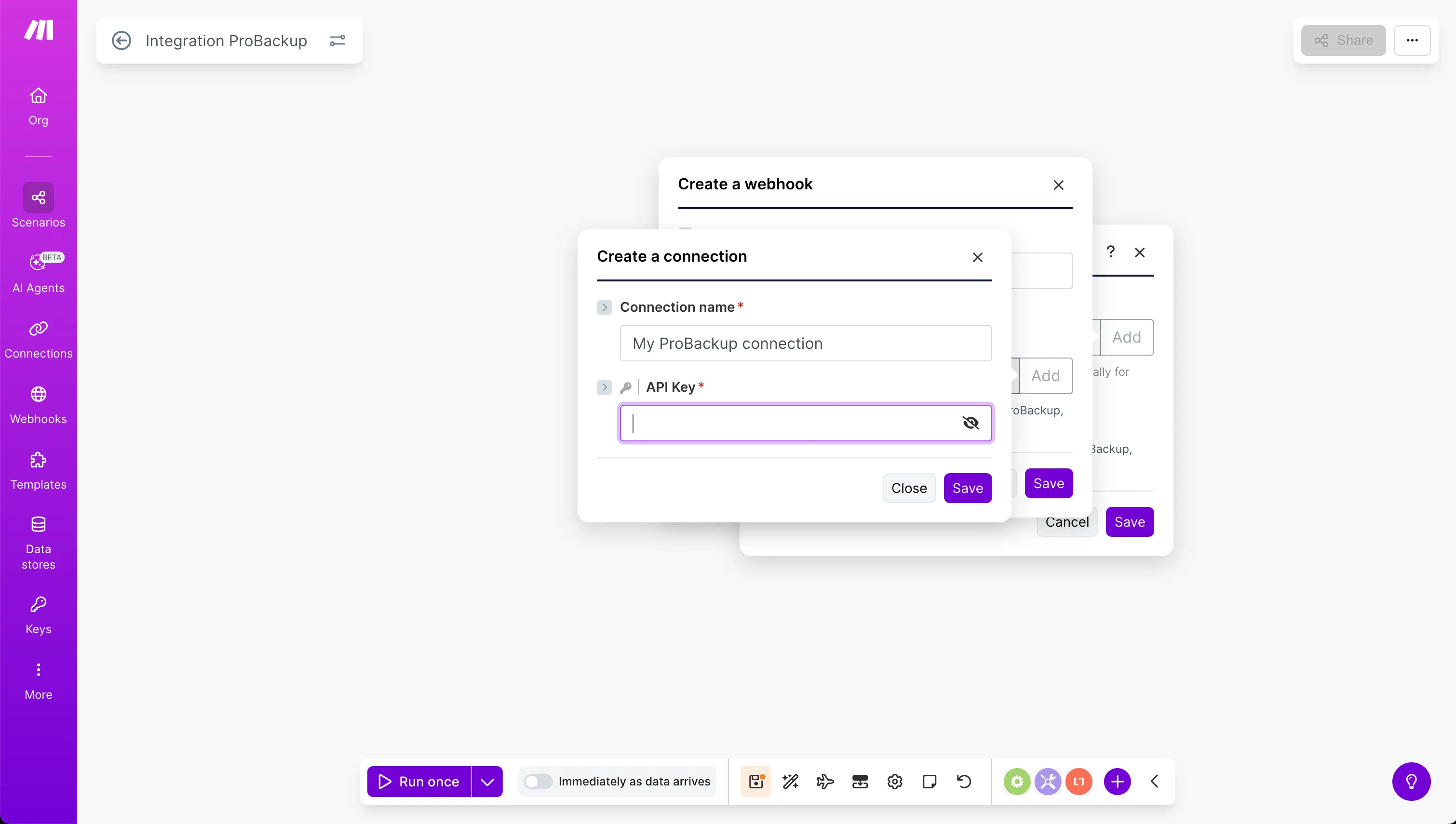
- Click “Save” again to save the webhook.
- Add additional apps or modules to complete your automation.
Updated 15 Jan 2026