
This article explains how to resolve connection issues when adding Google Workspace to ProBackup.
Step 1: Verify the app installation
Before connecting, make sure the ProBackup app is installed for your whole Google Workspace domain.
- Sign in to Google Workspace as a super admin.
- Visit the ProBackup listing on the Google Workspace Marketplace.
- Check the button next to the app title:
- If it says “Install”, the app is not yet installed. Click it, choose Admin install (not an individual install, so every user’s data is included) and grant all requested permissions.
- If it says “Uninstall”, the app is already installed.
Note: Google can take a few minutes to activate an admin install. ProBackup keeps checking automatically for a few minutes after you return.
Step 2: Connect with a super-admin email
Back in ProBackup, under Connect with your super-admin email, enter the email address of a super admin of the domain where you installed the app, and click Connect.
If the connection fails, the message tells you what to fix:
- “We can’t connect yet. Google hasn’t activated the install, or this email isn’t a super admin of the domain where ProBackup was installed.” Wait a few minutes and try again. If it keeps failing, check that the app was installed with Admin install on the same domain as the email you entered.
- “This email isn’t a super admin of your Google Workspace.” Enter the email of a super admin. Other admin roles (for example a user, groups or help desk admin) are not enough.
Step 3: Check that the domain isn’t already connected
A Google Workspace domain can be connected to only one active ProBackup account. If a colleague already backs up your domain with ProBackup, ask them to invite you to their backup instead.
Step 4: A shared drive is missing or shows “no access”
ProBackup can only back up a shared drive when the connected super admin is a member of it. If a shared drive shows “ProBackup can’t access this shared drive” in your vault, add the connected admin account to that shared drive as a Viewer in Google Drive. The drive is backed up within 12 hours.
Step 5: Send connection details to support
If the app is installed but the connection still fails, our support team will need your domain-wide delegation settings to investigate.
- Go to your Google Admin Console.
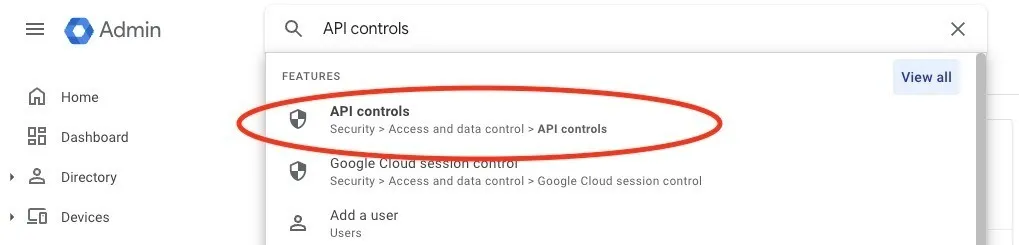
- Navigate to Security > Access and data control > API controls.
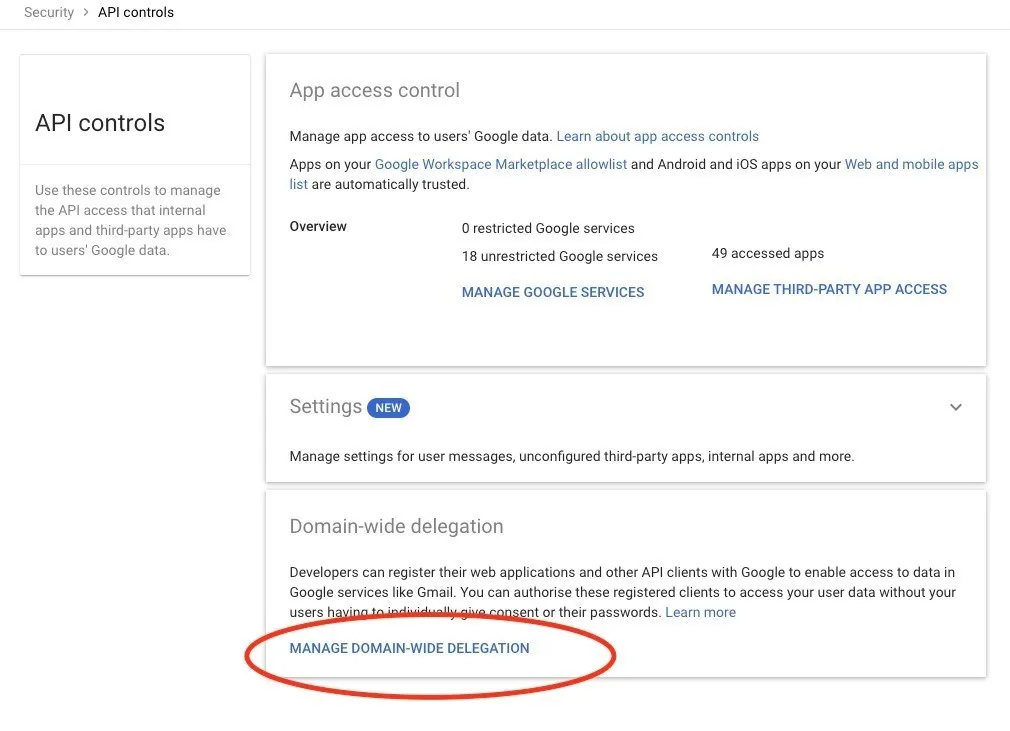
- Scroll down and click “Manage Domain-wide Delegation”.
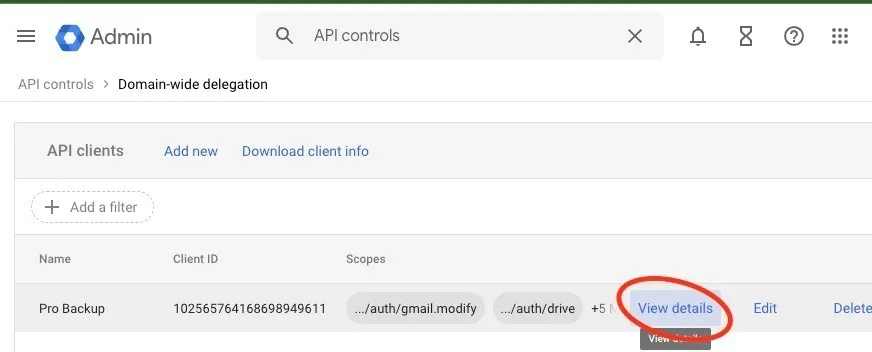
- Click “View Details”.
- Take a screenshot of the delegation settings.
- Send the screenshot to support@probackup.io.
Updated 2 Nov 2026