
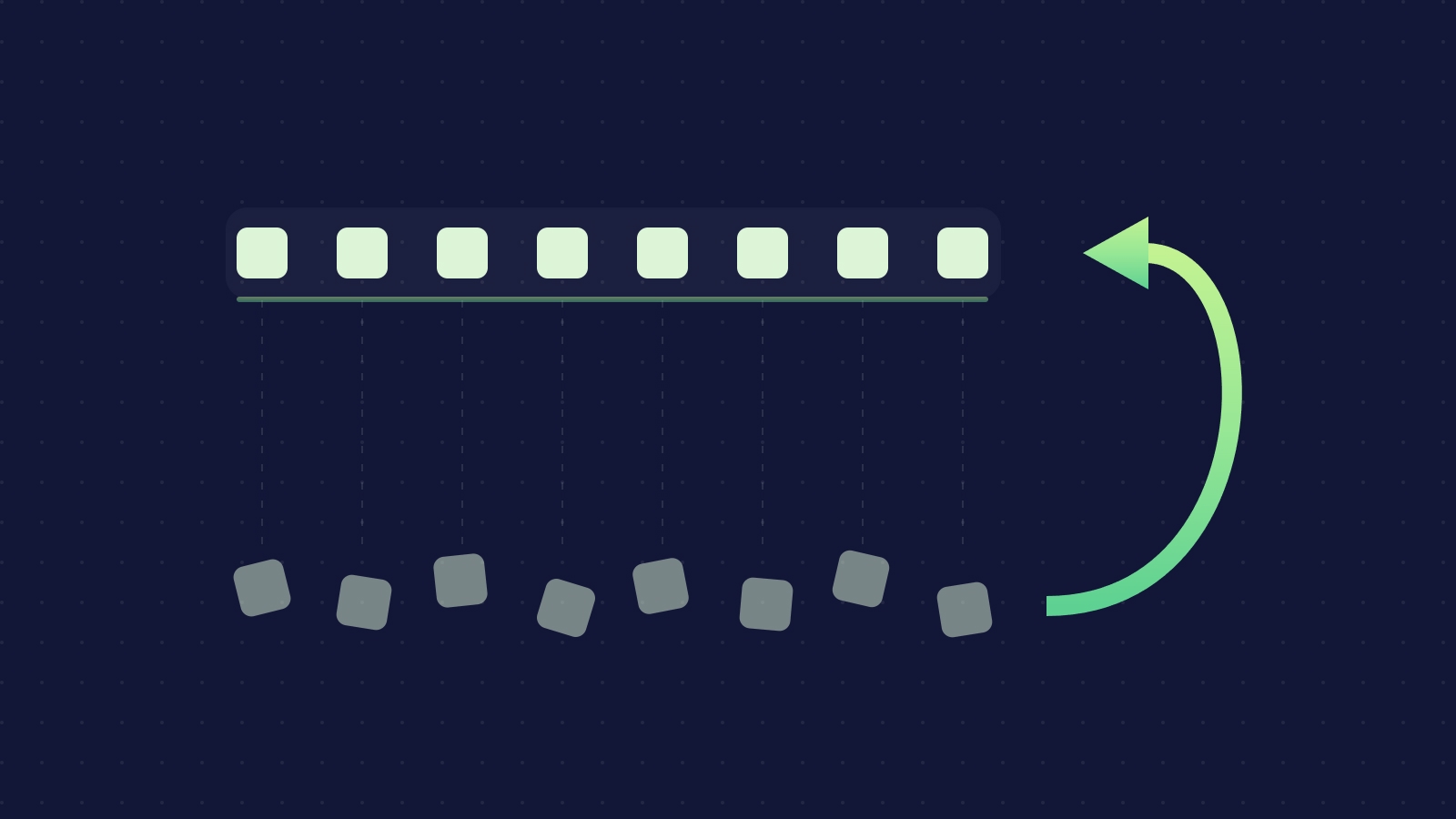
In short: Native undo for a bulk edit ranges from a one-minute toast (monday.com) to 14 days (HubSpot's restore tool); on ClickUp, Asana and Airtable the help centres describe no bulk field rollback at all. Activity logs show old values but rarely put them back. A daily snapshot plus field-level overwrite restore returns every affected record to its pre-edit values.
A bulk edit is the fastest way to change 200 records and the fastest way to break them. Select all, set due date, apply. Only afterwards does someone notice the filter was wrong, the date was relative to today, or the custom field was overwritten rather than appended.
This post covers what each platform lets you undo, why "view history" is not the same as "restore", and how to roll back with a snapshot when the native tools run out.
What native undo actually covers
| Platform | Undo window for a bulk action | Can you view previous field values? | Can you restore them natively? | Source (checked 2026-09-16) |
|---|---|---|---|---|
| ClickUp | The Bulk Action Toolbar article (up to 1,000 tasks per action) describes no undo | Activity view logs that a Custom Field, due date or status was edited, with who and when; the log entries described do not include the prior value | Only the task description has a documented version history with "Restore this version"; no field-level rollback is documented | Bulk Action Toolbar, Activity view, Task description history |
| Asana | Multi-select lets you "mass change the assignee, due date or custom fields"; the article mentions an undo option only for merging duplicate tasks | Task activity shows changes to assignee, due date and custom fields | No documented bulk revert; each task is edited back by hand | Task actions |
| monday.com | Top-of-screen Undo gives "one full minute" but "will not appear for column value changes"; the Activity Log undo covers column value changes, including Batch Actions, "for actions performed within the last 7 days" | Yes: each Activity Log entry shows "The previous value -> The new value". Retention: Basic 1 week, Standard 6 months, Pro 1 year, Enterprise 5 years | Yes, per activity entry, within 7 days, by clicking undo in the log | How to undo something, The Activity Log |
| HubSpot | An Undo button appears "for a short period" after a manual edit from a record or index page, not for changes made by workflows, API or connected apps; the restore tool can revert changes made "up to 14 days ago" (Super Admin; paid Hub at Starter or higher, or Smart CRM Professional/Enterprise) | Yes: property history shows previous values, change source and timestamp; export keeps up to 45 revisions for contacts and 20 for other objects | Yes, within 14 days via the restore tool or "Restore all from this source" in property history; after that, export history and re-import | View property history, Undo property value changes, Restore CRM changes, Export property history |
| Airtable | Cmd/Ctrl+Z undo and redo in the base; the shortcut article states no limits | Record revision history shows who changed a record and when; retention Free 2 weeks, Team 1 year, Business 2 years, Enterprise Scale 3 years. The article does not describe a revert from history | No record-level revert. Restoring a base snapshot "creates a new base"; "the existing base cannot be overwritten" | Undo or redo an action, Record-level revision history, Snapshots |
Two of the five, monday.com and HubSpot, offer a real field-level undo, both time-boxed: 7 days in the monday.com Activity Log and 14 days in HubSpot's restore tool. The other three leave you with a log to read and a spreadsheet to rebuild.
Why "view history" is not "restore"
Every platform above records something about a change. The gap is between knowing what the value was and putting it back.
- Retention is short and plan-gated. monday.com's Basic plan keeps one week of activity; Airtable's Free plan keeps two weeks of revision history. HubSpot keeps 20 revisions per property on companies, deals and tickets, so a property that changes often loses its older values first.
- History is per record. Reading 200 task histories and re-entering 200 dates is a day's work and introduces its own typos.
- Automations re-fire. Editing values back by hand can trigger the same automations that reacted to the bad edit, so the cleanup creates its own cleanup.
- The window is measured from the edit, not from discovery. A bad bulk edit is often found at the next weekly review, which is when monday.com's 7-day undo has just expired.
- Deletions and edits are handled by different tools. Trash covers deleted records; undo and history cover edits. A bulk action that both moved and re-dated tasks may need both, on different clocks. We compared the trash windows in version history and trash retention across SaaS apps and, for ClickUp specifically, in how to delete and restore data in ClickUp.
Rolling back with a snapshot: field-level overwrite
ProBackup takes a snapshot of each connected platform every 24 hours. A snapshot is the full API-available state of the account on that day, so the values a record held before the bulk edit exist in yesterday's snapshot regardless of what the platform's own log retains.
To reverse a bulk edit you use the second of ProBackup's two restore modes: overwrite existing records field by field. It is available for HubSpot, ClickUp, Asana, monday.com, Airtable and Attio. Calculated fields (system fields, formulas and relations) are excluded because the platform computes them; everything else is written back. There is no per-restore record limit.
Snapshot history is kept for 6 months on Plus, 2 years on Pro and without limit on Premium, so the rollback window is your retention, not the platform's undo timer.
Worked example: 200 tasks, due dates shifted by a bulk edit
A project manager in ClickUp selects every task in a Folder to move one sprint's tasks out a week, but the filter includes the whole Folder. Two hundred tasks now have due dates seven days later than intended. ClickUp's Activity view records that the due dates changed, but there is no bulk undo, and the Trash is irrelevant because nothing was deleted.
- Open the ClickUp backup in ProBackup and select the snapshot from the day before the edit.
- Navigate to the Folder and select the affected Lists, or use Global Search (unlimited on Pro and Premium; 3 free uses per month on Plus) to find the tasks by name.
- Choose overwrite existing records as the restore mode. ProBackup matches each task by its ClickUp ID and writes the snapshot's field values back to the live task: due date, start date, assignees, priority, status and custom fields.
- Check one task, then check the Activity view: each restored task shows the due date change back to the original value, made by the ProBackup connection.
Automations that watch due dates may fire during the restore, so pause the relevant ones first. Comments, attachments and anything added after the snapshot are not touched by an overwrite of field values.
The same procedure works for a HubSpot deal property overwritten across a list, a monday.com status column reset by a batch action after the 7-day undo has expired, an Asana custom field cleared with multi-select, or an Airtable single-select field set to the wrong option across a filtered view.
When to choose new-record restore instead
The other restore mode creates new duplicate records and leaves the live records untouched. Choose it when:
- the records were deleted, not edited (there is nothing to overwrite);
- you want to compare old and new values side by side before deciding;
- the bulk edit happened days ago and the records have since received legitimate updates you want to keep, so you would rather copy specific values across by hand from the duplicates;
- the data type is not covered by overwrite mode on that platform.
Both modes restore into the original account only. Details for each platform are on the granular restore feature page and the platform pages for ClickUp, Asana, monday.com, HubSpot and Airtable. The overwrite mode itself is explained in overwriting existing records when restoring data.
Preventing the next one
A rollback should be the fallback. A few habits cut the number of times you need it.
- Limit who can bulk edit. ClickUp guests cannot use the Bulk Action Toolbar at all; on the other platforms, keep editing rights on shared boards and CRM lists to the people who own them and give viewers view access.
- Test on a filtered view first. Before applying a bulk change, save the filter, count the selection, and run the action on one page or one record. HubSpot notes that some bulk actions apply only to the records on the current page, which is a useful limit to work with rather than against.
- Watch the overwrite checkbox. ClickUp's bulk edit of Label Custom Fields has an "Overwrite existing values" option; HubSpot's bulk edit lets you append, replace or remove values for multi-select properties but overwrites text and single-select properties outright. Read the dialog.
- Turn on change alerts. ProBackup's Smart Alerts (Pro and Premium plans) flag unusual numbers of changed or deleted records in the daily report, so a bad bulk edit is caught at the next snapshot rather than at the next review meeting. See how to restrict deletions in your SaaS apps for the platform-side controls.
Frequently asked questions
How do I undo a bulk edit in ClickUp?
ClickUp's help centre documents no undo for the Bulk Action Toolbar and no version history for fields other than the task description (checked 2026-09-16). To roll back due dates, statuses or custom fields across many tasks you need a copy of the previous values: a daily ProBackup snapshot restored in overwrite mode writes them back task by task.
Can HubSpot revert a bulk property change?
Yes, within 14 days, for Super Admins on a paid Hub: the restore tool reverts modified properties or created records, and property history offers "Restore all from this source". Changes made by workflows, the API or connected apps are excluded from the manual Undo button. After 14 days you export property history (up to 45 revisions for contacts, 20 for other objects) and re-import, or restore from a backup snapshot.
Does monday.com's activity log let me restore old values?
For column value changes made in the last 7 days, yes: an undo button appears next to the entry, including for Batch Actions. Older entries still show "previous value -> new value" for as long as your plan retains the log (Basic 1 week, Standard 6 months, Pro 1 year, Enterprise 5 years), but you re-enter them by hand or restore from a snapshot.
Will an overwrite restore change fields I did not mean to touch?
It writes the snapshot's values for the fields it supports and skips calculated fields (system fields, formulas, relations). Any edit made after the snapshot date to a supported field is replaced by the snapshot value, so pick the snapshot from just before the bad edit and restore only the affected Lists, boards or records. If you are unsure, restore as new duplicate records first and compare.
Roll back the edit, not the whole week
ProBackup takes daily snapshots of ClickUp, Asana, monday.com, HubSpot and Airtable and is trusted by 4,000+ teams. Plans start at $25 per month, billed yearly.
Start your free 7-day trial - no credit card required.

Related posts

How to back up Google Workspace (and restore deleted data)


How to back up GitHub (and restore deleted data)

How to back up Attio (and restore deleted data)